> ## Documentation Index
> Fetch the complete documentation index at: https://docs.spott.io/llms.txt
> Use this file to discover all available pages before exploring further.
# WhatsApp Business
> Send WhatsApp messages from your business number, using approved templates you can send to many recipients at once.
**WhatsApp Business** lets you message candidates and contacts from your organization's
WhatsApp business number, rather than from your personal WhatsApp account. Because it
runs on a business number, you can send an **approved template** to many recipients at
once, which makes WhatsApp usable for outreach at the scale you already use email for.
This is not the same integration as [WhatsApp](/docs/integrations/whatsapp). That one
syncs the conversations from **your own** WhatsApp account into Spott and keeps them
private to you. This one sends from a **business number** using approved templates.
You can run both, and they sit next to each other in settings.
## Connect
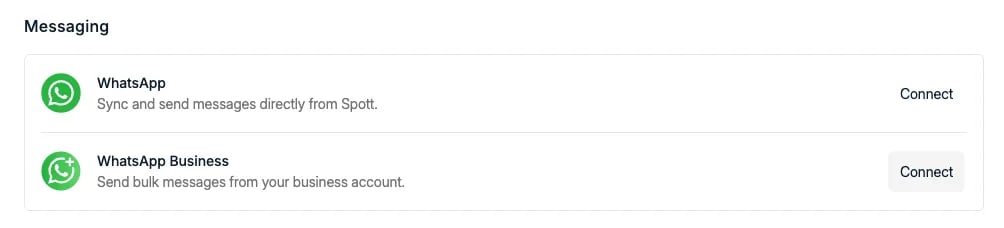
Go to **Settings → Accounts**, find **WhatsApp Business** under **Messaging**, and
click **Connect**. It sits directly under the personal WhatsApp integration, described
as *"Send bulk messages from your business account"*, so check you are connecting the
right one of the two.
 ## Send a message
Open **Send WhatsApp Business message** from a candidate or contact, or from a
selection in a list.
## Send a message
Open **Send WhatsApp Business message** from a candidate or contact, or from a
selection in a list.
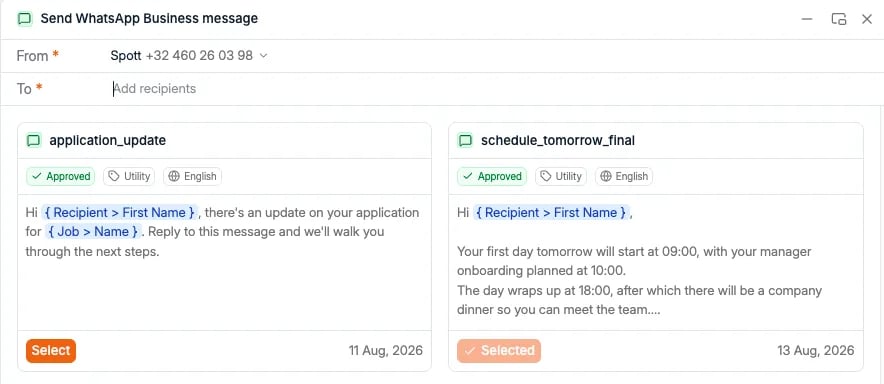 The dialog has three parts:
* **From**, the business number the message is sent from. If your workspace has more
than one, pick it here.
* **To**, the recipients. Add as many as you need: this is the same field whether you
are messaging one person or a few hundred.
* **The templates**, shown as cards. Click **Select** on the one you want to send.
## Templates
Every WhatsApp Business message goes out as a template. You cannot type a free-form
first message the way you would in a normal WhatsApp chat, because WhatsApp itself
requires businesses to use pre-approved wording when they start a conversation.
Each template card tells you what you are picking:
| On the card | What it means |
| ---------------------------- | ------------------------------------------------------------------------------------ |
| **Name** | The template's identifier, for example `application_update` |
| **Approved** | WhatsApp has reviewed and approved this wording. Only approved templates can be sent |
| **Utility** or **Marketing** | The category WhatsApp filed it under, which is what WhatsApp charges on |
| **Language** | The language the template was approved in |
| The body | The exact text that will be sent, with its variables shown inline |
| The date | When the template was added |
Templates carry **variables**, written like `{ Recipient > First Name }` and
`{ Job > Name }`, which Spott fills in per recipient when it sends. That is what makes
one template work for a whole list: everyone gets their own name and their own job,
not a generic blast.
Read the body on the card before you send, not just the name. The template name is
yours, but the wording is whatever WhatsApp approved, and it is the wording that
reaches the candidate.
## Sending in bulk
Because a template is pre-approved and its variables resolve per person, one send can
cover a whole shortlist: an interview reminder to everyone booked tomorrow, a status
update to everyone waiting on a decision, a first-day briefing to a batch of starters.
Add the recipients to **To**, pick the template, and send. Each person receives their
own message on their own thread, so a reply comes back as a normal conversation rather
than into a group.
WhatsApp is a more personal channel than email and people treat it that way. A
template that reads like a mailshot will cost you more goodwill on WhatsApp than the
same words would in an inbox. Keep bulk sends to messages the recipient is actually
waiting for.
The dialog has three parts:
* **From**, the business number the message is sent from. If your workspace has more
than one, pick it here.
* **To**, the recipients. Add as many as you need: this is the same field whether you
are messaging one person or a few hundred.
* **The templates**, shown as cards. Click **Select** on the one you want to send.
## Templates
Every WhatsApp Business message goes out as a template. You cannot type a free-form
first message the way you would in a normal WhatsApp chat, because WhatsApp itself
requires businesses to use pre-approved wording when they start a conversation.
Each template card tells you what you are picking:
| On the card | What it means |
| ---------------------------- | ------------------------------------------------------------------------------------ |
| **Name** | The template's identifier, for example `application_update` |
| **Approved** | WhatsApp has reviewed and approved this wording. Only approved templates can be sent |
| **Utility** or **Marketing** | The category WhatsApp filed it under, which is what WhatsApp charges on |
| **Language** | The language the template was approved in |
| The body | The exact text that will be sent, with its variables shown inline |
| The date | When the template was added |
Templates carry **variables**, written like `{ Recipient > First Name }` and
`{ Job > Name }`, which Spott fills in per recipient when it sends. That is what makes
one template work for a whole list: everyone gets their own name and their own job,
not a generic blast.
Read the body on the card before you send, not just the name. The template name is
yours, but the wording is whatever WhatsApp approved, and it is the wording that
reaches the candidate.
## Sending in bulk
Because a template is pre-approved and its variables resolve per person, one send can
cover a whole shortlist: an interview reminder to everyone booked tomorrow, a status
update to everyone waiting on a decision, a first-day briefing to a batch of starters.
Add the recipients to **To**, pick the template, and send. Each person receives their
own message on their own thread, so a reply comes back as a normal conversation rather
than into a group.
WhatsApp is a more personal channel than email and people treat it that way. A
template that reads like a mailshot will cost you more goodwill on WhatsApp than the
same words would in an inbox. Keep bulk sends to messages the recipient is actually
waiting for.