> ## Documentation Index
> Fetch the complete documentation index at: https://docs.spott.io/llms.txt
> Use this file to discover all available pages before exploring further.
# RingCentral
> Connect RingCentral to make and receive calls directly from Spott, with call notes and recordings synced automatically.
## Overview
RingCentral is a VoIP provider. Connecting it to Spott lets you call any Candidate or Contact with Click-to-Dial, so you can launch calls without switching tools. All call data is synced back to Spott automatically.
## How it works
Once RingCentral is connected:
* Click the phone icon on any Candidate or Contact record to start a call.
* The call is initiated through RingCentral with the phone number prefilled automatically.
* Call notes and recordings are synced back to Spott automatically, once recording is
enabled in RingCentral (see [Enable call recording](#enable-call-recording-optional)
below; it is off by default in RingCentral).
## Enable RingCentral for your workspace
Go to **Settings → Integrations → RingCentral** and create a JWT credential.
1. Click **Create JWT Credential** to open the RingCentral Developer Console. The link automatically scopes the credential to Spott's application.
2. Under **Who is permitted to use this credential?**, select **Only specific apps of my choice** and make sure Spott's Client ID is filled in.
3. Copy the generated JWT credential, paste it into the field on this page, then click **Connect**.
Only administrators can configure the RingCentral integration. If you don't see this option, contact your workspace admin.
 ## Select your RingCentral number
Navigate to **Settings → Calls** and find the **RingCentral** section.
* Choose your RingCentral number from the available list.
* This number is essential for receiving incoming calls and linking call notes to the correct caller.
## Enable call recording (optional)
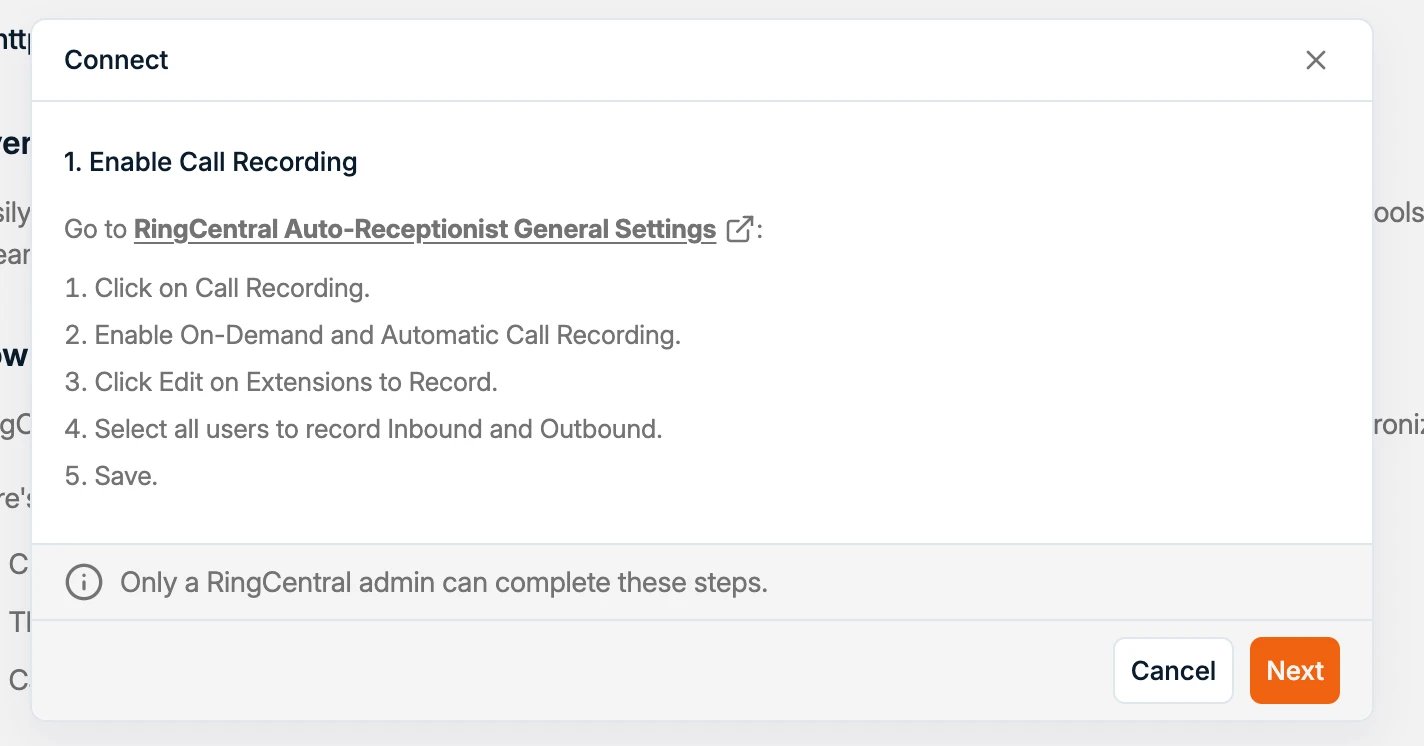
To have call recordings synced to Spott, enable recording in the **RingCentral Admin Portal**. There are two options:
* **On-demand recording:** users can record calls manually at any time with a button press. A notification plays when recording starts and stops. Recordings are saved for 90 days.
* **Automatic recording:** recording starts at the beginning of each call and stops when the call ends. It is turned off by default.
Both types can be enabled, but only one can be active during a call. If automatic recording is on, it takes priority and on-demand recording is not available for that call.
To enable recording:
1. Sign in to the RingCentral Admin Portal.
2. Go to **Phone System → Auto-Receptionist → General Settings → Call Recording**.
3. Toggle on **On-demand** or **Automatic** call recording.
4. Click **Save**.
Automatic recording and recording sync require a RingCentral plan that includes them
(the Ultra plan at the time of writing); check RingCentral's current plan comparison.
## Start making calls
Click the phone icon on any Candidate or Contact to initiate a call. Call data and recordings are synchronized automatically.
## Select your RingCentral number
Navigate to **Settings → Calls** and find the **RingCentral** section.
* Choose your RingCentral number from the available list.
* This number is essential for receiving incoming calls and linking call notes to the correct caller.
## Enable call recording (optional)
To have call recordings synced to Spott, enable recording in the **RingCentral Admin Portal**. There are two options:
* **On-demand recording:** users can record calls manually at any time with a button press. A notification plays when recording starts and stops. Recordings are saved for 90 days.
* **Automatic recording:** recording starts at the beginning of each call and stops when the call ends. It is turned off by default.
Both types can be enabled, but only one can be active during a call. If automatic recording is on, it takes priority and on-demand recording is not available for that call.
To enable recording:
1. Sign in to the RingCentral Admin Portal.
2. Go to **Phone System → Auto-Receptionist → General Settings → Call Recording**.
3. Toggle on **On-demand** or **Automatic** call recording.
4. Click **Save**.
Automatic recording and recording sync require a RingCentral plan that includes them
(the Ultra plan at the time of writing); check RingCentral's current plan comparison.
## Start making calls
Click the phone icon on any Candidate or Contact to initiate a call. Call data and recordings are synchronized automatically.