> ## Documentation Index
> Fetch the complete documentation index at: https://docs.spott.io/llms.txt
> Use this file to discover all available pages before exploring further.
# Dialpad
> Connect Dialpad to make and receive calls from Spott, with calls logged and recordings transcribed automatically.
## Overview
Dialpad lets your team make and receive calls directly from Spott. Once connected, you
assign a Dialpad number to each user, and calls are logged automatically against your
candidates and contacts.
## How it works
Once Dialpad is connected, Spott receives a notification whenever a call ends. Call
recordings are fetched, stored, and transcribed, so you can review them directly in
Spott. To link calls to the right person, each team member assigns their Dialpad number
in Spott.
## Configure
### 1. Generate an API key
A company admin opens **Admin Settings → My Company → Authentication → API Keys** in
Dialpad, clicks **Add Key**, gives it a name, enables all available scopes, and saves.
Treat the API key as a sensitive credential. It grants access across your whole
Dialpad company.
### 2. Connect Spott
In **Settings → Integrations → Dialpad**, click **Enable**, paste the API key, and
connect. Spott sets up the call-end webhook for you automatically, so there is nothing
else to configure.
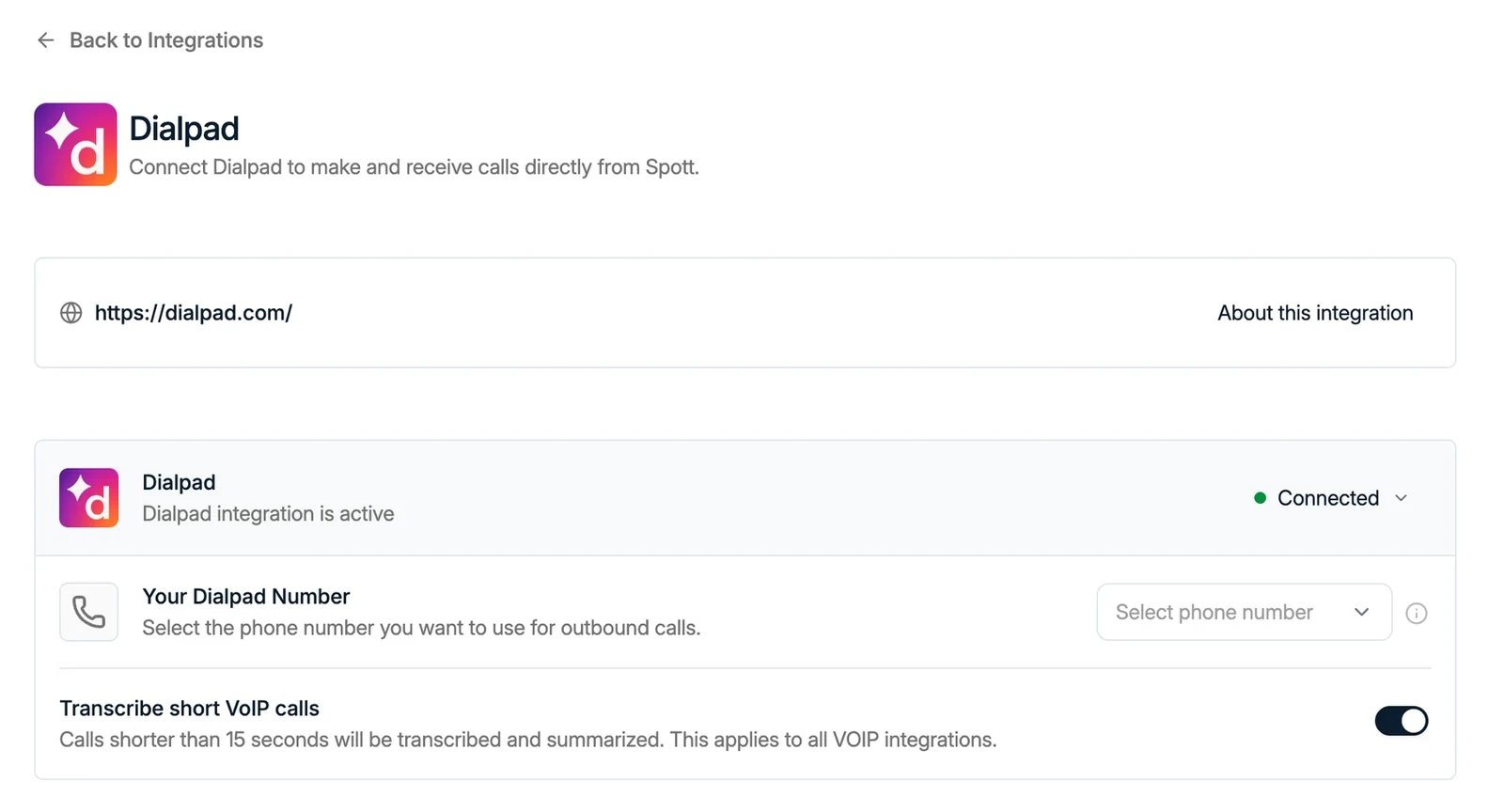 ### 3. Assign your number
Once connected, each user assigns their **Dialpad number** in the integration settings,
so calls are linked to the correct person.
## Call recordings
Spott transcribes and summarizes the recordings Dialpad makes, so a call must be
**recorded in Dialpad** to produce a transcript and note in Spott. Recordings can be
captured per call or automatically for every call:
* **Per call**: press **Record** during an active call in Dialpad.
* **All calls**: a company admin enables automatic recording under **Admin Settings →
Office → Office Settings → Making Calls → Enable Automatic Call Recordings**, for the
whole office or specific users.
With automatic recording on, callers do not hear a recording greeting. Inform them as
required by local regulations.
### 3. Assign your number
Once connected, each user assigns their **Dialpad number** in the integration settings,
so calls are linked to the correct person.
## Call recordings
Spott transcribes and summarizes the recordings Dialpad makes, so a call must be
**recorded in Dialpad** to produce a transcript and note in Spott. Recordings can be
captured per call or automatically for every call:
* **Per call**: press **Record** during an active call in Dialpad.
* **All calls**: a company admin enables automatic recording under **Admin Settings →
Office → Office Settings → Making Calls → Enable Automatic Call Recordings**, for the
whole office or specific users.
With automatic recording on, callers do not hear a recording greeting. Inform them as
required by local regulations.