> ## Documentation Index
> Fetch the complete documentation index at: https://docs.spott.io/llms.txt
> Use this file to discover all available pages before exploring further.
# Broadbean
> Set up and use Broadbean within Spott to distribute job adverts to multiple job boards from a single workflow.
## **About the integration**
### **Overview**
Broadbean is a **job distribution platform** that allows recruiters to publish job adverts to hundreds of job boards, social media platforms, and aggregators from one place.
By connecting Broadbean to Spott, you can distribute jobs directly from your recruitment workflow without switching tools. Spott sends job data to Broadbean using Broadbean AdCourier (ADC), after which Broadbean handles distribution to your configured channels.
### **How it works**
Once connected, Spott acts as the source of truth for your job data, while Broadbean manages distribution.The process looks like this:
1. A workspace admin connects Spott to Broadbean using your organization’s AdCourier credentials.
2. Each team member enters their personal ADC username.
3. When publishing a job, Broadbean is selected as a distribution channel.
4. Broadbean distributes the advert to the configured job boards.
## **Configure**
Make sure Broadbean is enabled at workspace level before entering your personal ADC username.
### **Enable Broadbean for your workspace**
Go to **Settings > Integrations > Broadbean**.
* Click **Enable**.
* Enter your **Broadbean AdCourier Client ID** and **Client Secret**.
* Choose whether you would like to receive inbound applications through
* *Broadbean's Candidate Hub*
Applications are sent to Broadbean and will be processed by Spott upon receipt from Broadbean, or available through Broadbean's Candidate Hub.
* *Apply Online flow*
Provide a URL to which candidates will be directed (e.g. Spott or your own website job board).
 * Save the configuration.
Only workspace admins can enable Broadbean. If you don’t see this option, contact your workspace admin.
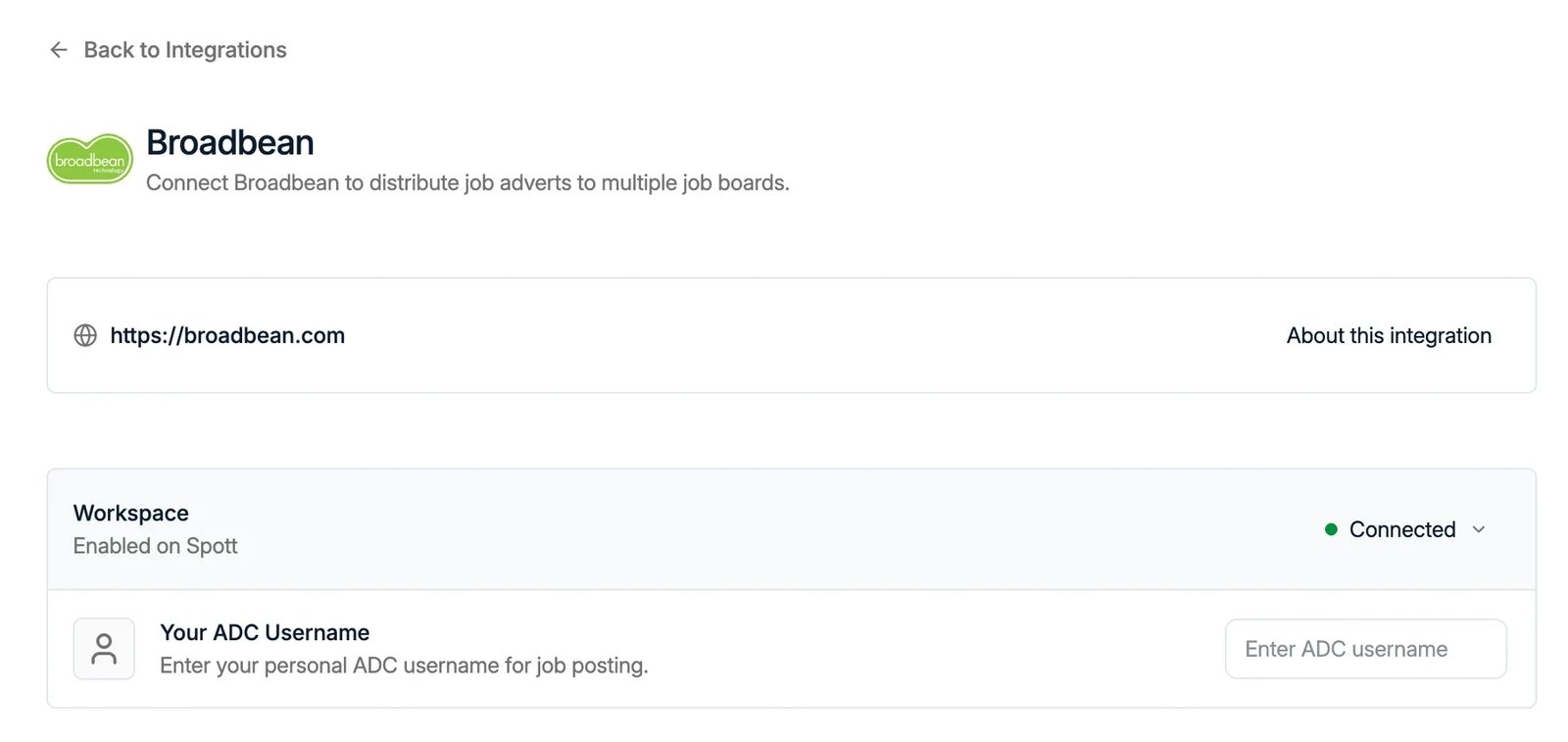
### **Enter your ADC username**
Once Broadbean is enabled for the workspace:
* Navigate to **Settings > Integrations > Broadbean**.
* Enter your personal **ADC Username**.
This username is required so Broadbean can attribute job postings to you.
Your ADC username is provided by Broadbean and is usually the same one you use to log into AdCourier.
### **Post jobs via Broadbean**
When creating or publishing a job in Spott:
* Navigate to the **Advertising** tab on any job
* Select **Post Advert with Broadbean** as a distribution channel.
* Publish the job through the embedded Broadbean AdCourier window
Spott sends the job advert to Broadbean, which then distributes it to your configured job boards.
One the Job Advert has been delivered, it will show up in the list of Job Board postings on the right hand side of the Advertising tab (it may take up to 2 minutes for newly posted adverts to be correctly delivered).
When Candidates apply through the apply URL, they will automatically be processed by Spott and will land in the **Inbound** tab for your review.
Available job boards and posting rules are managed in Broadbean, not in Spott.
**Examples of Job boards distributed via Broadbean**
* **Indeed**
* **LinkedIn Jobs**
* **Glassdoor**
* **Monster**
* **Local and niche boards**
Spott also supports [Idibu](/docs/integrations/idibu) as a multiposter and
[VDAB](/docs/integrations/vdab) for the Flemish public job board, both available from
the same Advertising tab when enabled.
* Save the configuration.
Only workspace admins can enable Broadbean. If you don’t see this option, contact your workspace admin.
### **Enter your ADC username**
Once Broadbean is enabled for the workspace:
* Navigate to **Settings > Integrations > Broadbean**.
* Enter your personal **ADC Username**.
This username is required so Broadbean can attribute job postings to you.
Your ADC username is provided by Broadbean and is usually the same one you use to log into AdCourier.
### **Post jobs via Broadbean**
When creating or publishing a job in Spott:
* Navigate to the **Advertising** tab on any job
* Select **Post Advert with Broadbean** as a distribution channel.
* Publish the job through the embedded Broadbean AdCourier window
Spott sends the job advert to Broadbean, which then distributes it to your configured job boards.
One the Job Advert has been delivered, it will show up in the list of Job Board postings on the right hand side of the Advertising tab (it may take up to 2 minutes for newly posted adverts to be correctly delivered).
When Candidates apply through the apply URL, they will automatically be processed by Spott and will land in the **Inbound** tab for your review.
Available job boards and posting rules are managed in Broadbean, not in Spott.
**Examples of Job boards distributed via Broadbean**
* **Indeed**
* **LinkedIn Jobs**
* **Glassdoor**
* **Monster**
* **Local and niche boards**
Spott also supports [Idibu](/docs/integrations/idibu) as a multiposter and
[VDAB](/docs/integrations/vdab) for the Flemish public job board, both available from
the same Advertising tab when enabled.