> ## Documentation Index
> Fetch the complete documentation index at: https://docs.spott.io/llms.txt
> Use this file to discover all available pages before exploring further.
# AdvertsData
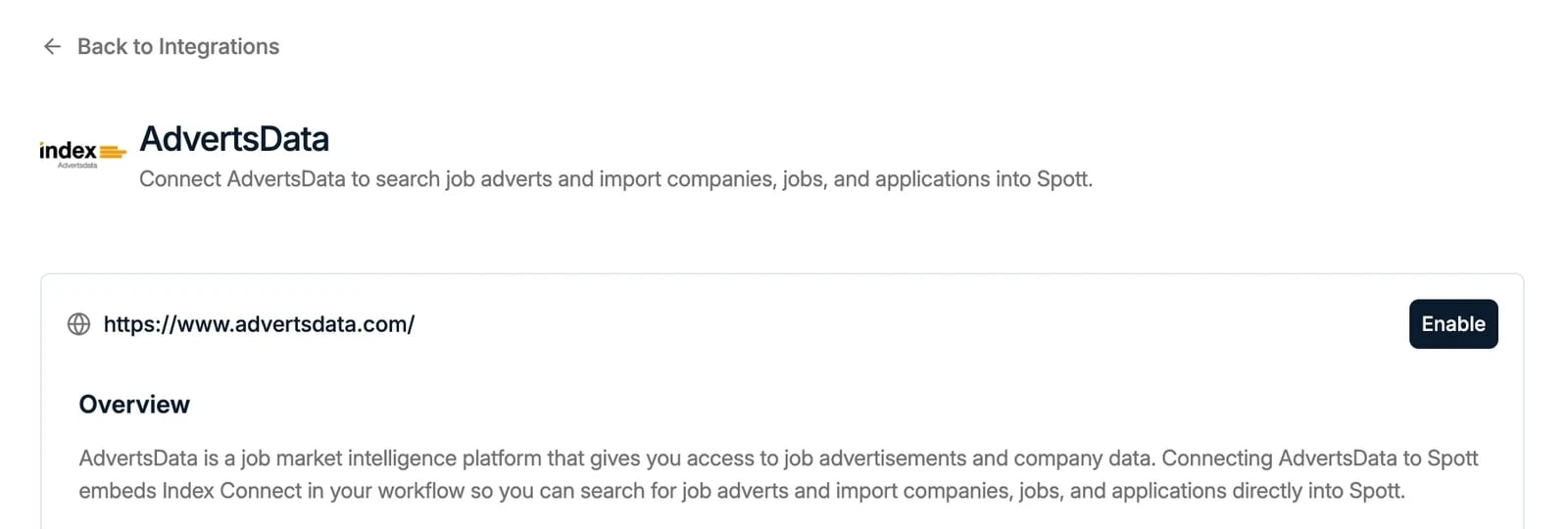
> Connect AdvertsData to search job adverts and import companies, jobs, and applications into Spott.
## Overview
AdvertsData is a job market intelligence platform that gives you access to job advertisements and company data. Connecting AdvertsData to Spott embeds **Index Connect** in your workflow, so you can search for job adverts and import companies, jobs, and applications directly into Spott.
## How it works
Index Connect is AdvertsData's embedded search interface. Once your workspace is connected, you can search for job adverts by job title and location without leaving Spott.
1. An admin enables the integration and configures the webhook URL in your AdvertsData account under **Settings → CRM Integration**.
2. Search for job adverts by entering a job title and location in Index Connect. Results appear directly in the interface.
3. Use the transfer actions on each job advertisement to import data into Spott. Each transfer is delivered via webhook, so records appear in your workspace shortly after you confirm.
Each job advertisement includes the following transfer options:
* **Transfer Account** — pushes company data into Spott and notifies your workspace via webhook.
* **Transfer Job** — transfers an individual job advertisement into Spott via webhook.
* **Transfer Application** — available when searching from a candidate's profile. Links the candidate with the selected job advertisement for application management in Spott.
## Enable AdvertsData for your workspace
1. Go to **Settings → Integrations → AdvertsData**.
2. Click **Enable** and enter your AdvertsData username and password.
3. Copy the webhook URL shown in the dialog and paste it into your AdvertsData portal on the **Settings → CRM Integration** page.
 Only workspace admins can enable this integration. If you don't see this option, contact your workspace admin.
## Update export format settings in your AdvertsData account
1. Go to the **Settings → Export formats** page in your AdvertsData account.
2. Click the gear icon next to **index connect**.
3. Make sure the following fields are selected:
* **Company:** Company ID, Company, Company website, LinkedIn Company Profile, Street name and house number, Postcode, City, Country, Phone, and the contact person fields (Name, Last Name, Role, E-Mail, Telephone).
* **Job:** Job ID, Position ID, Ad ID, Position, Advert text, Location, Mode of employment, and the advert contact person fields (Name, Last Name, Role, E-Mail, Telephone).
Only workspace admins can enable this integration. If you don't see this option, contact your workspace admin.
## Update export format settings in your AdvertsData account
1. Go to the **Settings → Export formats** page in your AdvertsData account.
2. Click the gear icon next to **index connect**.
3. Make sure the following fields are selected:
* **Company:** Company ID, Company, Company website, LinkedIn Company Profile, Street name and house number, Postcode, City, Country, Phone, and the contact person fields (Name, Last Name, Role, E-Mail, Telephone).
* **Job:** Job ID, Position ID, Ad ID, Position, Advert text, Location, Mode of employment, and the advert contact person fields (Name, Last Name, Role, E-Mail, Telephone).