> ## Documentation Index
> Fetch the complete documentation index at: https://docs.spott.io/llms.txt
> Use this file to discover all available pages before exploring further.
# SMS
> Send and receive text messages from Spott using the SMS-capable numbers on your VoIP account.
Candidates answer a text when they will not answer a call. SMS keeps that channel on
the record with everything else, instead of on your phone.
You send and receive text messages from Spott itself, using the **SMS-capable numbers
on your VoIP account**. Every message is stored on the candidate or contact it belongs
to, and threads show up in the [Inbox](/docs/inbox/inbox) alongside email and WhatsApp.
## Supported providers
SMS rides on your telephony provider, so you need a number that can send texts:
* [RingRing](/docs/integrations/ringring)
* [RingCentral](/docs/integrations/ringcentral)
* [Ringover](/docs/integrations/ringover)
* [Aircall](/docs/integrations/aircall)
Not every number on a VoIP account can send SMS. If a number does not appear in Spott,
check with your provider whether texting is enabled on it.
## Turn SMS on
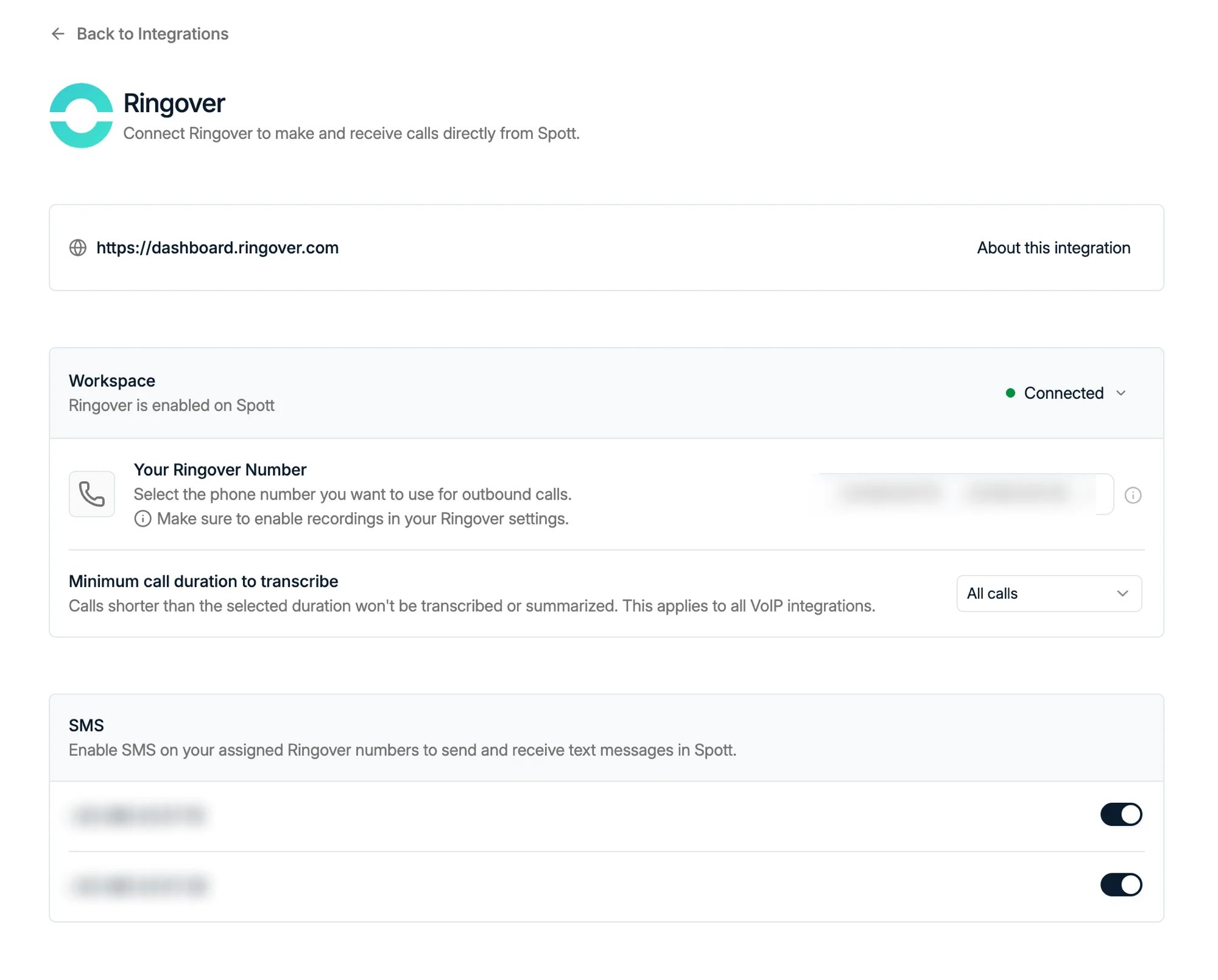
SMS is switched on **per number**, on your provider's own page under **Settings →
Integrations**. Open the provider, scroll to the **SMS** block, and toggle the numbers
you want to text from.
 How much work that is depends on the provider, because they scope SMS differently:
* **[Ringover](/docs/integrations/ringover)** is the simplest. SMS is enabled
**workspace-wide**, so switching a number on is done once and it is on.
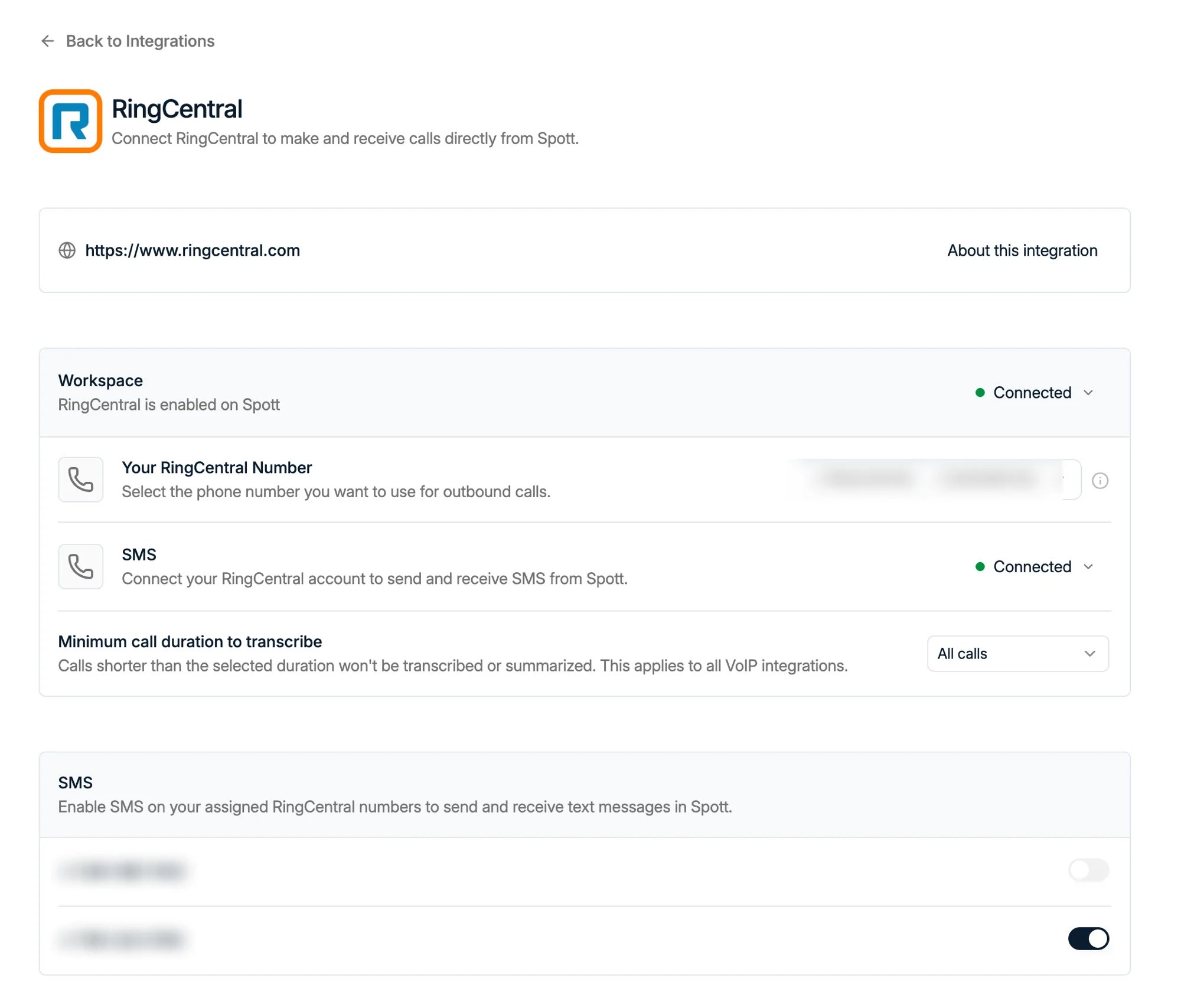
* **[RingCentral](/docs/integrations/ringcentral)** is **per user**. Alongside the
number toggles there is an **SMS** row in the Workspace block where you connect your
own RingCentral account, and every colleague has to do that for themselves.
RingCentral constrains SMS to the individual account, and groups numbers by
**extension**, so the numbers offered to you are the ones on your own extension.
* **[Aircall](/docs/integrations/aircall)**: see the caution below.
* **[RingRing](/docs/integrations/ringring)** has no self-service page under Settings →
Integrations yet. The connection works, but support sets it up for you.
How much work that is depends on the provider, because they scope SMS differently:
* **[Ringover](/docs/integrations/ringover)** is the simplest. SMS is enabled
**workspace-wide**, so switching a number on is done once and it is on.
* **[RingCentral](/docs/integrations/ringcentral)** is **per user**. Alongside the
number toggles there is an **SMS** row in the Workspace block where you connect your
own RingCentral account, and every colleague has to do that for themselves.
RingCentral constrains SMS to the individual account, and groups numbers by
**extension**, so the numbers offered to you are the ones on your own extension.
* **[Aircall](/docs/integrations/aircall)**: see the caution below.
* **[RingRing](/docs/integrations/ringring)** has no self-service page under Settings →
Integrations yet. The connection works, but support sets it up for you.
 **With Aircall, the toggle is not proof.** Aircall does not tell Spott whether a given
number can actually send texts, so the toggle turns on either way. If you switch SMS
on for an Aircall number and messages do not go out, confirm with Aircall that texting
is enabled on that number.
## Send a message
Open a candidate or contact and go to their **Communication** tab. The channels
available for that person are listed on the left: workspace channels such as **Email**
first, then your personal ones, **WhatsApp** and **SMS**, each with the number the
conversation runs on.
**With Aircall, the toggle is not proof.** Aircall does not tell Spott whether a given
number can actually send texts, so the toggle turns on either way. If you switch SMS
on for an Aircall number and messages do not go out, confirm with Aircall that texting
is enabled on that number.
## Send a message
Open a candidate or contact and go to their **Communication** tab. The channels
available for that person are listed on the left: workspace channels such as **Email**
first, then your personal ones, **WhatsApp** and **SMS**, each with the number the
conversation runs on.
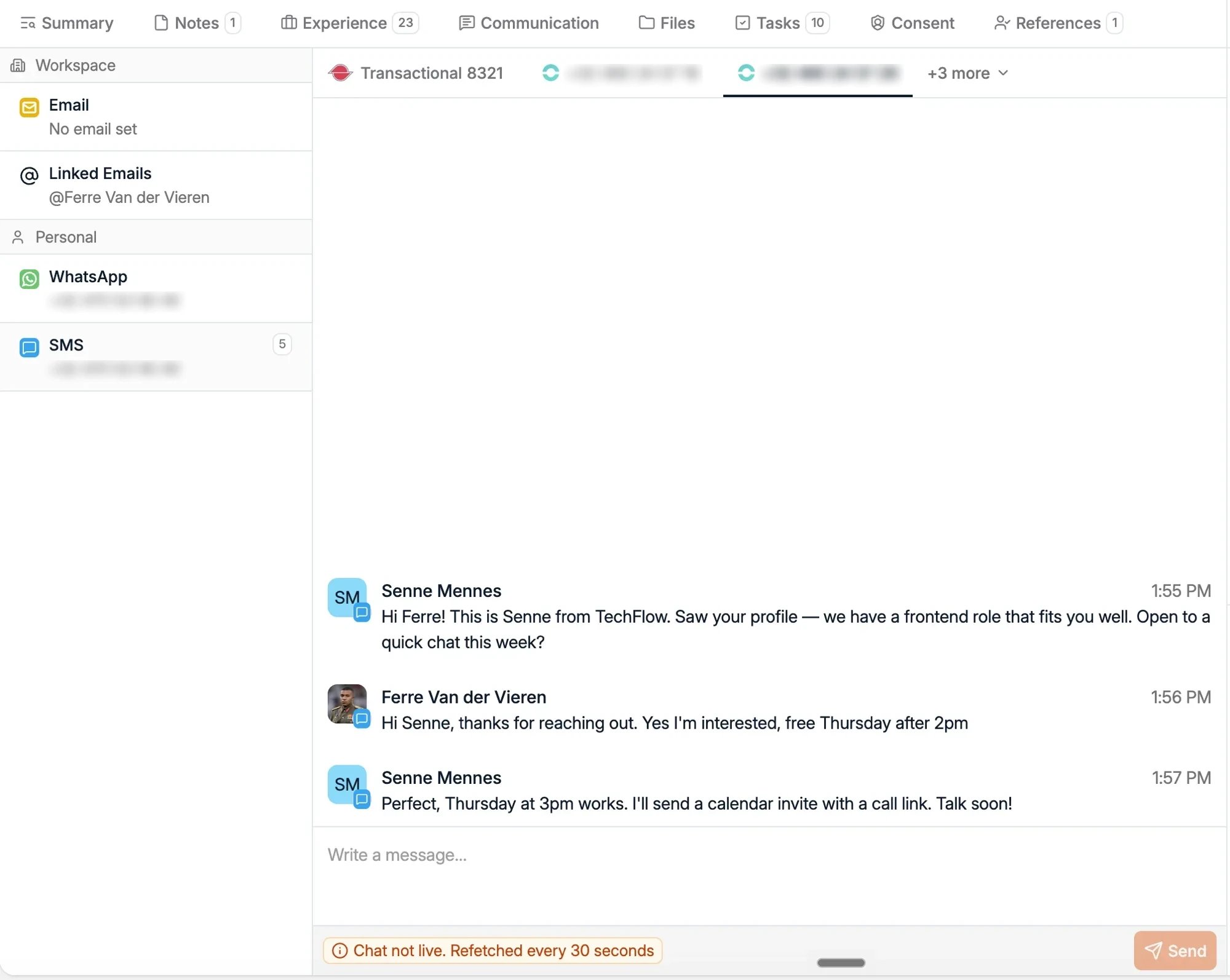 Select **SMS** to open the thread. Above it sit the numbers you can text from, so
someone with several numbers enabled can send from the right one. Pick the number, type
in the box at the bottom, and press **Send**.
An SMS thread is **not a live chat**. Spott refetches the conversation every 30
seconds, so a reply can take up to half a minute to appear.
Phone numbers must be stored in **international format** (for example `+32...`) for
incoming messages to be matched to the right person, exactly as with
[phone calls](/docs/calls/phone-calls).
## Who can see your texts
SMS threads are **private to you**, the user whose number they run on, the same way
[WhatsApp](/docs/integrations/whatsapp) conversations are. Colleagues do not see them,
and there is no sharing setting to widen that, unlike
[email visibility](/docs/settings/accounts#email-visibility).
## Good to know
* **No bulk texting yet.** SMS is a one-to-one channel today: you cannot send it from a
[campaign](/docs/outreach/campaigns), an [automation](/docs/settings/automations), or
a [message template](/docs/inbox/message-templates). Automated SMS is heavily
regulated in several regions, which is why it is not simply switched on.
* **Your provider bills the messages.** Spott sends through your VoIP account, so
texts count against whatever your provider charges for SMS.
* **Numbers come from your provider.** Spott does not issue phone numbers; add or
enable an SMS-capable number on the provider's side first.
Select **SMS** to open the thread. Above it sit the numbers you can text from, so
someone with several numbers enabled can send from the right one. Pick the number, type
in the box at the bottom, and press **Send**.
An SMS thread is **not a live chat**. Spott refetches the conversation every 30
seconds, so a reply can take up to half a minute to appear.
Phone numbers must be stored in **international format** (for example `+32...`) for
incoming messages to be matched to the right person, exactly as with
[phone calls](/docs/calls/phone-calls).
## Who can see your texts
SMS threads are **private to you**, the user whose number they run on, the same way
[WhatsApp](/docs/integrations/whatsapp) conversations are. Colleagues do not see them,
and there is no sharing setting to widen that, unlike
[email visibility](/docs/settings/accounts#email-visibility).
## Good to know
* **No bulk texting yet.** SMS is a one-to-one channel today: you cannot send it from a
[campaign](/docs/outreach/campaigns), an [automation](/docs/settings/automations), or
a [message template](/docs/inbox/message-templates). Automated SMS is heavily
regulated in several regions, which is why it is not simply switched on.
* **Your provider bills the messages.** Spott sends through your VoIP account, so
texts count against whatever your provider charges for SMS.
* **Numbers come from your provider.** Spott does not issue phone numbers; add or
enable an SMS-capable number on the provider's side first.