> ## Documentation Index
> Fetch the complete documentation index at: https://docs.spott.io/llms.txt
> Use this file to discover all available pages before exploring further.
# Message Templates
> Create and personalize email templates from the Inbox, with variables that fill in recipient details automatically.
Templates help you send personalized messages faster while keeping a consistent tone
across your outreach.
## Open the Message Templates tab
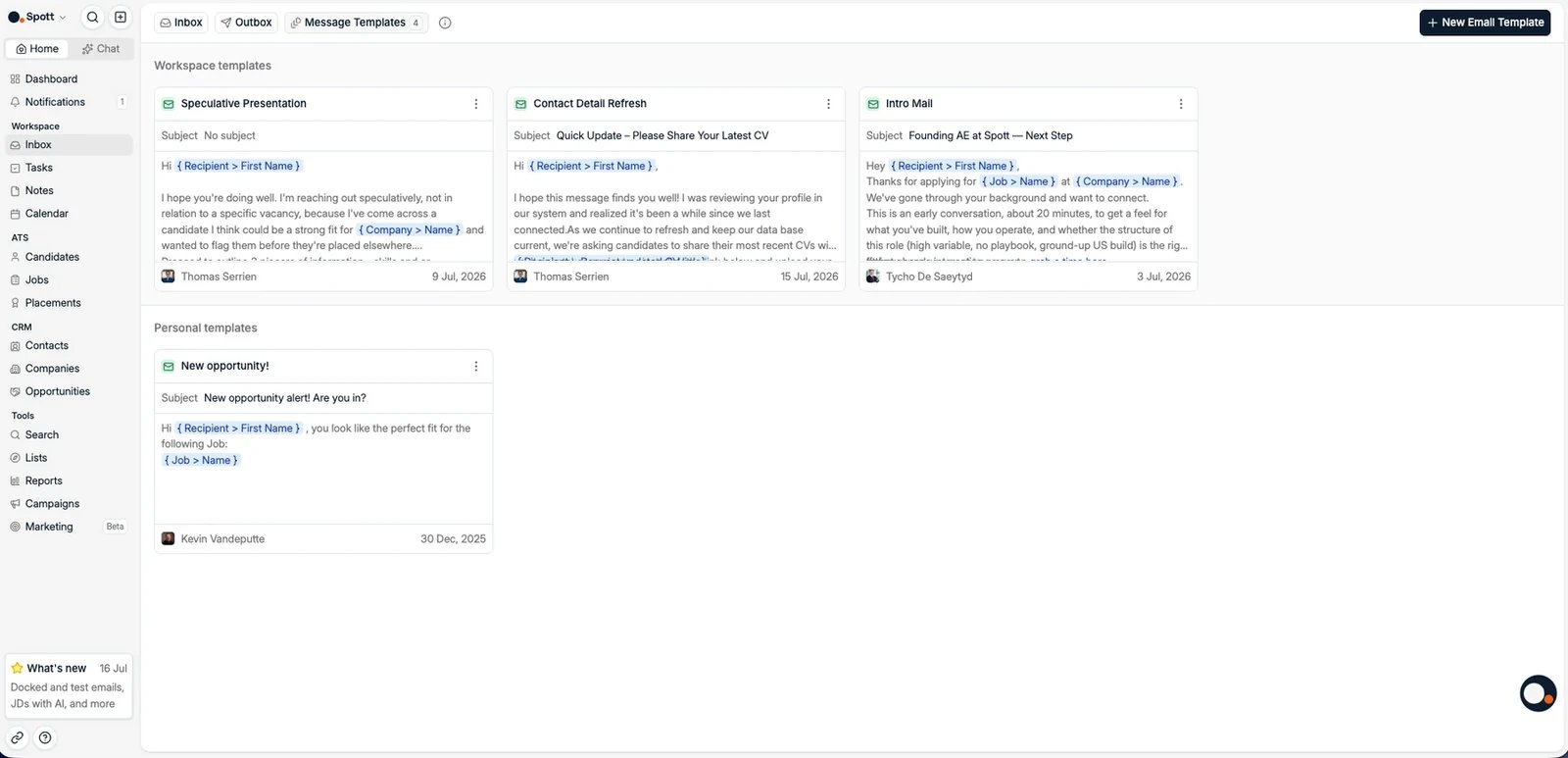
From the left-hand sidebar, go to **Inbox** and click the **Message Templates** tab
at the top. This page lists all your templates with their subjects, previews, and
authors.
 ## Create a new email template
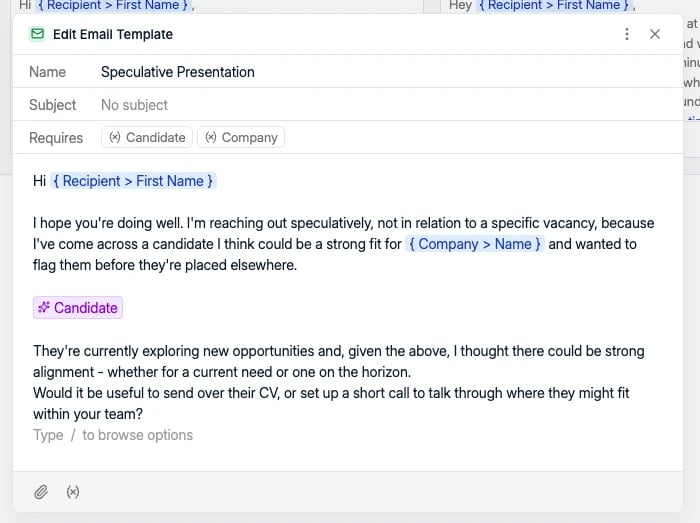
Click **New Email Template** in the top-right corner and choose whether the template
is **Personal** or shared with the **Workspace**. In the editor you can set:
* Template title, for internal use
* Subject line
* Email body content
* Attachments
## Create a new email template
Click **New Email Template** in the top-right corner and choose whether the template
is **Personal** or shared with the **Workspace**. In the editor you can set:
* Template title, for internal use
* Subject line
* Email body content
* Attachments
 Use clear, reusable titles so your team can easily identify templates, for example
"Candidate Intro – Software Engineer".
## Personalize with variables
Type `{` in the editor to browse the available variables. They fill in automatically
when the message is sent, for example:
* **Recipient > First Name** and **Recipient > Last Name**
* **Job > Name** and **Company > Name**
* **AI Generated content**, which writes a passage based on your instruction
Variables only populate if the matching details exist in Spott.
## Auto-save and usage
Templates are **saved automatically** as you type. There is no save button.
Once created, templates are available when composing messages in the Inbox and in
[campaigns](/docs/outreach/campaigns). From the three-dot menu on a template you can
**change its visibility** (personal or workspace) or **delete** it. Presentation and
job description templates live separately, under **Settings → Templates**.
Use clear, reusable titles so your team can easily identify templates, for example
"Candidate Intro – Software Engineer".
## Personalize with variables
Type `{` in the editor to browse the available variables. They fill in automatically
when the message is sent, for example:
* **Recipient > First Name** and **Recipient > Last Name**
* **Job > Name** and **Company > Name**
* **AI Generated content**, which writes a passage based on your instruction
Variables only populate if the matching details exist in Spott.
## Auto-save and usage
Templates are **saved automatically** as you type. There is no save button.
Once created, templates are available when composing messages in the Inbox and in
[campaigns](/docs/outreach/campaigns). From the three-dot menu on a template you can
**change its visibility** (personal or workspace) or **delete** it. Presentation and
job description templates live separately, under **Settings → Templates**.