> ## Documentation Index
> Fetch the complete documentation index at: https://docs.spott.io/llms.txt
> Use this file to discover all available pages before exploring further.
# Inbox
> Centralize and manage all your candidate, client, and team communications in one unified workspace.
The Inbox brings your communication channels together, so you never lose track of
conversations with candidates or clients.
You can quickly navigate to the Inbox with `G` then `I`. In the left sidebar, it sits
under **Workspace**. The Inbox is available when the unified inbox is enabled for
your workspace under **Settings → Features**.
 ## Your unified view
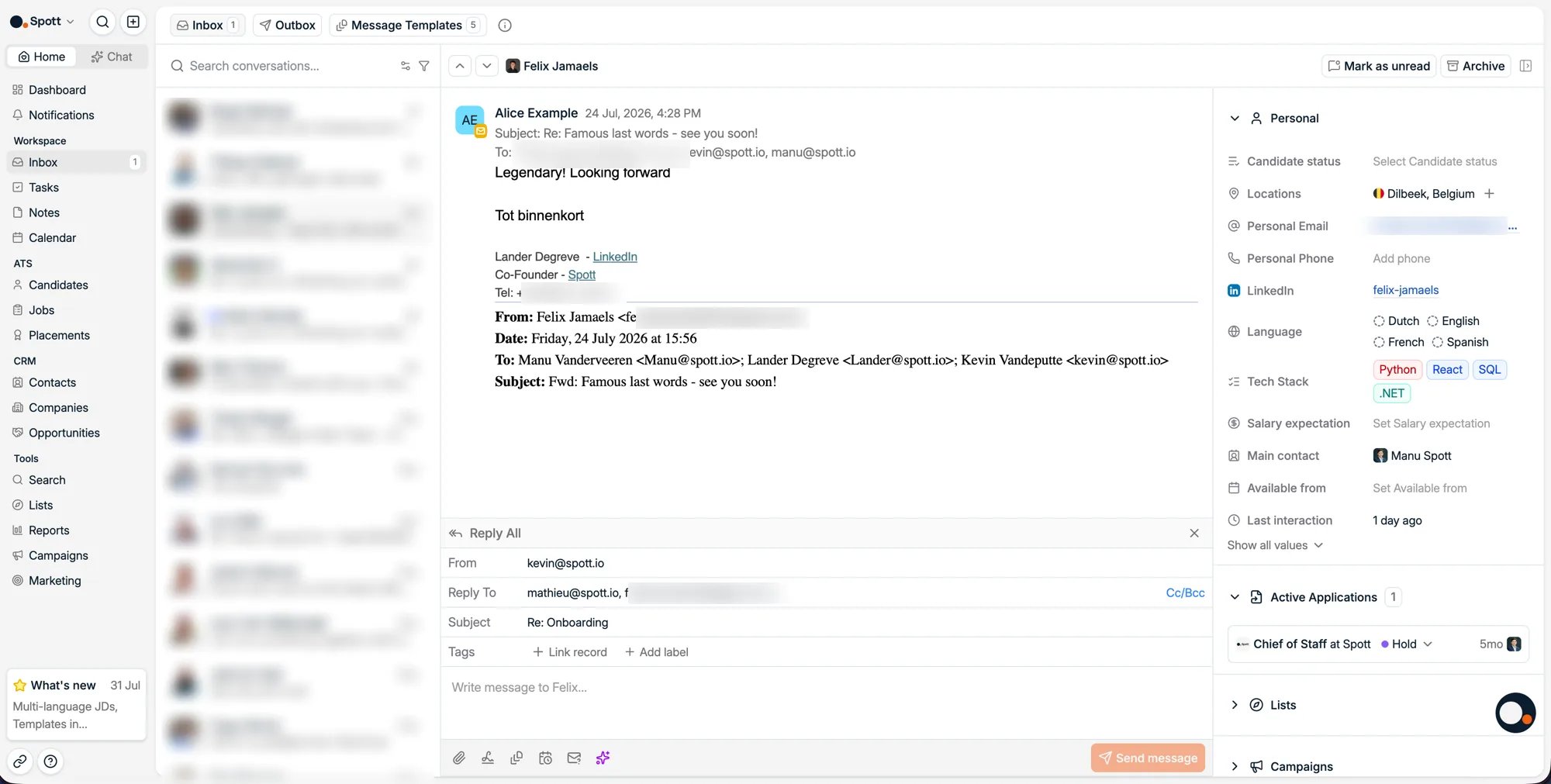
The Inbox consolidates the communication channels connected to your account:
* **Email**
* **WhatsApp**
* **[SMS](/docs/inbox/sms)**, on the SMS-capable numbers of your VoIP account
Each message automatically links back to the relevant person in Spott. At the top of
the page you find three tabs: **Inbox** for your conversations, **Outbox** for
scheduled and queued messages, and **Message Templates**, where the mails you send
over and over live. See [message templates](/docs/inbox/message-templates).
## Browse and read conversations
The left column lists all ongoing conversations with timestamps. Selecting a thread
opens the full conversation history on the right, with sender, recipients, and
attachments at a glance. Messages stay grouped by thread, so long exchanges remain
neatly organized.
**Filter the list** rather than scrolling it. You can narrow the left column to the
conversations that need you, for example only the ones **awaiting a reply**, so the
threads you have already handled drop out of view.
## Reply directly
From the conversation view, use **Reply** or **Reply All**. Replies are sent through
your connected integration (Gmail, Outlook, or WhatsApp) and stored in
Spott automatically. When composing, you can **link a record** and add **labels** to
keep the thread organized.
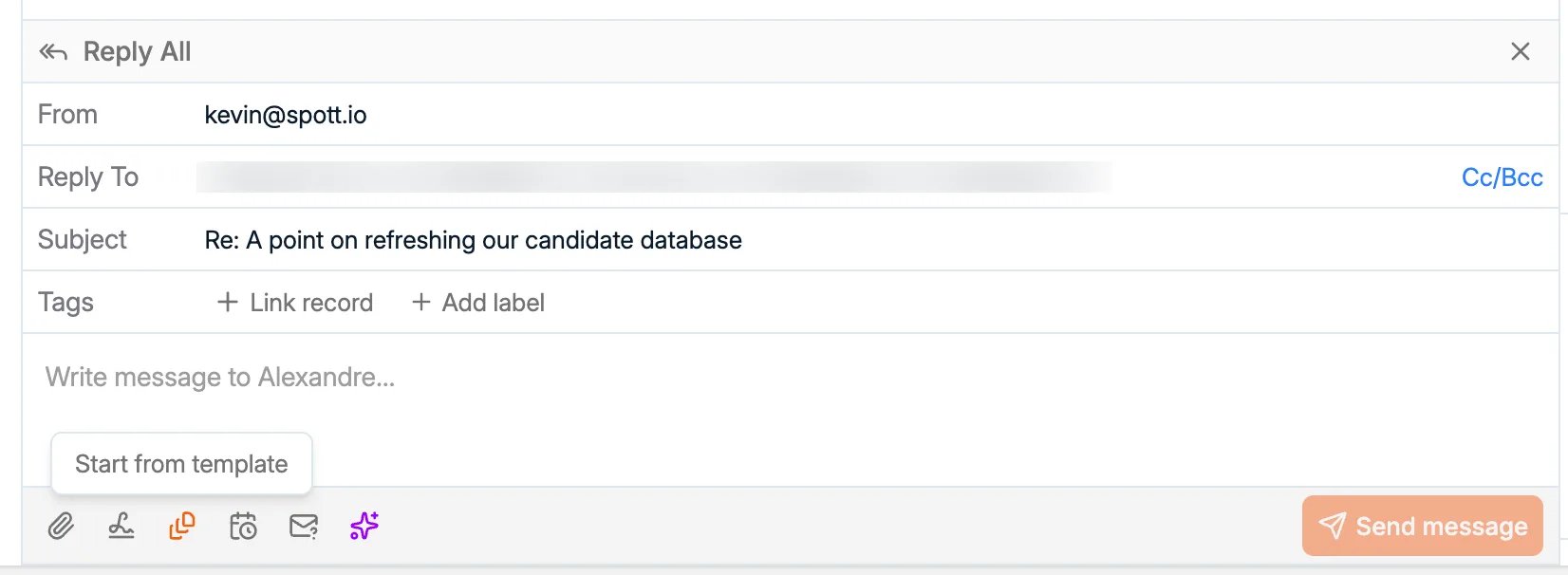
The composer toolbar carries the rest: attachments, your signature, a
[message template](/docs/inbox/message-templates), a
[scheduler link](/docs/calendar/scheduler), and an AI action that drafts a candidate or
job pitch for you.
**Select a passage of text** and a formatting pop-up appears over it, including a
**font size** selector. **Aptos** is available as a font family, so mail drafted in
Spott can match what your colleagues send from Outlook. This works in every email
dialog, not only the Inbox composer.
## Your unified view
The Inbox consolidates the communication channels connected to your account:
* **Email**
* **WhatsApp**
* **[SMS](/docs/inbox/sms)**, on the SMS-capable numbers of your VoIP account
Each message automatically links back to the relevant person in Spott. At the top of
the page you find three tabs: **Inbox** for your conversations, **Outbox** for
scheduled and queued messages, and **Message Templates**, where the mails you send
over and over live. See [message templates](/docs/inbox/message-templates).
## Browse and read conversations
The left column lists all ongoing conversations with timestamps. Selecting a thread
opens the full conversation history on the right, with sender, recipients, and
attachments at a glance. Messages stay grouped by thread, so long exchanges remain
neatly organized.
**Filter the list** rather than scrolling it. You can narrow the left column to the
conversations that need you, for example only the ones **awaiting a reply**, so the
threads you have already handled drop out of view.
## Reply directly
From the conversation view, use **Reply** or **Reply All**. Replies are sent through
your connected integration (Gmail, Outlook, or WhatsApp) and stored in
Spott automatically. When composing, you can **link a record** and add **labels** to
keep the thread organized.
The composer toolbar carries the rest: attachments, your signature, a
[message template](/docs/inbox/message-templates), a
[scheduler link](/docs/calendar/scheduler), and an AI action that drafts a candidate or
job pitch for you.
**Select a passage of text** and a formatting pop-up appears over it, including a
**font size** selector. **Aptos** is available as a font family, so mail drafted in
Spott can match what your colleagues send from Outlook. This works in every email
dialog, not only the Inbox composer.
 ## Keep communication in context
Every message is contextually linked: candidate conversations appear on the
candidate's **Communication** subtab, and the same history is visible wherever the
person appears. Everything syncs in both directions, so updates in your email client
appear in Spott and vice versa.
Make sure your email integration is active under **Settings → Accounts** to enable
full syncing.
The Inbox only syncs messages with people who **already exist as a record** in Spott
(a candidate or contact). A message from an address that isn't in your workspace yet
won't show up until you add that person.
### The first sync takes hours
When you connect a mailbox, the initial sync can take **up to 12 hours** before your
history is fully in Spott. Nothing is broken in the meantime: new messages keep
arriving while the backlog fills in behind them. Connect your mailbox the day before
you need it rather than the morning of.
## Email visibility
Under **Settings → Accounts → Default Email & Calendar Sharing**, you choose how much
of your email your workspace colleagues can see by default:
* **Metadata only**: colleagues see the participants and timestamp. The subject line
and body stay private to the participants.
* **Subject line and metadata**: colleagues see the subject, participants, and
timestamp.
* **Full access**: everything is shared with your workspace, including the body,
subject line, and attachments.
This is a **personal setting**: it applies to your own mailbox, so every user picks
their own level. See [connected accounts](/docs/settings/accounts).
## Keep communication in context
Every message is contextually linked: candidate conversations appear on the
candidate's **Communication** subtab, and the same history is visible wherever the
person appears. Everything syncs in both directions, so updates in your email client
appear in Spott and vice versa.
Make sure your email integration is active under **Settings → Accounts** to enable
full syncing.
The Inbox only syncs messages with people who **already exist as a record** in Spott
(a candidate or contact). A message from an address that isn't in your workspace yet
won't show up until you add that person.
### The first sync takes hours
When you connect a mailbox, the initial sync can take **up to 12 hours** before your
history is fully in Spott. Nothing is broken in the meantime: new messages keep
arriving while the backlog fills in behind them. Connect your mailbox the day before
you need it rather than the morning of.
## Email visibility
Under **Settings → Accounts → Default Email & Calendar Sharing**, you choose how much
of your email your workspace colleagues can see by default:
* **Metadata only**: colleagues see the participants and timestamp. The subject line
and body stay private to the participants.
* **Subject line and metadata**: colleagues see the subject, participants, and
timestamp.
* **Full access**: everything is shared with your workspace, including the body,
subject line, and attachments.
This is a **personal setting**: it applies to your own mailbox, so every user picks
their own level. See [connected accounts](/docs/settings/accounts).