> ## Documentation Index
> Fetch the complete documentation index at: https://docs.spott.io/llms.txt
> Use this file to discover all available pages before exploring further.
# Import from CSV or Excel
> Bulk add candidates, contacts, and companies to Spott from a CSV or Excel file, and see exactly which columns you can map.
The import wizard lets you bulk add people to Spott, for example when migrating
from another system or uploading a sourcing list. Each row in your file becomes one
person. You can import **up to 1,000 records** per import, from **CSV or Excel
(.xlsx)** files.
## What you can import
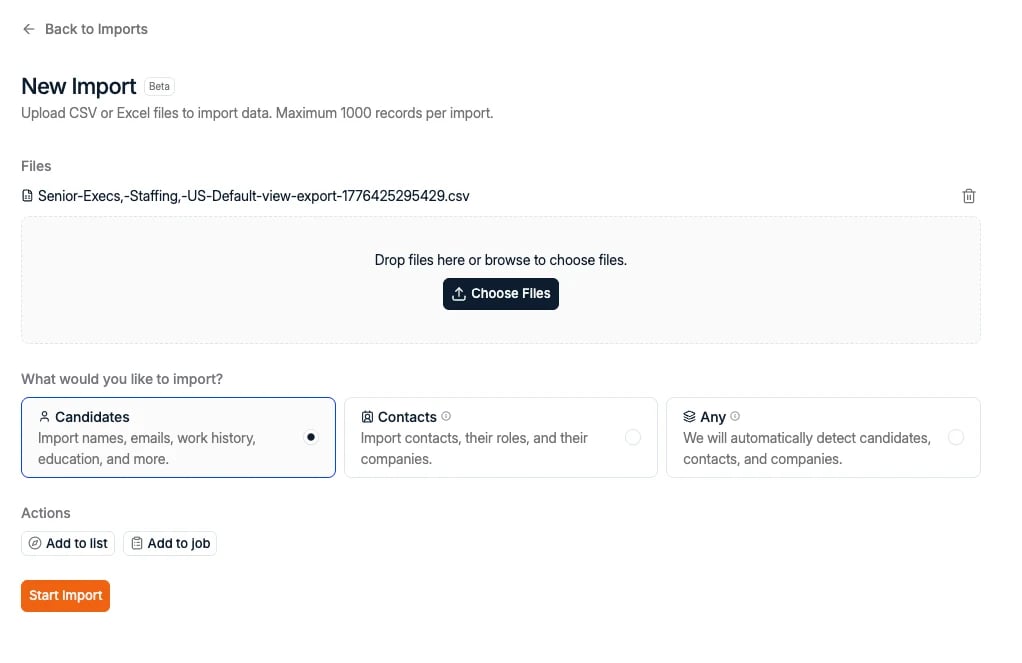
When you upload a file, you choose what the rows represent:
| Option | What it does |
| -------------- | ------------------------------------------------------------------------------------- |
| **Candidates** | Imports names, emails, work history, education, and more as candidate records. |
| **Contacts** | Imports client contacts, their roles, and their companies. |
| **Any** | Spott detects automatically whether each row is a candidate, a contact, or a company. |
**Yes, you can import contacts too.** The wizard is not candidate-only. Pick
**Contacts** to bulk-load client contacts, or **Any** if your file mixes candidates,
contacts, and companies.
Companies do not need their own file. Whenever a row has a company on it, Spott
matches it to an existing company or creates a new company record, and links the
person to it.
Under **Actions** you can also **Add to list** or **Add to job**, which applies to
every record in the import.
 ## Start an import
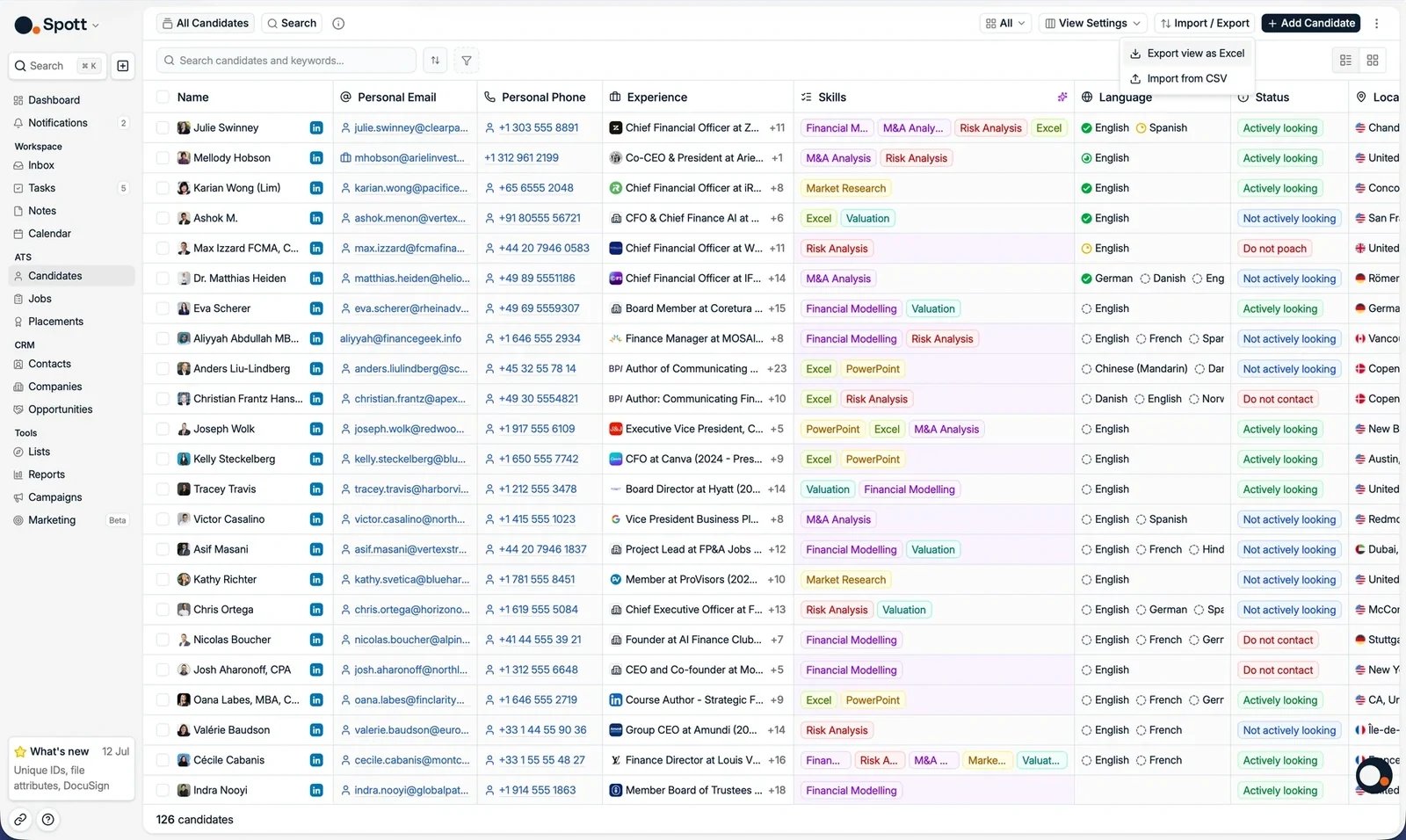
Navigate to **Candidates** from the main sidebar.
In the top right corner, click **Import / Export**, then select **Import from CSV**.
This opens the import wizard. Admins can also reach it from **Settings > Import**.
Select the CSV or Excel file from your computer, choose **Candidates**,
**Contacts**, or **Any**, optionally add a List or Job, then click **Start Import**.
Spott analyzes the file and prepares the mapping.
## Start an import
Navigate to **Candidates** from the main sidebar.
In the top right corner, click **Import / Export**, then select **Import from CSV**.
This opens the import wizard. Admins can also reach it from **Settings > Import**.
Select the CSV or Excel file from your computer, choose **Candidates**,
**Contacts**, or **Any**, optionally add a List or Job, then click **Start Import**.
Spott analyzes the file and prepares the mapping.
 ## Map columns to Spott fields
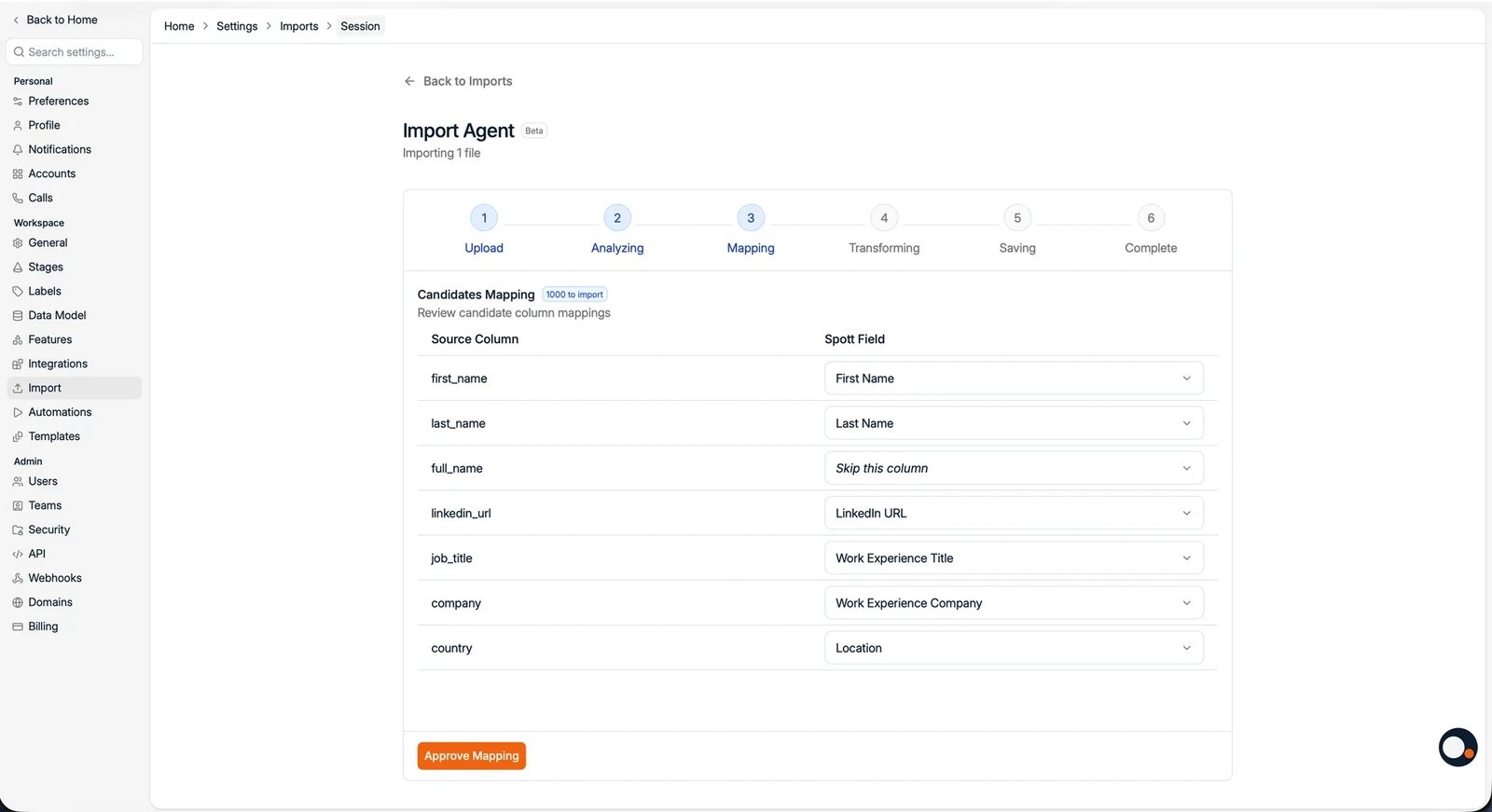
Spott reads your column names and sample data and **suggests a mapping for each
column automatically**. Your headers do not have to match Spott's field names:
"Job Title" is recognized as Work Experience Title, "City" as Location. Review the
suggestions and adjust where needed. For each column you can:
* Accept the suggested Spott field
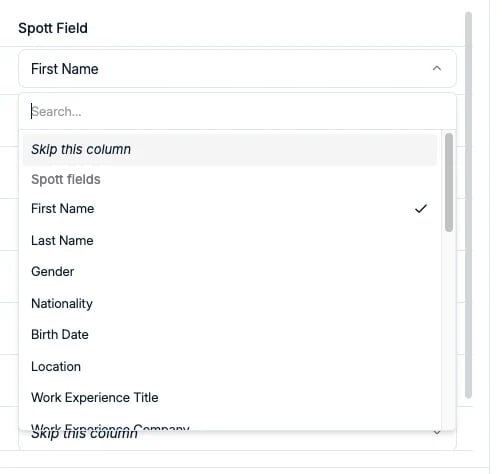
* Pick a different **Spott field** from the dropdown (use the search box at the top)
* **Skip the column** so it is not imported
Skipped and unmapped columns are ignored. Nothing else in the file is imported, so a
column only lands in Spott if it is mapped to one of the fields below.
## Map columns to Spott fields
Spott reads your column names and sample data and **suggests a mapping for each
column automatically**. Your headers do not have to match Spott's field names:
"Job Title" is recognized as Work Experience Title, "City" as Location. Review the
suggestions and adjust where needed. For each column you can:
* Accept the suggested Spott field
* Pick a different **Spott field** from the dropdown (use the search box at the top)
* **Skip the column** so it is not imported
Skipped and unmapped columns are ignored. Nothing else in the file is imported, so a
column only lands in Spott if it is mapped to one of the fields below.
 ### Fields you can map to
These are the Spott fields available in the mapping dropdown. The list is complete:
if a column has no matching field below, it cannot be imported.
### Fields you can map to
These are the Spott fields available in the mapping dropdown. The list is complete:
if a column has no matching field below, it cannot be imported.
 | Spott field | Example value |
| ----------- | ------------------ |
| First Name | `Anna` |
| Last Name | `Peeters` |
| Gender | `Female` |
| Nationality | `Belgian` |
| Birth Date | `1989-04-17` |
| Location | `Antwerp, Belgium` |
There is no Full Name field: split names into a **First Name** and a **Last Name**
column. If your file only has a full name column, add the split columns before
uploading and skip the combined one.
| Spott field | Example value |
| --------------------------- | ---------------------- |
| Work Experience Title | `Finance Manager` |
| Work Experience Company | `Acme` |
| Work Experience Description | `Led a team of six...` |
| Work Experience Location | `Brussels` |
| Work Experience Start Date | `2021-03-01` |
| Work Experience End Date | `2024-09-30` |
One row creates **one** work experience entry. Leave the end date empty for the
current role.
| Spott field | Example value |
| ------------------------ | --------------------- |
| Education Degree | `Master of Economics` |
| Education Institution | `KU Leuven` |
| Education Field of Study | `Economics` |
| Education Description | `Thesis on...` |
| Education Grade | `Cum laude` |
| Education Start Date | `2007-09-01` |
| Education End Date | `2011-06-30` |
One row creates **one** education entry.
| Spott field | Example value |
| ---------------- | ------------- |
| Language | `Dutch` |
| Language Fluency | `Native` |
| Spott field | Example value |
| ------------- | ----------------------------------------- |
| Email Address | `anna.peeters@example.com` |
| Phone Number | `+32 470 12 34 56` |
| LinkedIn URL | `https://www.linkedin.com/in/annapeeters` |
These are the fields Spott deduplicates on, so include at least one of them.
| Spott field | Example value |
| ----------- | ------------------------------------ |
| Note | `Met at the Brussels finance meetup` |
The note is added to the person's profile as a regular note.
**Custom fields cannot be mapped.** The dropdown only offers the standard fields
listed above, so [custom fields](/docs/settings/customizing-candidate-profiles) your
workspace has configured are not filled by an import. Set those on the records
afterwards.
A row holds a single work experience and a single education entry. To import a full
career history, use a CV upload or the
[Chrome extension](/docs/settings/chrome-extension) instead, or enrich the
candidates after the import.
### Example file
A file with these headers imports cleanly, without any manual remapping:
```csv candidates.csv theme={null}
First Name,Last Name,Email Address,Phone Number,LinkedIn URL,Job Title,Company,City,Degree,Institution
Anna,Peeters,anna.peeters@example.com,+32 470 12 34 56,https://www.linkedin.com/in/annapeeters,Finance Manager,Acme,Antwerp,Master of Economics,KU Leuven
Tom,Janssens,tom.janssens@example.com,+32 495 98 76 54,https://www.linkedin.com/in/tomjanssens,Controller,Globex,Ghent,Bachelor of Accountancy,Odisee
```
Spott maps `Job Title` to Work Experience Title, `Company` to Work Experience
Company, and `City` to Location. The same file works for a contact import: the
company column is what links each contact to their client company.
## Complete the import
Confirm the mapping to start the import. Spott creates a record for every row. After
the import completes, the records appear on the Candidates or Contacts page and can
be searched, filtered, exported, and added to Lists.
**An import creates records, it does not update them.** When a row matches an
existing person, that person is still added to the Job or List you selected, but
their existing data is not changed by the import.
**Company names need an exact match.** When a row has no other unique identifier,
companies are matched on name only. Matching is case-insensitive but otherwise
exact: "Acme" and "acme" match, "Acme" and "Acme BV" do not. Spott does keep a
manually curated list of aliases for well-known companies (so "Accenture GmbH"
and "Accenture PLC" resolve to the same company), but for names not on that list,
anything that does not match exactly creates a new company record.
## Tips for successful imports
* Include at least one unique identifier per person. **Email or LinkedIn URL is
recommended**, so Spott can deduplicate against existing records.
* Map first name and last name for clean records.
* Remove empty rows before uploading.
* Use UTF-8 encoding for CSV files for best compatibility.
* Use a consistent date format across the file, ideally `YYYY-MM-DD`.
* Double check email and phone mappings to avoid data landing in the wrong field.
* Importing into a job adds the people as applications, but **cannot set their
application status or add comments**. Set those in the pipeline after the import.
A LinkedIn URL column imports the link to the person's profile, not the profile
content itself. To pull in full LinkedIn profile data, use the
[Chrome extension](/docs/settings/chrome-extension)
or enrichment after the import.
Migrating a full database from another ATS or CRM is a different job, and our team
runs it for you. See [Data migration](/docs/get-started/data-migration).
| Spott field | Example value |
| ----------- | ------------------ |
| First Name | `Anna` |
| Last Name | `Peeters` |
| Gender | `Female` |
| Nationality | `Belgian` |
| Birth Date | `1989-04-17` |
| Location | `Antwerp, Belgium` |
There is no Full Name field: split names into a **First Name** and a **Last Name**
column. If your file only has a full name column, add the split columns before
uploading and skip the combined one.
| Spott field | Example value |
| --------------------------- | ---------------------- |
| Work Experience Title | `Finance Manager` |
| Work Experience Company | `Acme` |
| Work Experience Description | `Led a team of six...` |
| Work Experience Location | `Brussels` |
| Work Experience Start Date | `2021-03-01` |
| Work Experience End Date | `2024-09-30` |
One row creates **one** work experience entry. Leave the end date empty for the
current role.
| Spott field | Example value |
| ------------------------ | --------------------- |
| Education Degree | `Master of Economics` |
| Education Institution | `KU Leuven` |
| Education Field of Study | `Economics` |
| Education Description | `Thesis on...` |
| Education Grade | `Cum laude` |
| Education Start Date | `2007-09-01` |
| Education End Date | `2011-06-30` |
One row creates **one** education entry.
| Spott field | Example value |
| ---------------- | ------------- |
| Language | `Dutch` |
| Language Fluency | `Native` |
| Spott field | Example value |
| ------------- | ----------------------------------------- |
| Email Address | `anna.peeters@example.com` |
| Phone Number | `+32 470 12 34 56` |
| LinkedIn URL | `https://www.linkedin.com/in/annapeeters` |
These are the fields Spott deduplicates on, so include at least one of them.
| Spott field | Example value |
| ----------- | ------------------------------------ |
| Note | `Met at the Brussels finance meetup` |
The note is added to the person's profile as a regular note.
**Custom fields cannot be mapped.** The dropdown only offers the standard fields
listed above, so [custom fields](/docs/settings/customizing-candidate-profiles) your
workspace has configured are not filled by an import. Set those on the records
afterwards.
A row holds a single work experience and a single education entry. To import a full
career history, use a CV upload or the
[Chrome extension](/docs/settings/chrome-extension) instead, or enrich the
candidates after the import.
### Example file
A file with these headers imports cleanly, without any manual remapping:
```csv candidates.csv theme={null}
First Name,Last Name,Email Address,Phone Number,LinkedIn URL,Job Title,Company,City,Degree,Institution
Anna,Peeters,anna.peeters@example.com,+32 470 12 34 56,https://www.linkedin.com/in/annapeeters,Finance Manager,Acme,Antwerp,Master of Economics,KU Leuven
Tom,Janssens,tom.janssens@example.com,+32 495 98 76 54,https://www.linkedin.com/in/tomjanssens,Controller,Globex,Ghent,Bachelor of Accountancy,Odisee
```
Spott maps `Job Title` to Work Experience Title, `Company` to Work Experience
Company, and `City` to Location. The same file works for a contact import: the
company column is what links each contact to their client company.
## Complete the import
Confirm the mapping to start the import. Spott creates a record for every row. After
the import completes, the records appear on the Candidates or Contacts page and can
be searched, filtered, exported, and added to Lists.
**An import creates records, it does not update them.** When a row matches an
existing person, that person is still added to the Job or List you selected, but
their existing data is not changed by the import.
**Company names need an exact match.** When a row has no other unique identifier,
companies are matched on name only. Matching is case-insensitive but otherwise
exact: "Acme" and "acme" match, "Acme" and "Acme BV" do not. Spott does keep a
manually curated list of aliases for well-known companies (so "Accenture GmbH"
and "Accenture PLC" resolve to the same company), but for names not on that list,
anything that does not match exactly creates a new company record.
## Tips for successful imports
* Include at least one unique identifier per person. **Email or LinkedIn URL is
recommended**, so Spott can deduplicate against existing records.
* Map first name and last name for clean records.
* Remove empty rows before uploading.
* Use UTF-8 encoding for CSV files for best compatibility.
* Use a consistent date format across the file, ideally `YYYY-MM-DD`.
* Double check email and phone mappings to avoid data landing in the wrong field.
* Importing into a job adds the people as applications, but **cannot set their
application status or add comments**. Set those in the pipeline after the import.
A LinkedIn URL column imports the link to the person's profile, not the profile
content itself. To pull in full LinkedIn profile data, use the
[Chrome extension](/docs/settings/chrome-extension)
or enrichment after the import.
Migrating a full database from another ATS or CRM is a different job, and our team
runs it for you. See [Data migration](/docs/get-started/data-migration).