> ## Documentation Index
> Fetch the complete documentation index at: https://docs.spott.io/llms.txt
> Use this file to discover all available pages before exploring further.
# Global Search
> Jump to any record in the workspace from anywhere, by name, email address, phone number, or record ID.
Global search is the fastest way to reach a record you already know exists. It is not the
place to build a shortlist: for that, use the filters on a table or the AI-ranked
[Search tab](/docs/candidates/search-candidates).
Open it with `⌘K` on a Mac or `Ctrl+K` on Windows, or click **Search** in the top left.
 ## What it matches
* **Names** of candidates, contacts, and companies.
* **Email addresses**, including personal ones. This is the reliable way to answer "who is
this person who just emailed me", which a table search on names cannot do.
* **Phone numbers**, so an unrecognised number on your screen becomes a name.
* **Record identifiers**, the short code shown on a record such as `#42B8C269C`, when that
feature is enabled for your workspace.
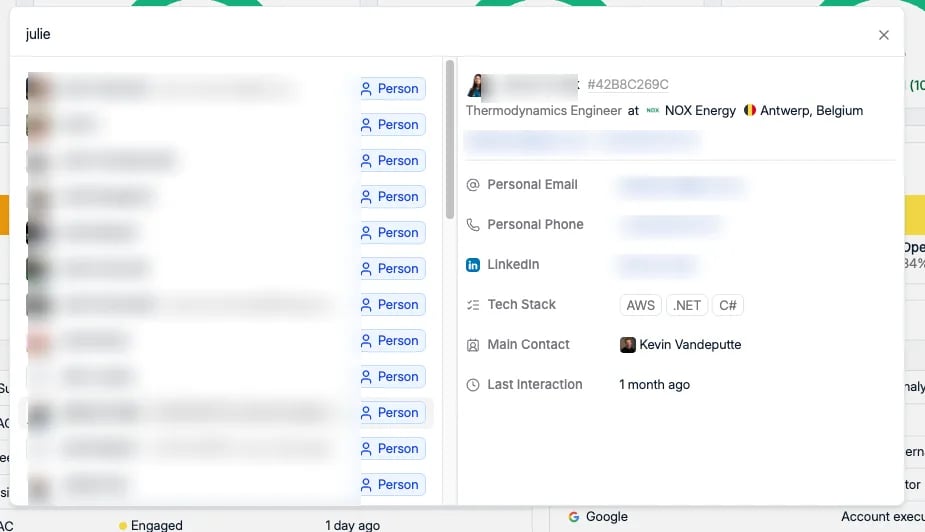
Each result carries a badge naming its type, so a person and a company with similar names
are easy to tell apart before you open either.
## Read the record without opening it
Selecting a result fills the panel on the right, and for most lookups that panel is the
answer, so you never leave the page you were on:
* Job title, company, and location
* Personal email, personal phone, and LinkedIn
* Any custom attributes carried on the record, for example a tech stack
* **Main contact**, whoever on your team owns the relationship
* **Last interaction**, how long it has been since anyone spoke to them
Because it reads without opening, global search is the right tool mid-call. Type the number
that is ringing, read who they are and when a colleague last spoke to them, and answer
knowing both.
The `G` then letter jumps, the `A` then letter add menu, and the rest.
## What it matches
* **Names** of candidates, contacts, and companies.
* **Email addresses**, including personal ones. This is the reliable way to answer "who is
this person who just emailed me", which a table search on names cannot do.
* **Phone numbers**, so an unrecognised number on your screen becomes a name.
* **Record identifiers**, the short code shown on a record such as `#42B8C269C`, when that
feature is enabled for your workspace.
Each result carries a badge naming its type, so a person and a company with similar names
are easy to tell apart before you open either.
## Read the record without opening it
Selecting a result fills the panel on the right, and for most lookups that panel is the
answer, so you never leave the page you were on:
* Job title, company, and location
* Personal email, personal phone, and LinkedIn
* Any custom attributes carried on the record, for example a tech stack
* **Main contact**, whoever on your team owns the relationship
* **Last interaction**, how long it has been since anyone spoke to them
Because it reads without opening, global search is the right tool mid-call. Type the number
that is ringing, read who they are and when a colleague last spoke to them, and answer
knowing both.
The `G` then letter jumps, the `A` then letter add menu, and the rest.