> ## Documentation Index
> Fetch the complete documentation index at: https://docs.spott.io/llms.txt
> Use this file to discover all available pages before exploring further.
# General Chatbot
> Ask questions and give instructions in plain language, and the chatbot finds the answer or does the work across all your Spott data.
The general chatbot is an AI assistant built into Spott. You ask it a question or tell it
what to do in plain language, and it finds the information or takes the action for you.
It has access to all your records: candidates, contacts, companies, jobs, opportunities and
applications, plus the notes, tasks, emails, comments and call transcripts linked to them.
That makes it one place to find information and get work done, without clicking through
pages and filters.
Click any screenshot on this page to see it full size. Click anywhere to close it again.
## Opening the chatbot
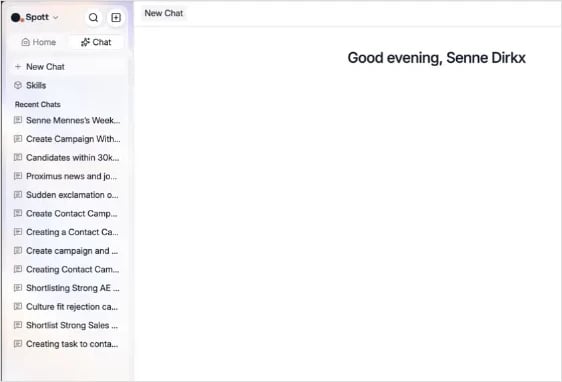
Once the chatbot is enabled for your workspace, it sits at the **top left of the sidebar**,
under **Chat**. That opens a chat section listing your **recent chats**, so you can pick up
an earlier conversation where you left off.
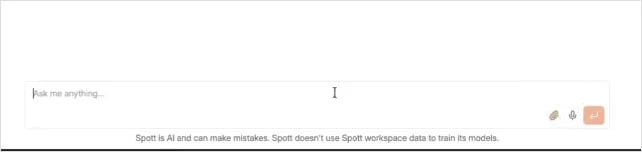
Start a **New Chat** to open the chat box. From there you can:
* **Type** your question or instruction, the easiest way.
* **Dictate** it with voice input, using the microphone button.
* **Add attachments**, such as CVs or other documents, using the paperclip button.
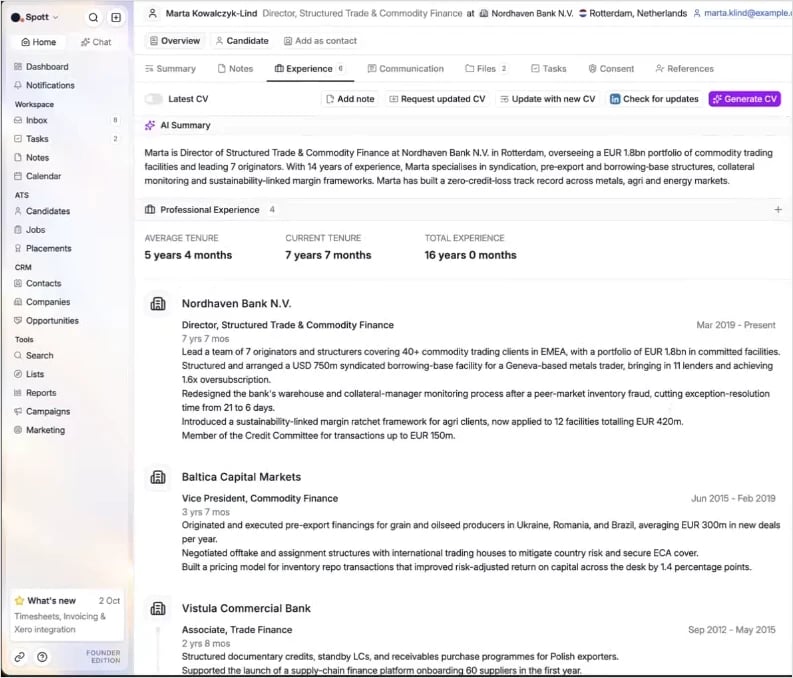
### From a record page
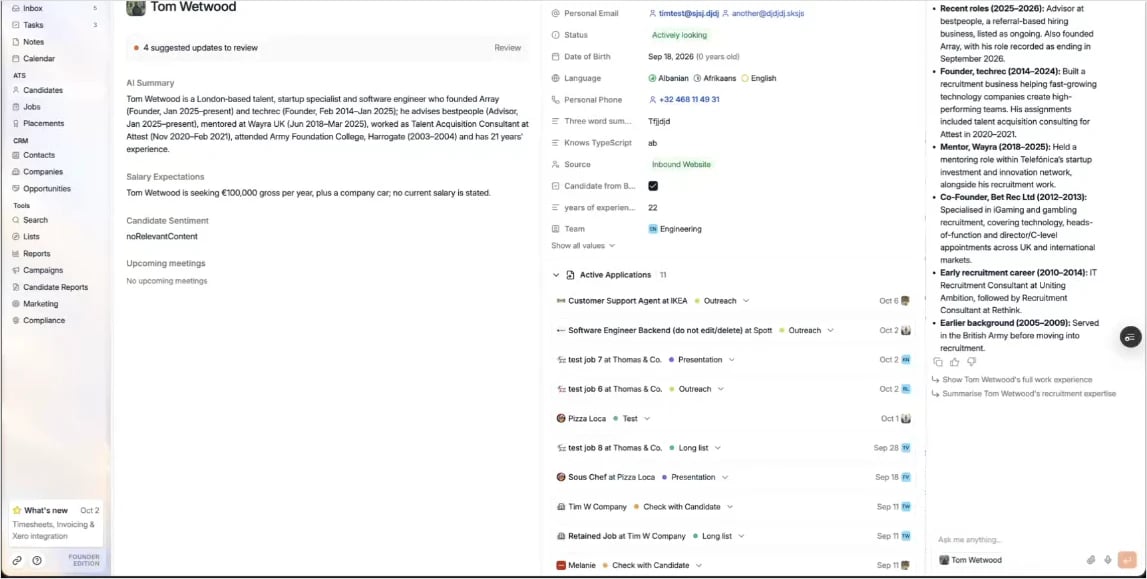
The chatbot is also always available in the side panel, through **Ask AI**, with exactly
the same capabilities. The main chat window gives you the most room; the side panel is
handy when you are working on one specific record.
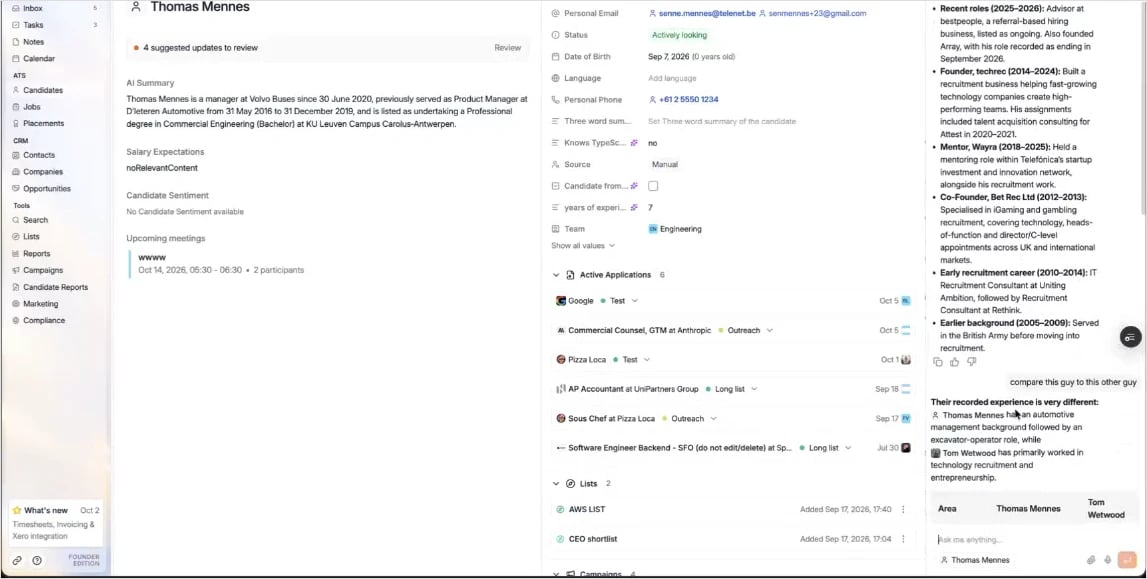
When you open the side panel on a candidate, contact, company or job, the context of that
record is **pre-filled**. So you can simply ask:
> Recap his experience.
The chatbot knows you mean the person whose page you are on. You can still ask about any
other record too, for example to compare the current candidate with someone else:
> Compare this person to \[other candidate].
## Asking your first question
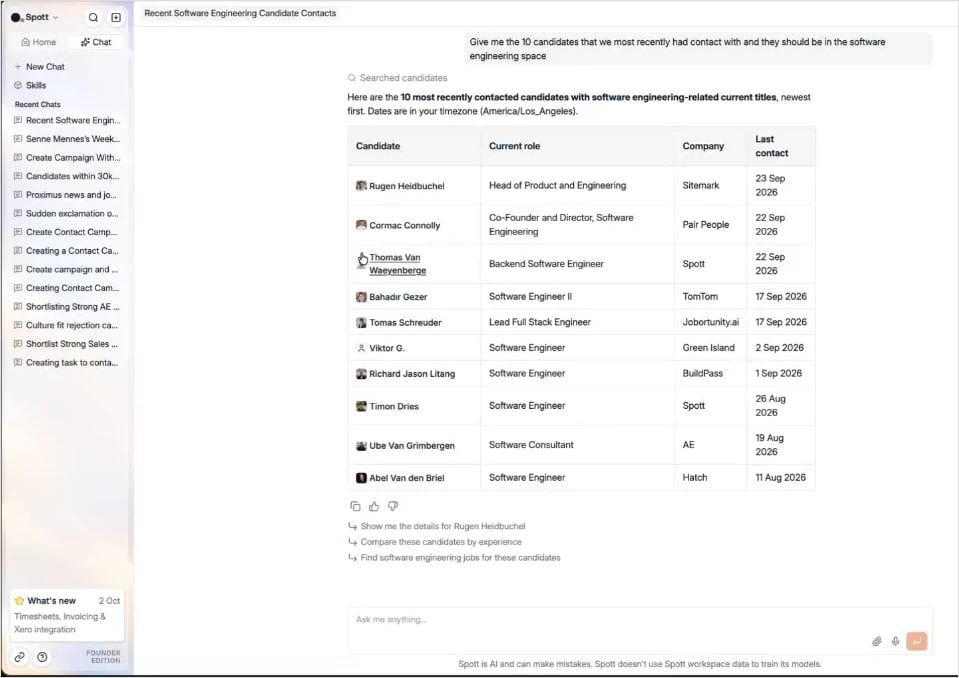
The simplest way to start is to ask for records, the same way you would describe a filter to
a colleague:
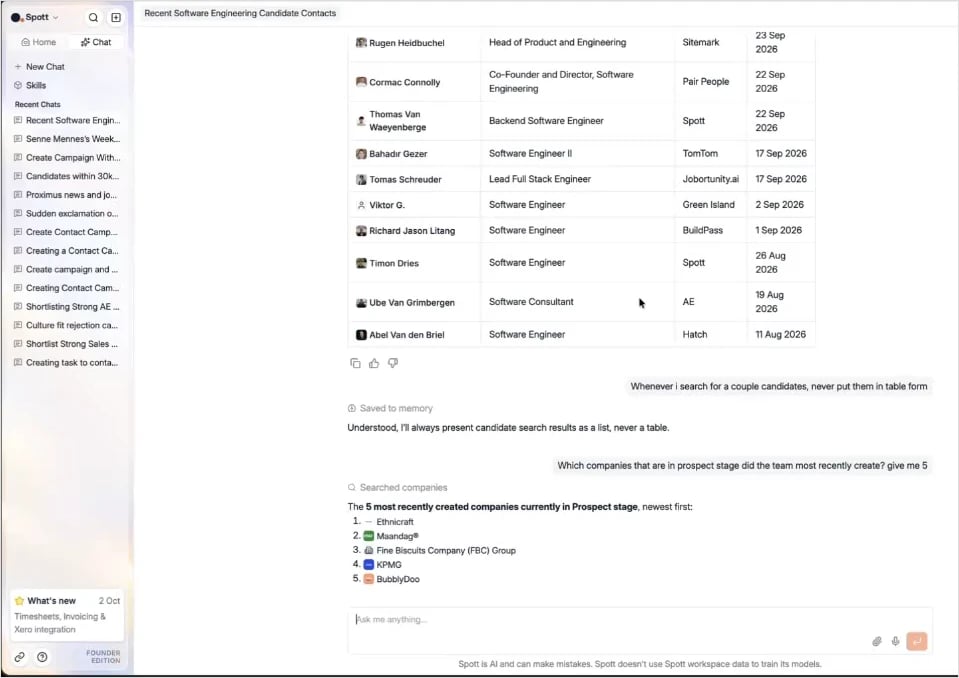
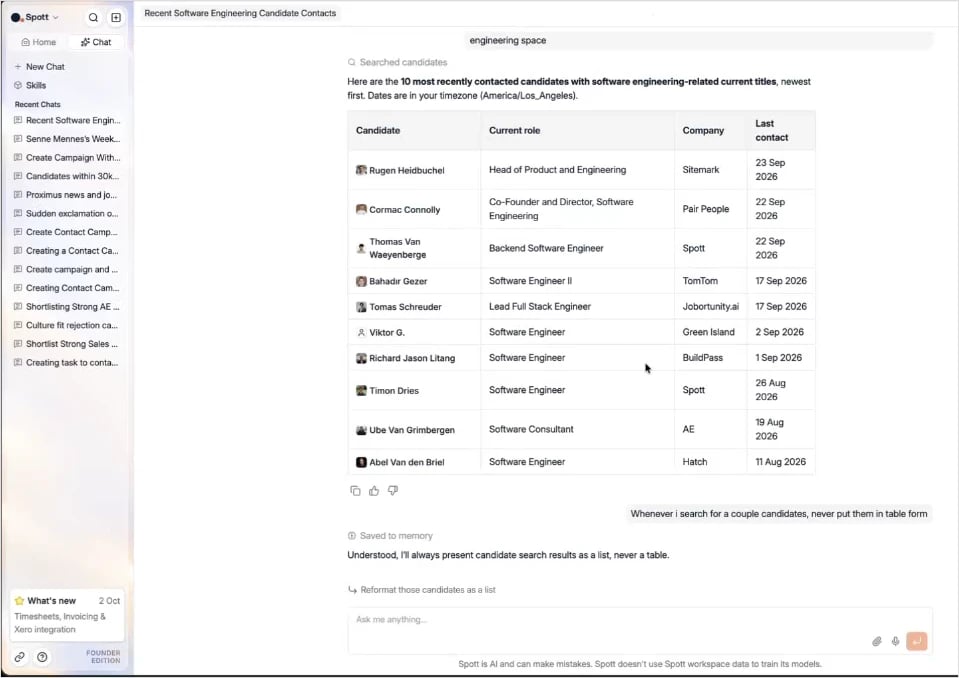
> Give me the ten candidates we most recently had contact with who are in the software
> engineering space.
Behind the scenes, the chatbot translates your question into the **same filters you can
apply manually in Spott**, picks the ones that best match, and applies them. Every filter in
Spott is supported, so your questions can be as detailed as you like.
The answer comes back as a list or a table. Every record in it is **clickable** and opens in
a new tab.
The chatbot is forgiving. It understands misspelled company and candidate names, and
approximate job titles: asking about "the QA position at Google" finds a job titled
**Quality Assurance Engineer**.
## You stay in control of actions
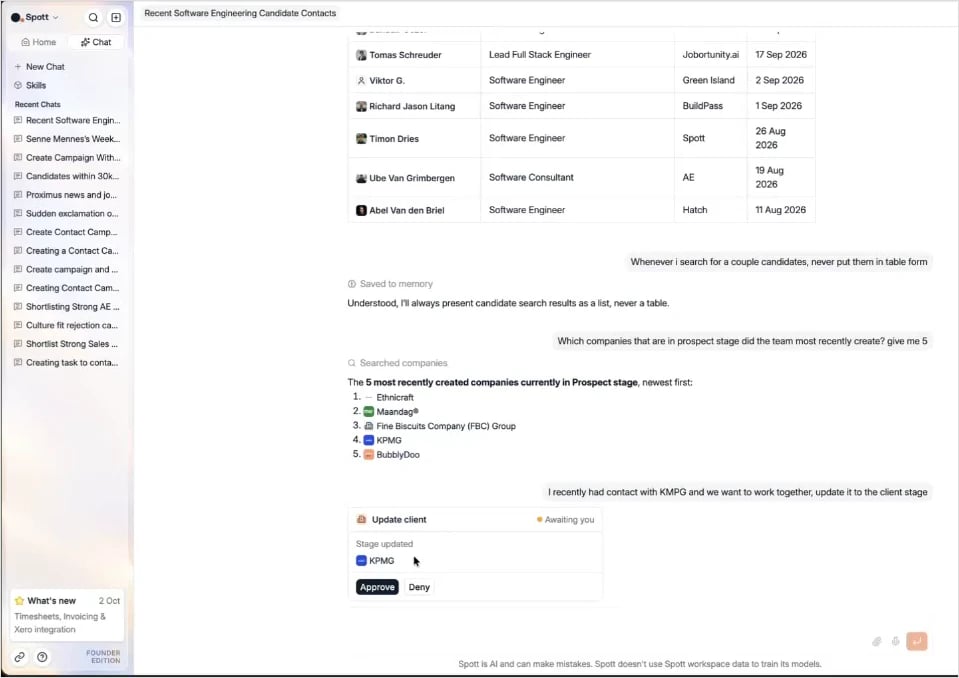
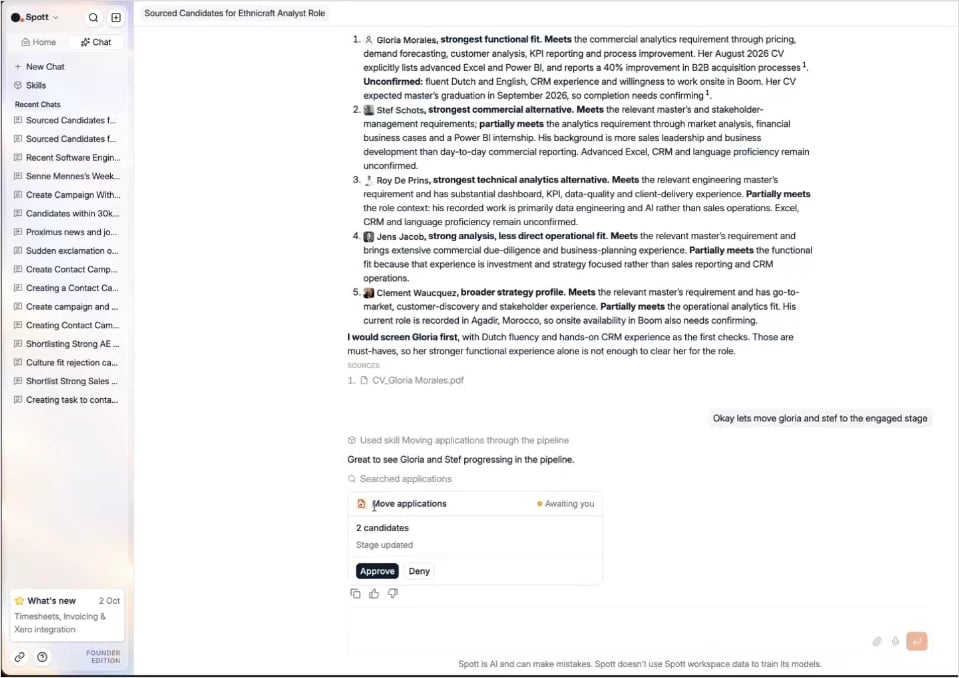
Whenever the chatbot wants to change something in Spott (create, update, move or import a
record), it first shows you an **approval request**. Nothing changes until you click
**Approve**.
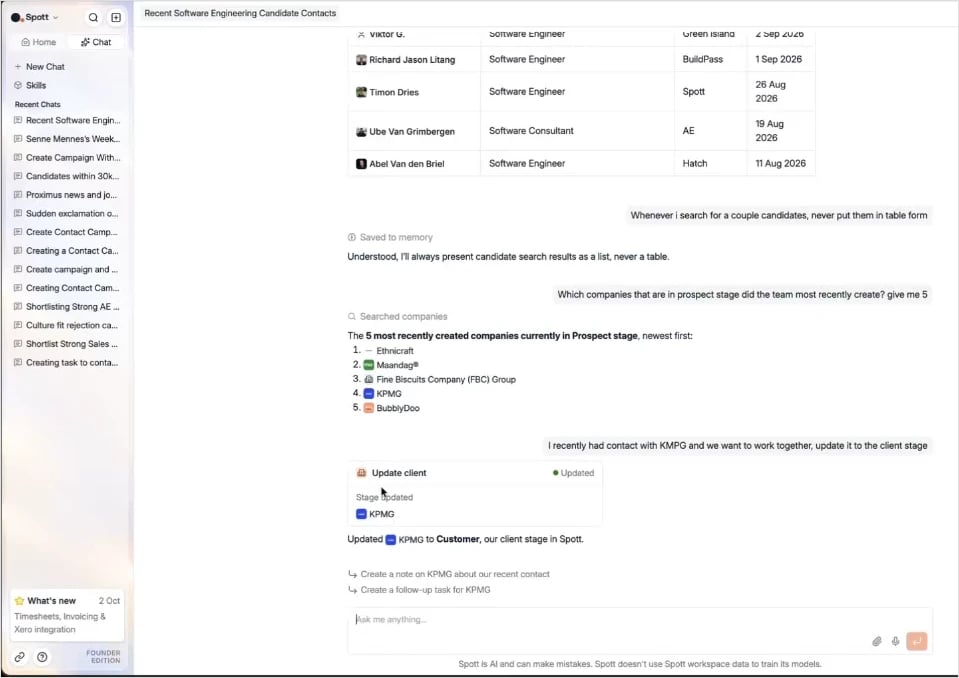
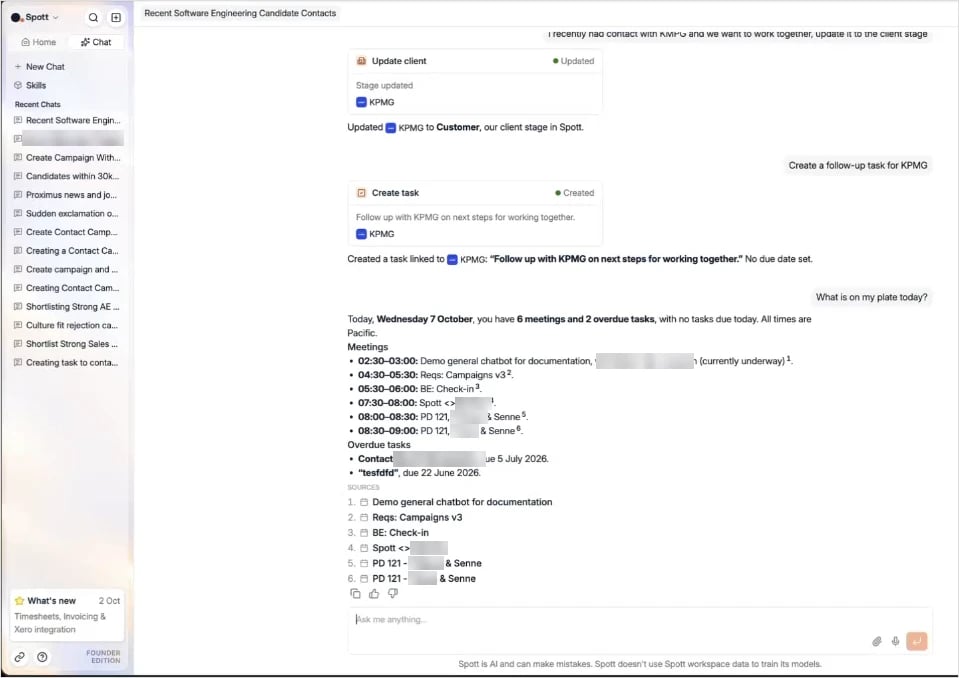
> I recently had contact with KPMG and we want to work together. Update it to the client
> stage.
If the stage you mention does not exist under that exact name, the chatbot picks the closest
matching stage in your pipeline, here **Customer**.
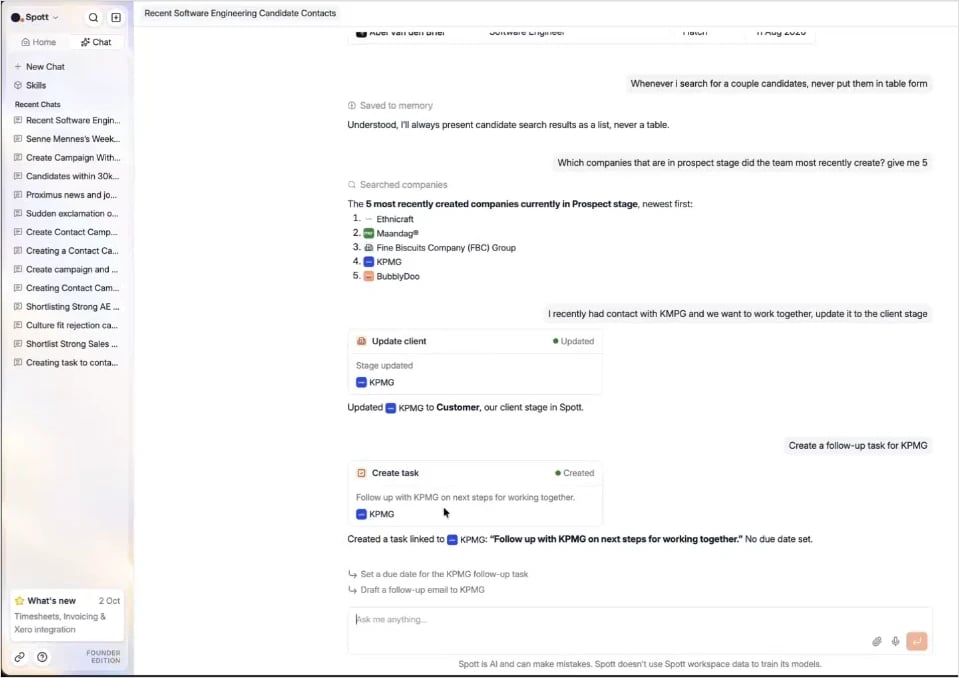
After an action, the chatbot **suggests logical follow-ups**, such as creating a follow-up
task. Click a suggestion to run it.
## What you can do with it
### Search and count records
Search and count **candidates, contacts, companies, jobs, opportunities, applications,
notes and tasks**, combining as many filters as you need.
> Which companies in the prospect stage did the team most recently create? Give me five.
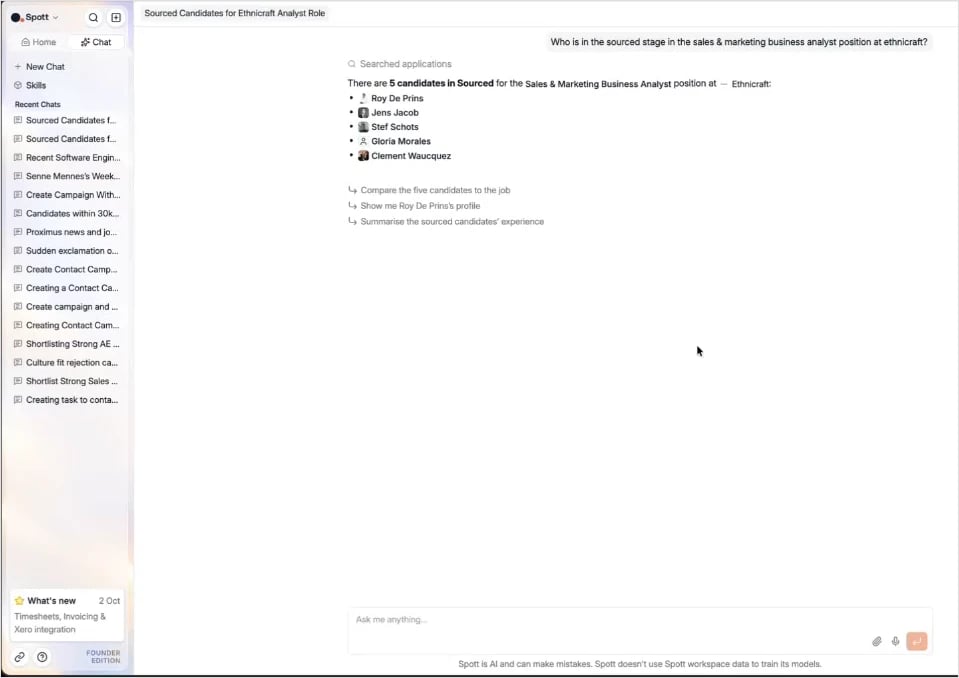
> Who is in the Sourced stage for the Account Manager position at \[company]?
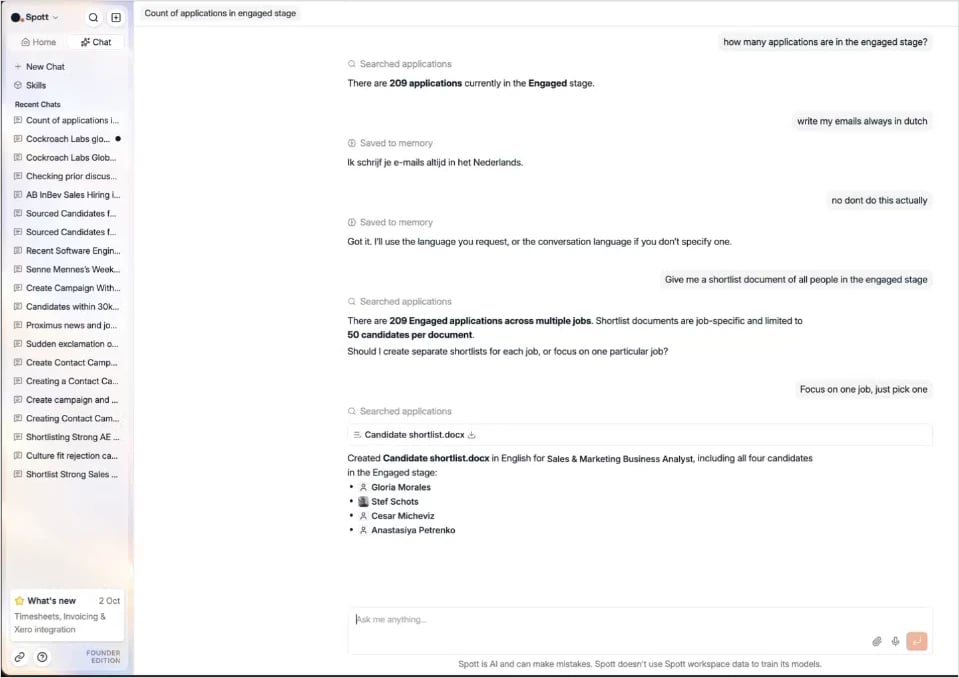
You can also ask for numbers instead of lists:
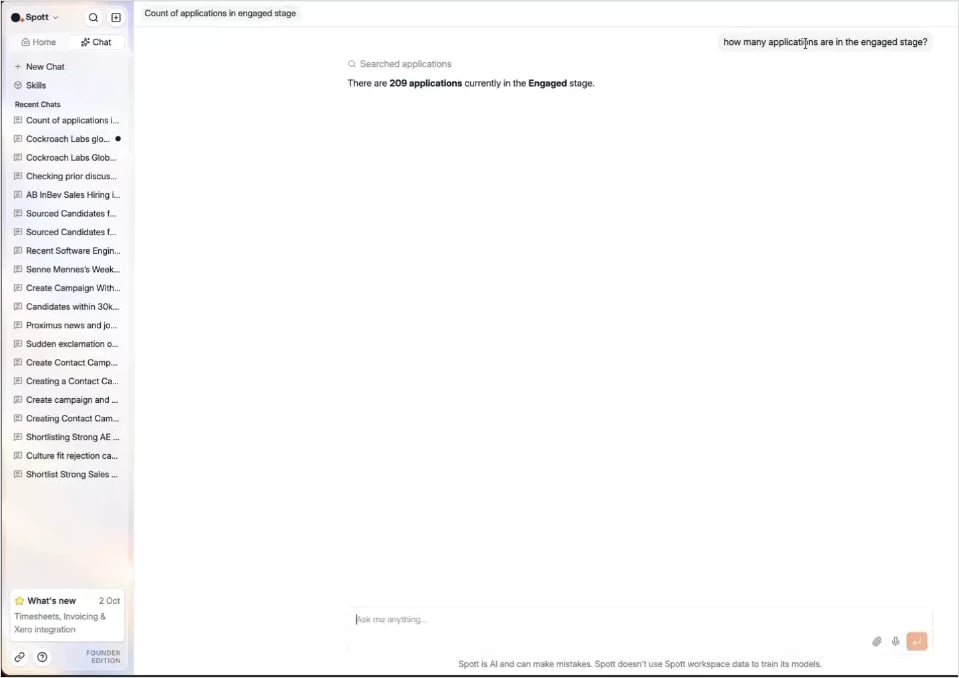
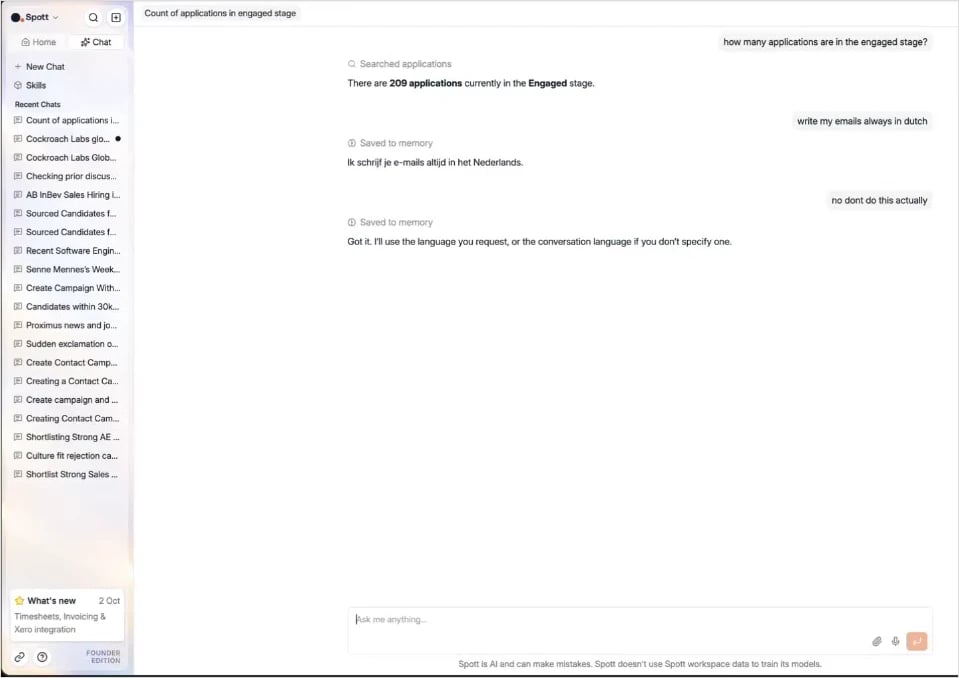
> How many applications are in the Engaged stage?
> How many applications were in the Engaged stage but were withdrawn by the candidate?
### Create and update records
The chatbot can create and update **candidates, contacts, companies, jobs, opportunities,
applications, notes and tasks**. For applications, it can **move candidates to another
stage** or **reject** them.
> Move \[candidate A] and \[candidate B] to the Engaged stage.
> Reject \[candidate] for the \[job] position.
> Create a task to follow up with \[contact] next Monday.
> Add a note to \[candidate]: prefers hybrid work, available from January.
### Add records to lists and sequences
Add records to an existing [list](/docs/lists/lists), or let the chatbot create a new list
for you. You can also add contacts or candidates to a
[sequence (campaign)](/docs/outreach/campaigns).
> Add these five candidates to a new list called "Senior Java Q4".
> Add \[contact] to the \[sequence name] sequence.
### Check your calendar and tasks
Ask what your day looks like:
> What is on my plate?
The chatbot checks your **tasks and calendar** for yesterday and today. It points out what
may still need a follow-up from yesterday and lists what is planned for today. Times are
shown in your own time zone.
### Find information in conversations
The chatbot searches by **meaning**, not just by exact keywords, across everything in Spott:
emails, notes, tasks, comments and call transcripts. Use it to find what was said, and by
whom.
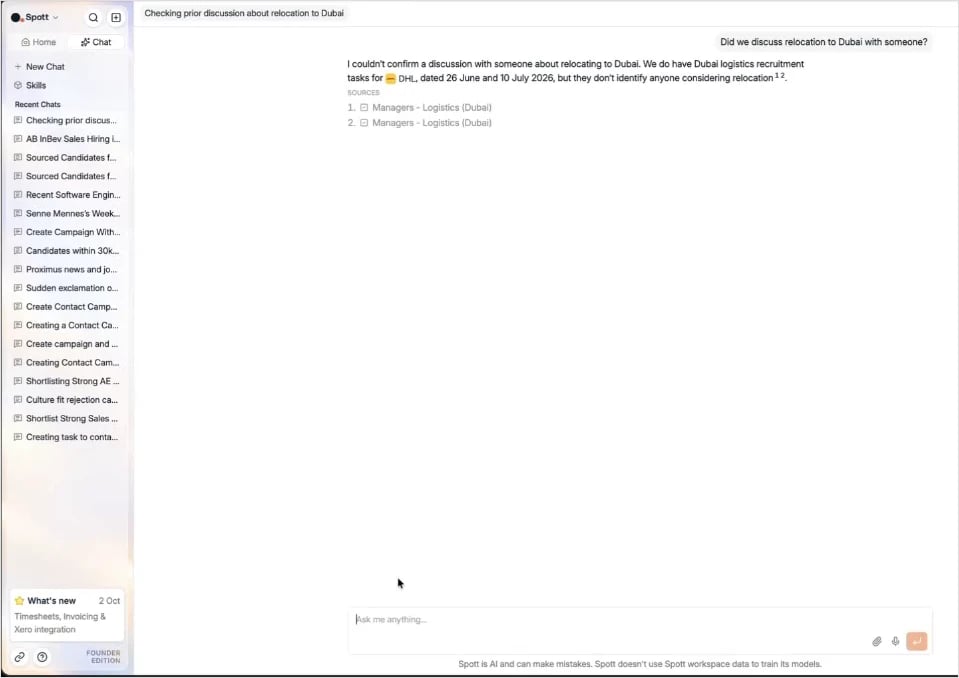
> Did we discuss relocation to Dubai with anyone?
> Is there anyone who said they want to relocate to Dubai?
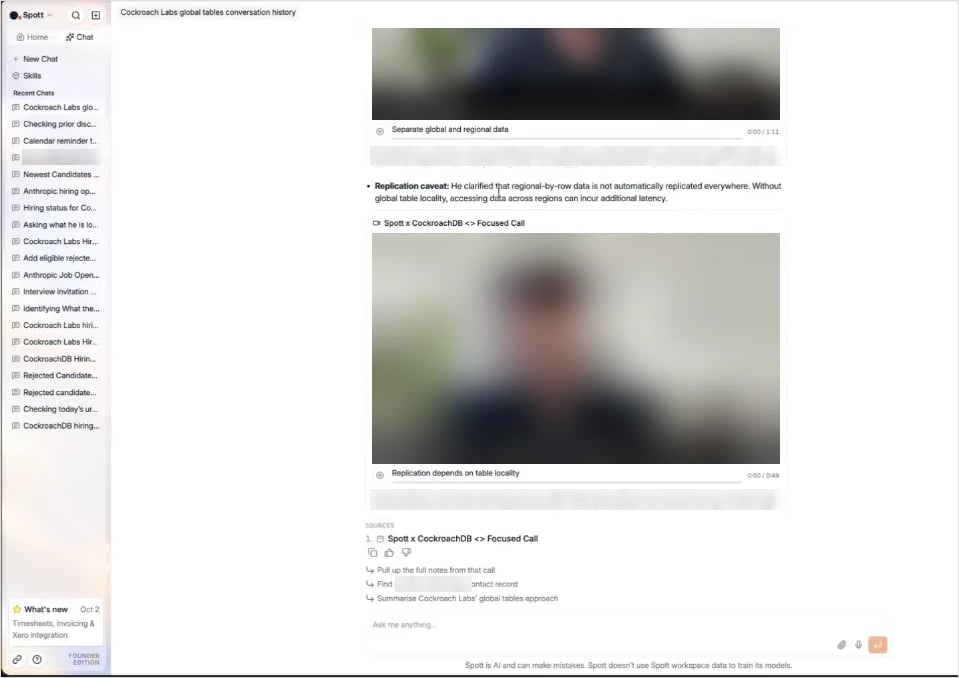
> Where did he say that?
When an answer is based on specific records, the **sources are listed at the bottom**. Click
a source to open it. For calls, the chatbot points to the **exact moment** in the
conversation, with a timestamp for each relevant snippet. This works for meeting recordings
(video) as well as VoIP calls (audio).
> I'm working on a job for \[client]. Did we ever discuss \[topic] with anyone?
The chatbot is focused on recruitment work. If a question could look unrelated to
recruitment, add a bit of context, for example "I'm working on a job for \[client]", so it
knows why you are asking.
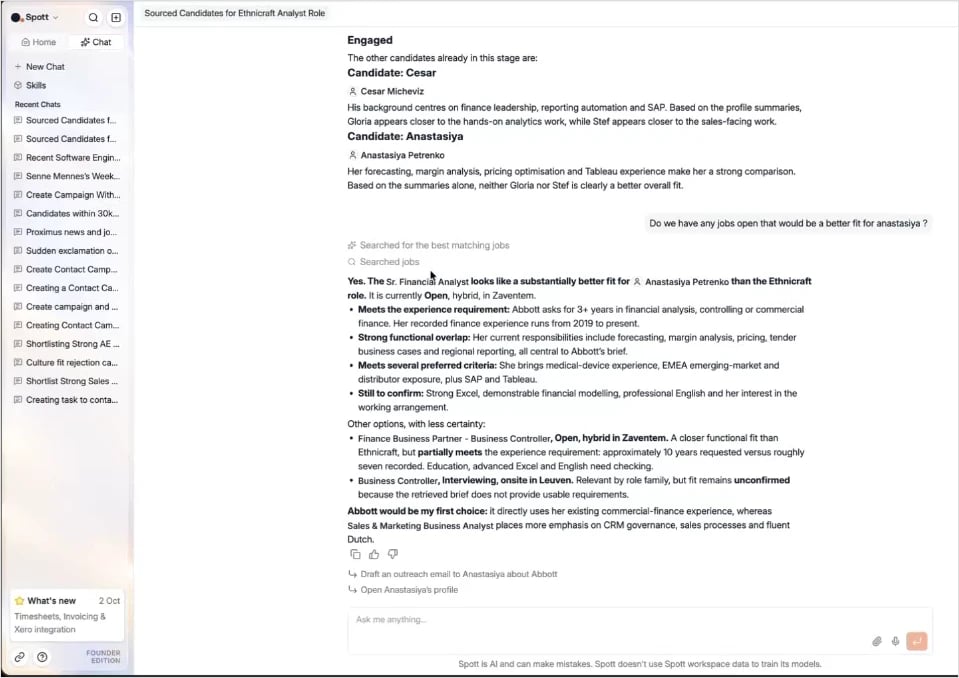
### Match candidates and jobs
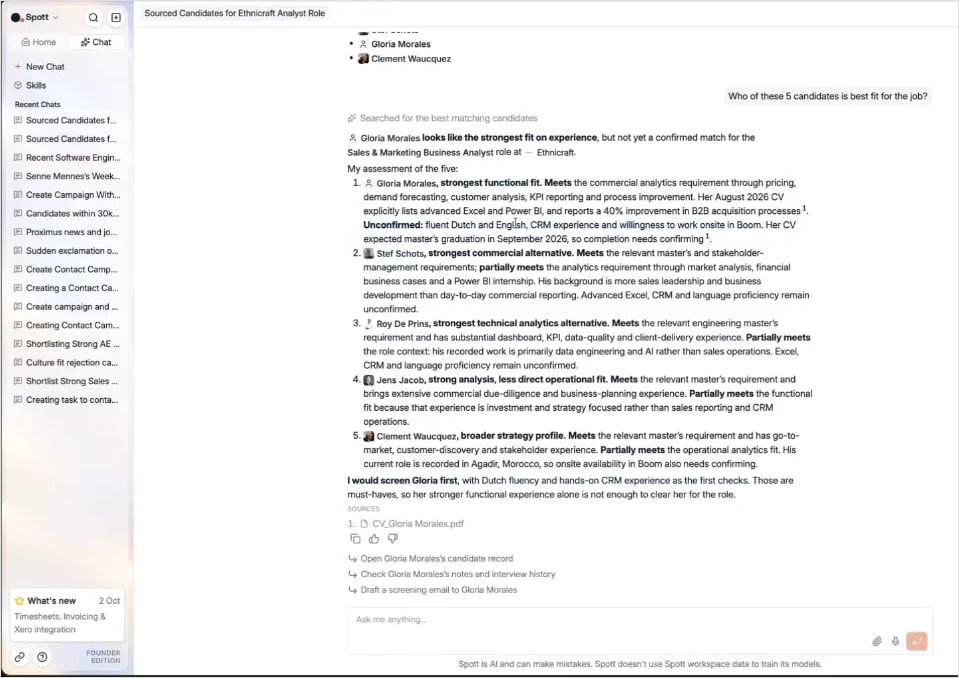
**Find the best candidates for a job.** The chatbot ranks the candidates and explains, per
candidate, why they are or are not a good fit.
> Which of these five candidates is the best fit for the job?
**Find the best jobs for a candidate.** It works the other way around too:
> Do we have any open jobs that would be a better fit for \[candidate]?
Matching against a large pool of candidates can take a little longer than a regular search.
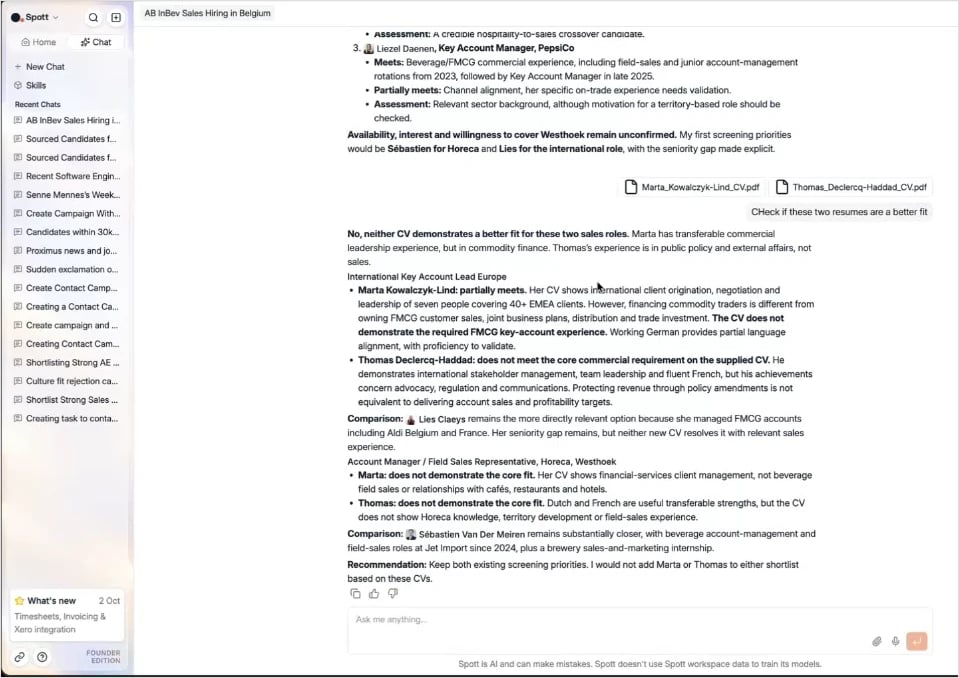
### Work with files
Attach files to your message with the paperclip button in the chat box.
**Read file contents.** The chatbot reads attached documents and uses them in its answer,
for example to check CVs against a job:
> Check if these two resumes are a better fit for the job.
**Create candidates from a CV.** The chatbot parses the CV and creates the candidate,
including their work experience.
> Add them as candidates.
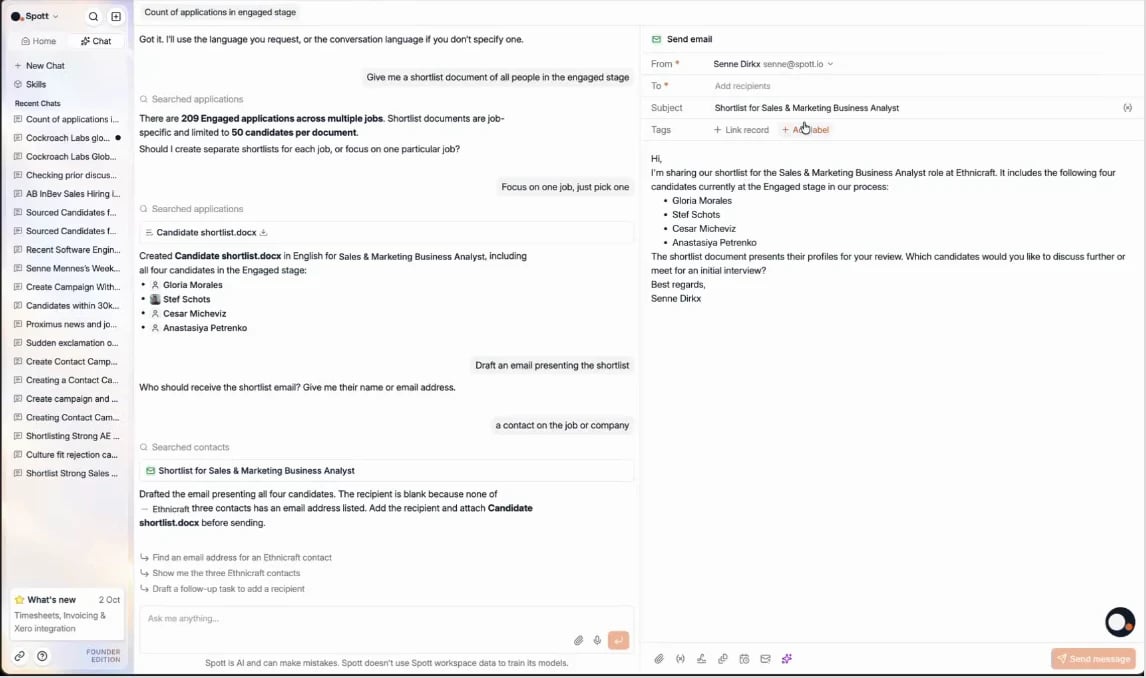
**Create a shortlist document.** The chatbot fills in your workspace's
[shortlist template](/docs/candidates/client-documents#shortlist) with the candidates you
choose.
> Give me a shortlist document of all people in the Engaged stage for the \[job] job.
### Draft emails and calendar events
The chatbot drafts emails and calendar invites for you. Drafts are **never sent
automatically**: you review them and send them yourself.
**A single email:**
> Draft an email presenting the shortlist to the hiring manager.
If a contact has no email address in Spott, the chatbot tells you.
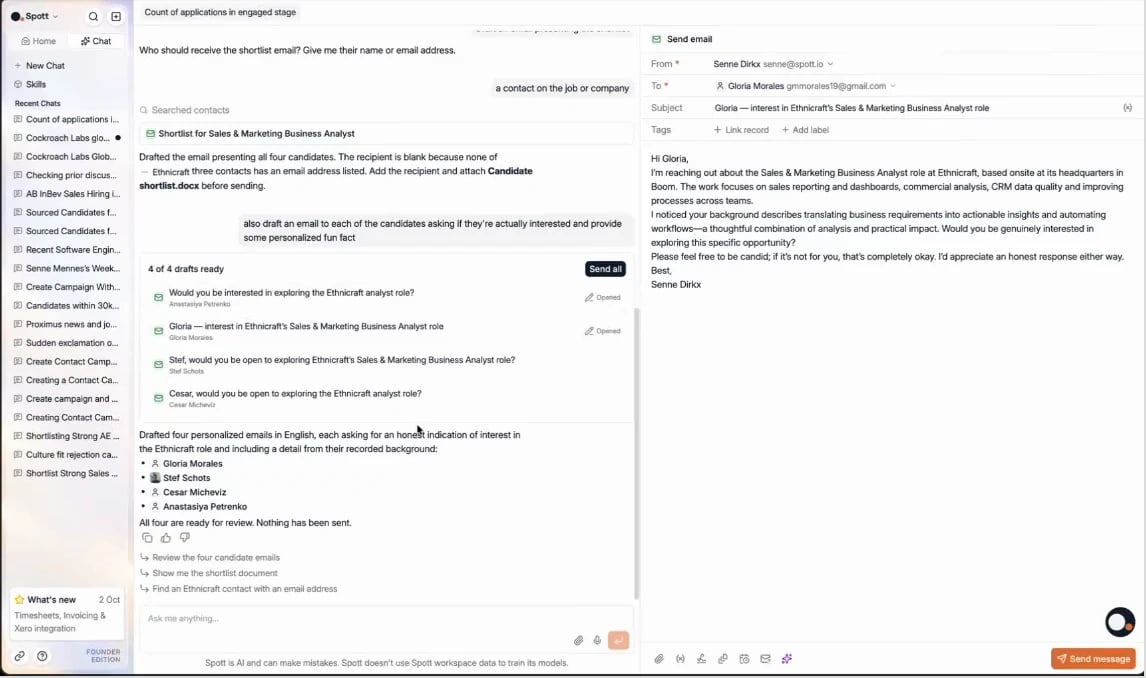
**Personalized emails to several people.** Each email is written individually, so every
recipient gets a message tailored to them and personal details never mix between emails.
> Draft an email to each of the candidates asking if they're interested, and include a
> personalized fun fact.
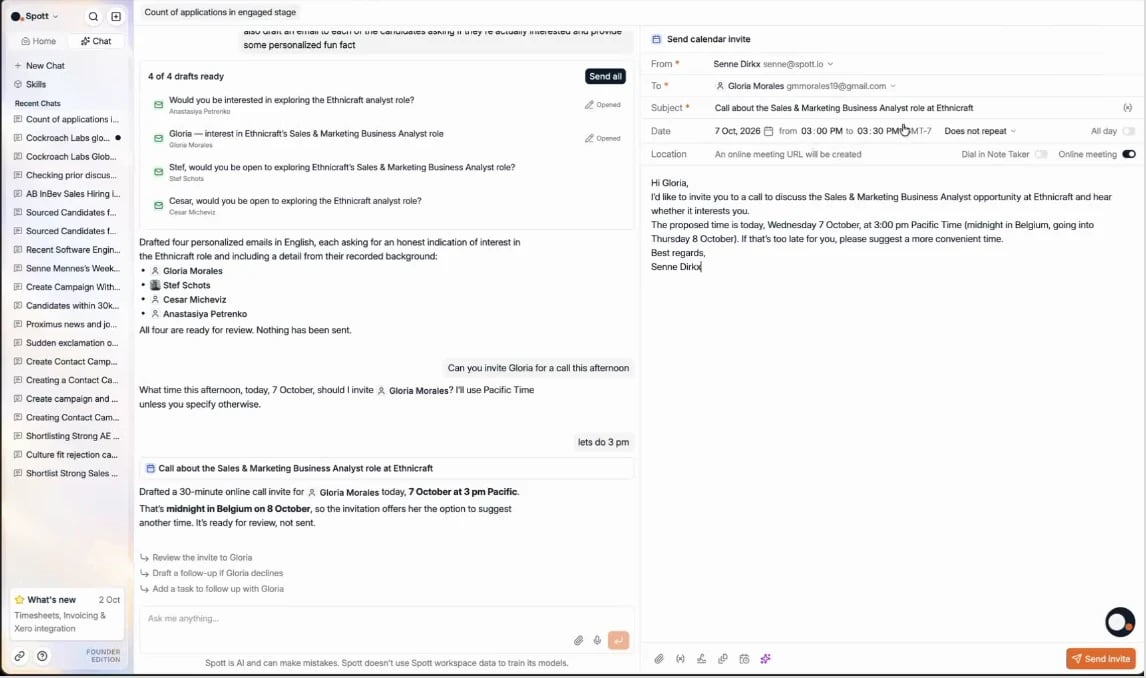
**Calendar events:**
> Draft a 30-minute online call with \[candidate] tomorrow at 3 PM about the \[job] role.
### Search the web and import the results
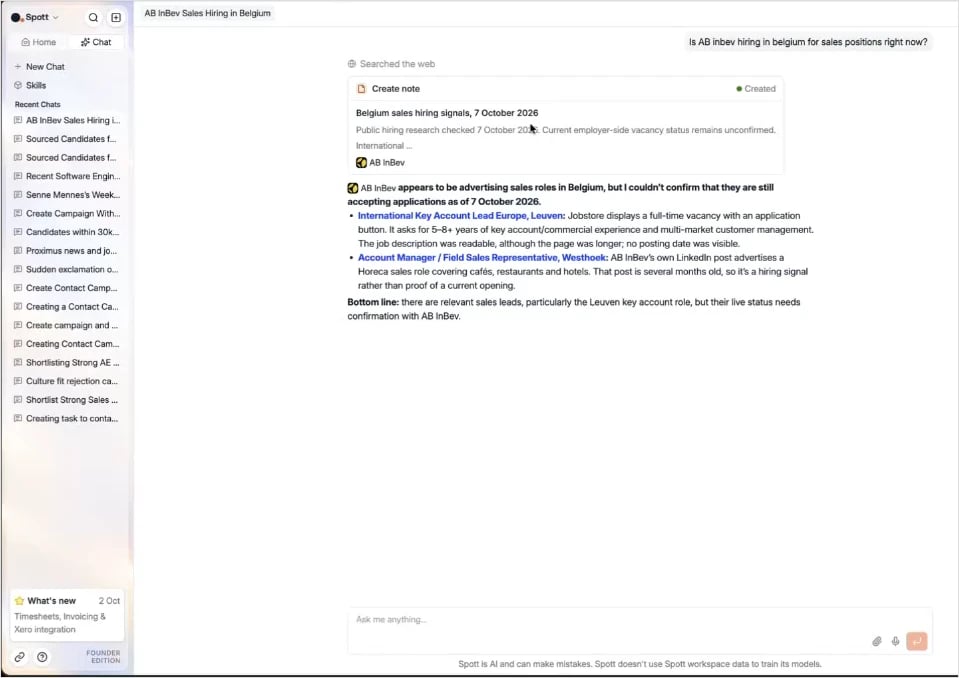
When the information you need is not in Spott, the chatbot searches the web. It works best
for **targeted lookups**: news about a company, open roles on a specific company's career
page, or the hiring manager for a role. It is not designed to scan the entire job market.
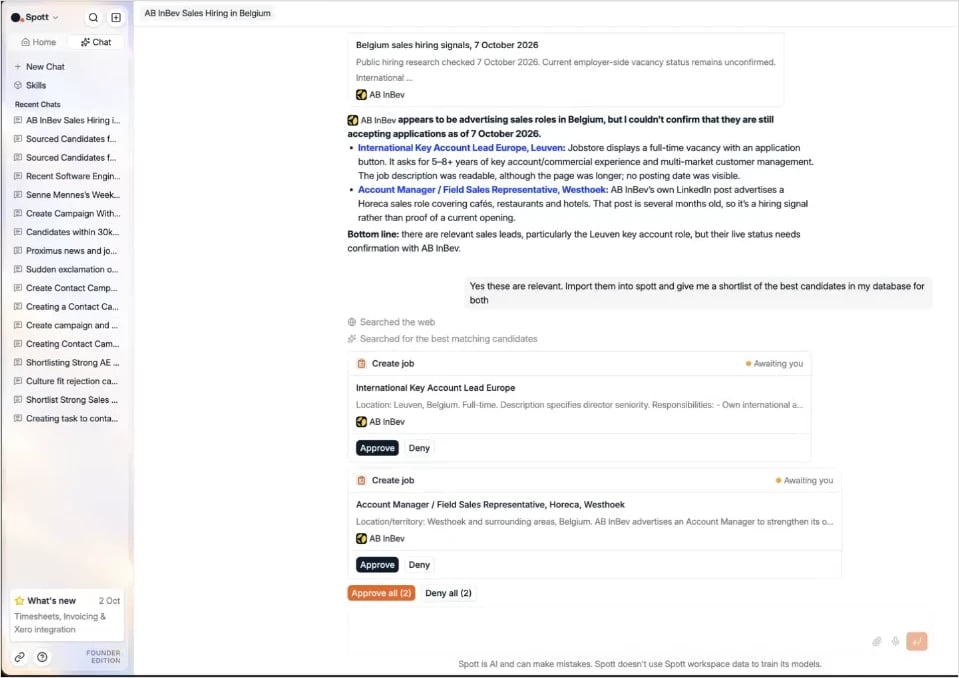
> One of my clients, AB InBev: are they currently hiring for sales positions in Belgium?
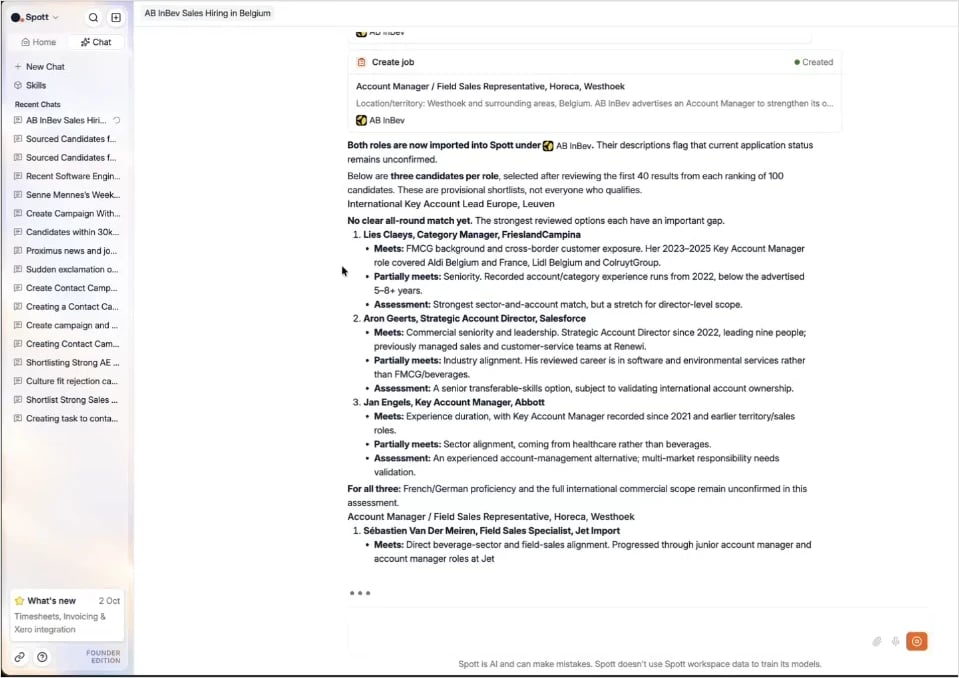
You can then import what it found straight into Spott. The chatbot checks whether the
company already exists, so you do not get duplicates, and imports the jobs including their
description, after your approval. In the same request, you can ask it to match candidates
right away:
> Yes, these are relevant. Import them into Spott and give me a shortlist of the best
> candidates in my database for both.
Other examples:
> I have a call with \[company] later today about some jobs. What are the latest news items I
> can mention?
> Find the hiring manager for the \[role] position at \[company].
## Skills
For tasks you do regularly, save the instructions once as a **skill** and the chatbot
follows them every time. Everyone starts with **Prep my next meeting** and **Recap my last
call**. See [Chatbot Skills](/docs/get-started/chatbot-skills).
## Memory: it learns how you work
### Telling it your preferences
Give the chatbot an instruction about how you like to work, and it saves it to memory and
applies it in all your future chats.
> Whenever I search for candidates, never put them in table form.
Changed your mind? Just say so, and the chatbot updates or removes the memory.
> Always write my emails in Dutch.
> No, don't do this actually.
### Learning from how you use it
The chatbot also learns on its own. It regularly looks for patterns in how you use it and
personalizes itself to you. If you always create a note after moving an application to a new
stage, for example, it learns that workflow and suggests it or does it for you.
Memories that keep being useful are reinforced, and memories that are never used gradually
fade out. That keeps the chatbot focused on what is relevant to you today.
## Tips for the best results
* **Be specific.** Mention the stage, job, company or time frame you mean.
* **Add context.** Briefly say what you are working on when a question is not obviously
about recruitment.
* **Start a new chat for a new topic.** It keeps answers focused.
* **Check before approving.** Read the approval request to make sure the right records
change.
* **Use the sources.** Click the sources under an answer to see where the information comes
from.
* **Save what you repeat.** Turn recurring requests into a
[skill](/docs/get-started/chatbot-skills), and tell the chatbot your preferences so it
remembers them.
This documentation is built and hosted on [Mintlify](https://mintlify.com), a developer documentation platform.