> ## Documentation Index
> Fetch the complete documentation index at: https://docs.spott.io/llms.txt
> Use this file to discover all available pages before exploring further.
# Adding and Managing Companies in Spott
> Add a new client company in Spott and manage its jobs, contacts, files, and placements from one record.
You can quickly navigate to the Companies page with `G` then `M`. See all
[keyboard shortcuts](/docs/settings/keyboard-shortcuts).
## Open the Companies view
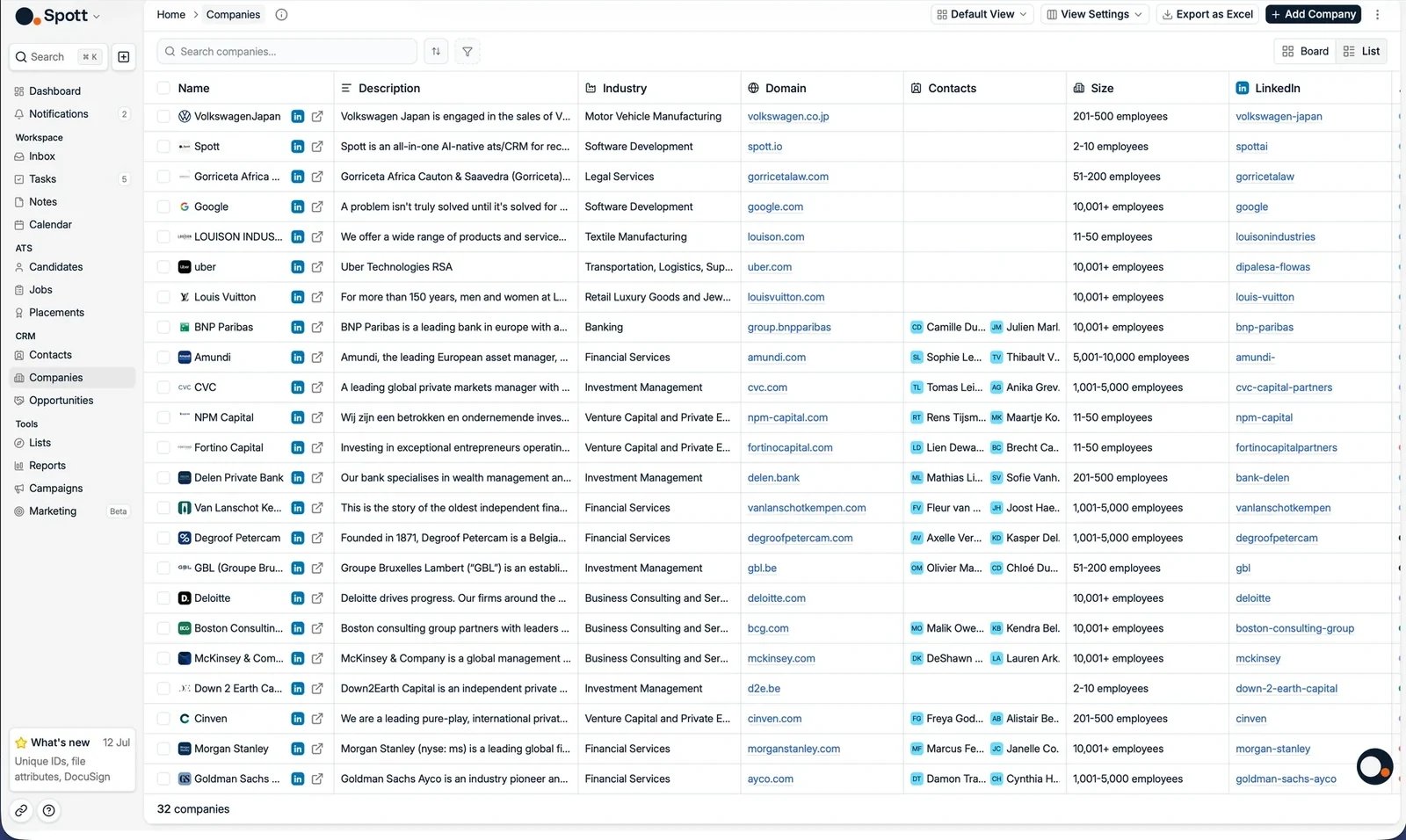
From the left-hand navigation bar, select **Companies** to open your client list.
 ## Add a new company
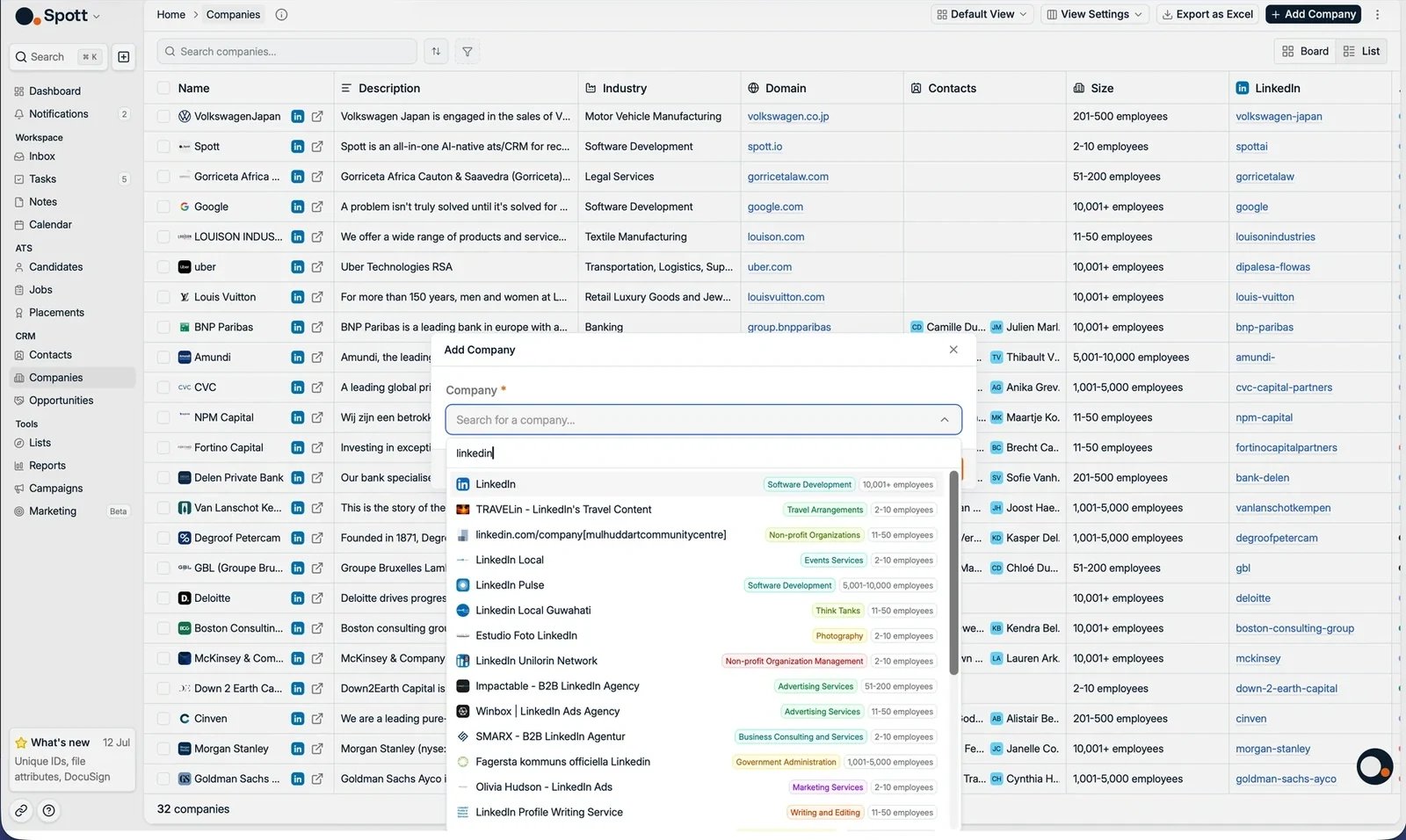
* Click the **Add Company** button in the top-right corner of the page.
* A pop-up form appears where you can enter the company name.
Spott recognizes known companies while you type and shows them with their logo,
industry, and size. Pick a recognized company and Spott fills the record with the
available public information, including the logo and website. If the company is not
found, fill in the details yourself: description, industry, size, domain, and LinkedIn.
## Add a new company
* Click the **Add Company** button in the top-right corner of the page.
* A pop-up form appears where you can enter the company name.
Spott recognizes known companies while you type and shows them with their logo,
industry, and size. Pick a recognized company and Spott fills the record with the
available public information, including the logo and website. If the company is not
found, fill in the details yourself: description, industry, size, domain, and LinkedIn.
 You can also create a company by importing one of its contacts with the
[Chrome extension](/docs/settings/chrome-extension).
## Save the company
Once you have entered the details, click **Create company** to add the new client
company to your database.
## Explore the company record
After creating the company, you can edit and add more information in the company
record view. The main tabs are:
* **Jobs**: open or past job orders for this client, with an aggregated pipeline overview.
* **Speculative**: candidates presented to this client without an open role.
* **Notes**: internal notes for your team.
* **Contacts**: people linked to this company, with their contact details and role.
* **Files**: uploaded documents.
* **Tasks**: to-dos and reminders.
* **Placements**: candidates who are or have been placed at this company.
* **Hierarchy**: parent and child companies, and the type of relationship between them.
Depending on the features enabled for your workspace, you may also see
**Opportunities** and **Matching** tabs.
You can also create a company by importing one of its contacts with the
[Chrome extension](/docs/settings/chrome-extension).
## Save the company
Once you have entered the details, click **Create company** to add the new client
company to your database.
## Explore the company record
After creating the company, you can edit and add more information in the company
record view. The main tabs are:
* **Jobs**: open or past job orders for this client, with an aggregated pipeline overview.
* **Speculative**: candidates presented to this client without an open role.
* **Notes**: internal notes for your team.
* **Contacts**: people linked to this company, with their contact details and role.
* **Files**: uploaded documents.
* **Tasks**: to-dos and reminders.
* **Placements**: candidates who are or have been placed at this company.
* **Hierarchy**: parent and child companies, and the type of relationship between them.
Depending on the features enabled for your workspace, you may also see
**Opportunities** and **Matching** tabs.
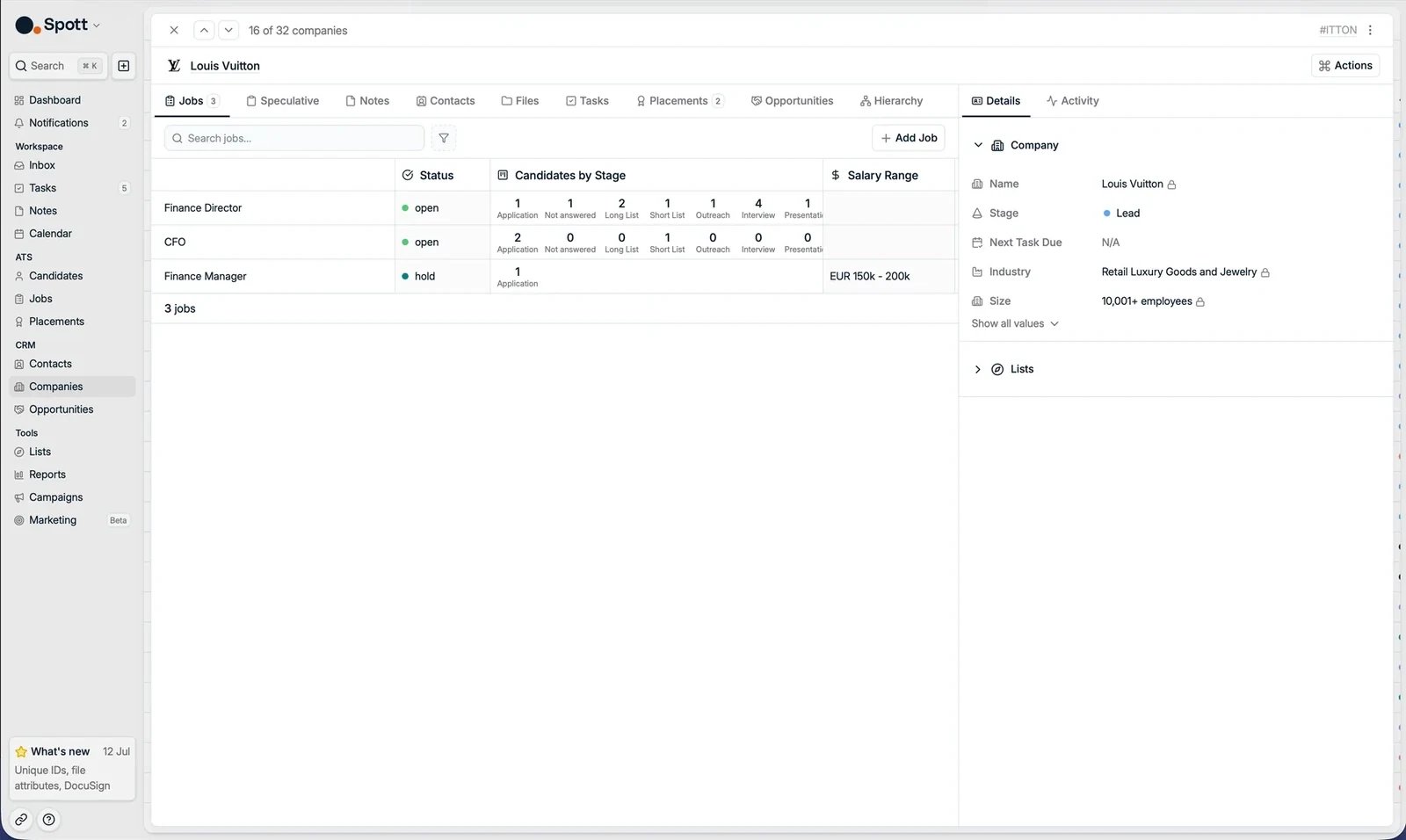 The **Details** panel on the right is always visible, regardless of which tab you are
in. It holds the company's fields, including the **Tax Identifier** (VAT number, with
automatic validation) and any custom fields your workspace uses.
Keeping your client records complete and using custom attributes will greatly improve
your ability to search, filter, and report on your client data in Spott.
The **Details** panel on the right is always visible, regardless of which tab you are
in. It holds the company's fields, including the **Tax Identifier** (VAT number, with
automatic validation) and any custom fields your workspace uses.
Keeping your client records complete and using custom attributes will greatly improve
your ability to search, filter, and report on your client data in Spott.