> ## Documentation Index
> Fetch the complete documentation index at: https://docs.spott.io/llms.txt
> Use this file to discover all available pages before exploring further.
# Merging duplicate candidates and contacts
> Combine two records for the same person into one, keeping all their data.
When the same person ends up in Spott twice, for example imported from a CV and also
added from LinkedIn, you can merge the two records into one so all their history stays
in a single place.
## How Spott detects duplicates
When you add or import a person, Spott checks for an existing record with a matching
**email address, phone number, or LinkedIn URL**. It does not match on name alone, so
two different people with the same name are not treated as duplicates.
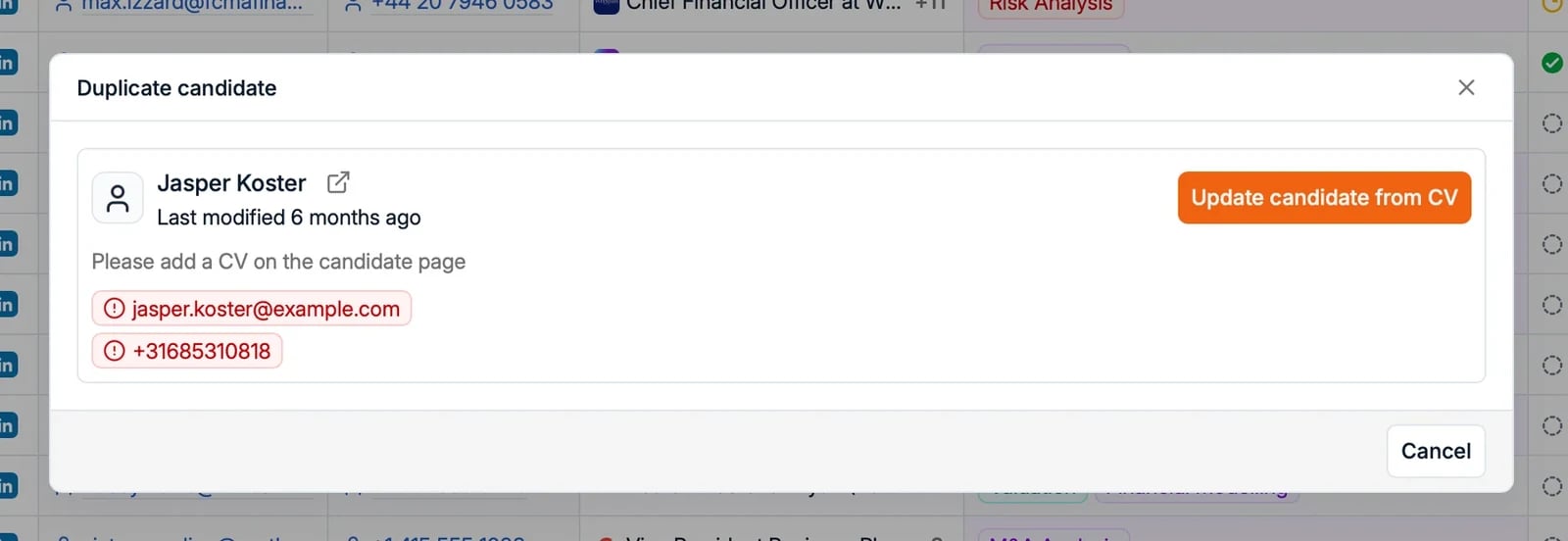
If it finds a match, Spott shows a **Duplicate candidate** prompt with the matching
identifiers highlighted, and offers to **update the existing record** (for example,
**Update candidate from CV**) instead of creating a second one.
 ## Merge two people
1. Open either person's profile.
2. Click **Actions** in the top right and choose **Merge 2 people** (shortcut `⇧M`).
3. In the **Merge People** dialog, the two records are shown side by side. Spott
combines their data, such as emails, phone numbers, LinkedIn, and attachments, into
one record.
4. Review the combined result on the right, then click **Merge People**.
## Merge two people
1. Open either person's profile.
2. Click **Actions** in the top right and choose **Merge 2 people** (shortcut `⇧M`).
3. In the **Merge People** dialog, the two records are shown side by side. Spott
combines their data, such as emails, phone numbers, LinkedIn, and attachments, into
one record.
4. Review the combined result on the right, then click **Merge People**.
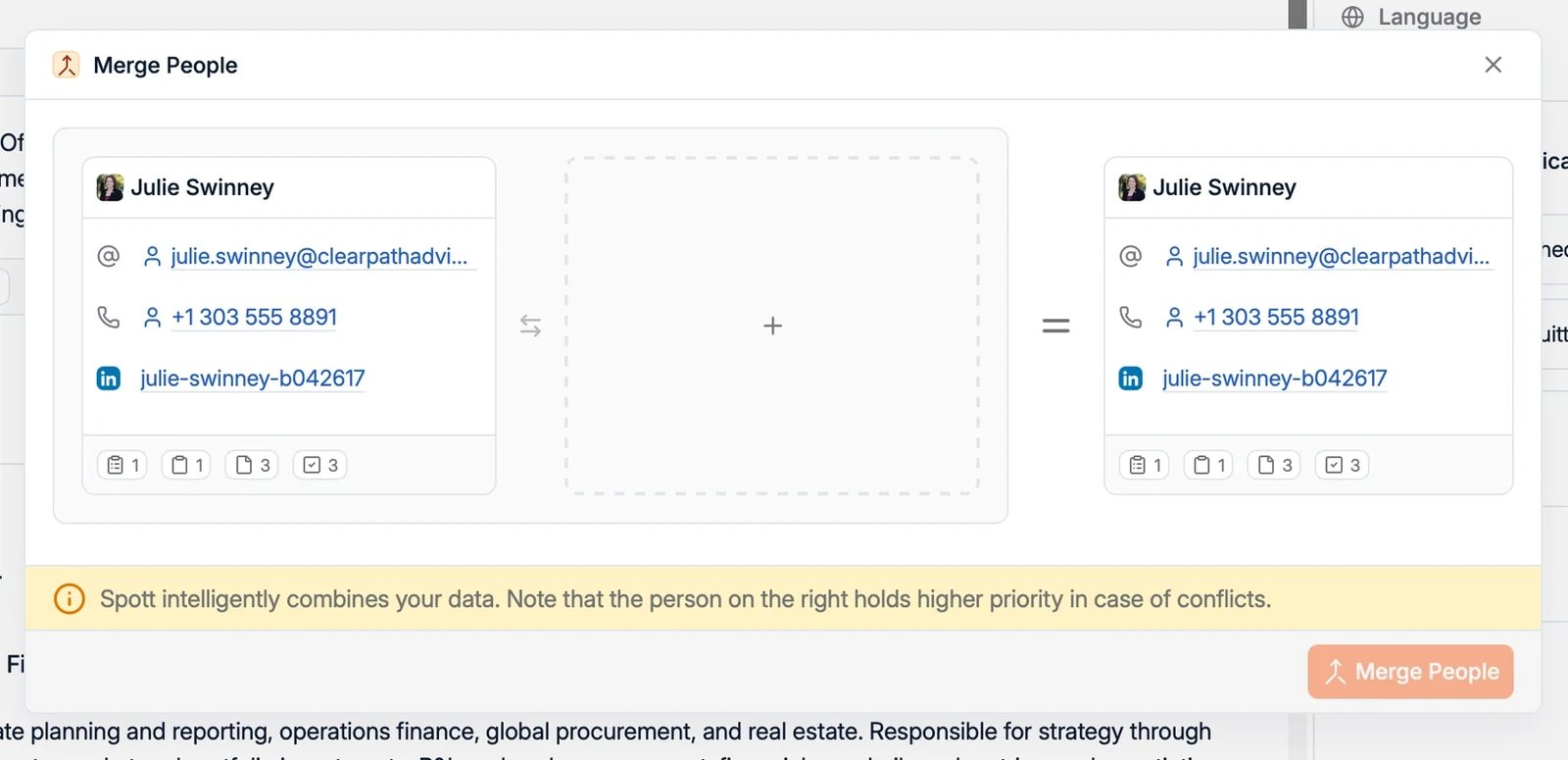 The record on the **right** takes priority. When the same field has different values
on each side, the right-hand value is kept. Put the record you consider most correct
on the right.
## Good to know
* You merge **two people at a time**. There is no bulk merge.
* Fields that can hold several values, such as **emails, phone numbers, and
attachments**, are combined, so nothing is lost there. Fields that hold a single
value, such as the **job title**, keep the right-hand record's value and the other is
overwritten. This is why the side you put on the right matters.
* **Merging cannot be undone.** Review the side-by-side comparison before you confirm.
* Merging a Candidate with a Contact keeps the result as a **Candidate**.
The record on the **right** takes priority. When the same field has different values
on each side, the right-hand value is kept. Put the record you consider most correct
on the right.
## Good to know
* You merge **two people at a time**. There is no bulk merge.
* Fields that can hold several values, such as **emails, phone numbers, and
attachments**, are combined, so nothing is lost there. Fields that hold a single
value, such as the **job title**, keep the right-hand record's value and the other is
overwritten. This is why the side you put on the right matters.
* **Merging cannot be undone.** Review the side-by-side comparison before you confirm.
* Merging a Candidate with a Contact keeps the result as a **Candidate**.