> ## Documentation Index
> Fetch the complete documentation index at: https://docs.spott.io/llms.txt
> Use this file to discover all available pages before exploring further.
# Managing candidates
> A tour of the candidate profile: the tabs, the details side panel, and the quick actions you can take from one place.
The candidate profile brings everything about one person together: their experience,
conversations, files, and AI context. This page walks you through it.
Every person exists only **once** in Spott. Someone can be a candidate, a client
contact, or both, and their notes and history stay on the same record even when they
change companies or roles. The **Add as contact** button on a profile adds the contact
role to the same person. It does not create a copy.
## Open a candidate profile
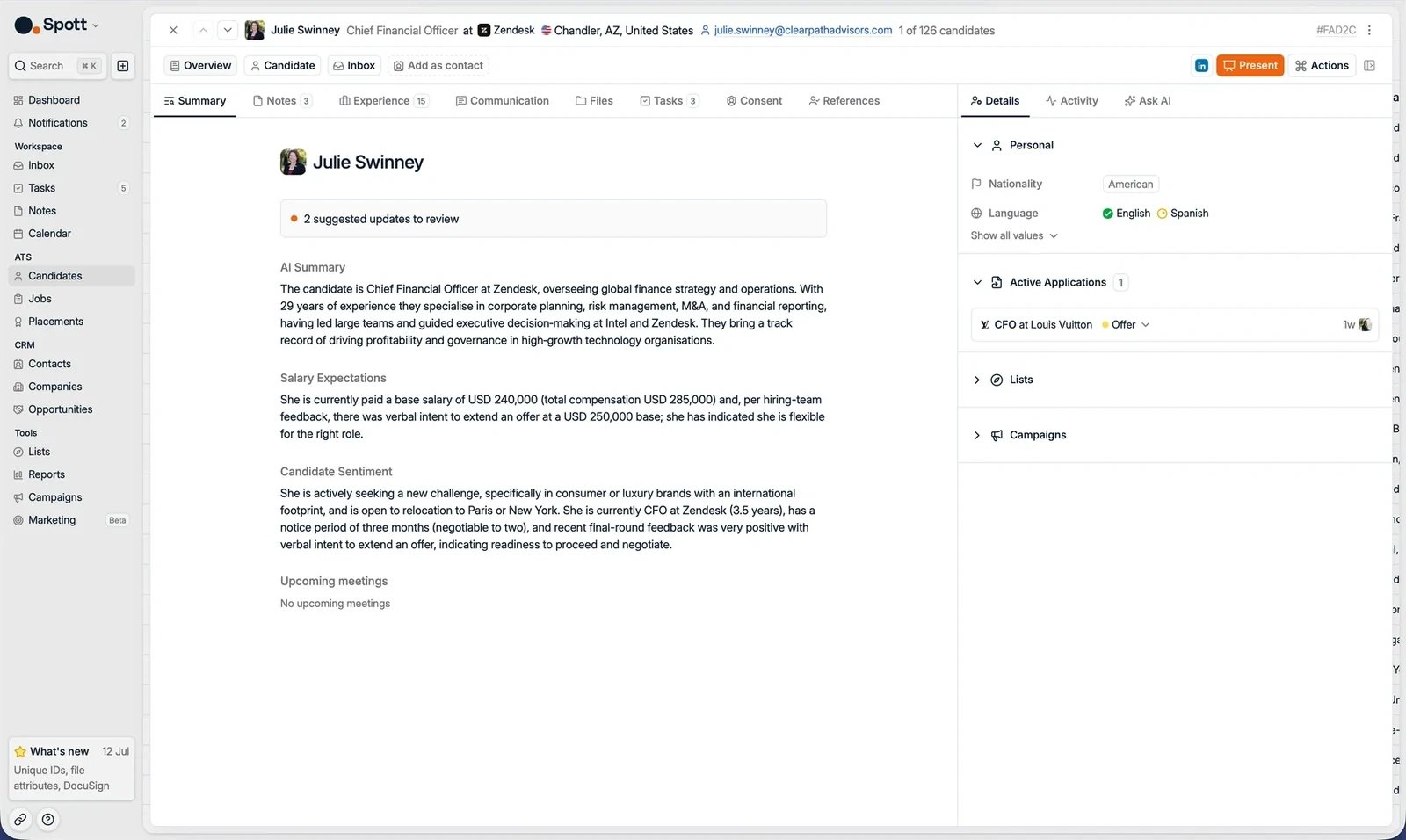
Go to the **Candidates** page in the left menu and click a candidate's name.
The header shows the candidate's name, role, company, and contact details. Below it,
the profile is organized into three tabs:
* **Overview**: all information about the person.
* **Candidate**: their applications and placements. See
[tracking applications](/docs/candidates/candidate-applications).
* **Inbox**: the full message history, across all channels.
 ## Quick actions
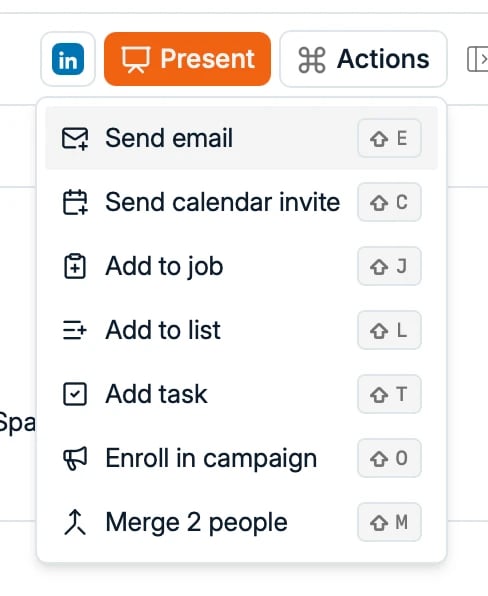
In the top right corner of the profile you find:
* The candidate's **LinkedIn profile**.
* **Present**, to share the candidate with a client.
* The **Actions** menu: send an email, send a calendar invite, add to a job, add to a
list, add a task, add a note, enroll in a campaign, or merge two people.
## Quick actions
In the top right corner of the profile you find:
* The candidate's **LinkedIn profile**.
* **Present**, to share the candidate with a client.
* The **Actions** menu: send an email, send a calendar invite, add to a job, add to a
list, add a task, add a note, enroll in a campaign, or merge two people.
 ## The Overview tab
The Overview tab has a row of subtabs on the left and a side panel on the right.
### Summary
Your starting point. Based on the whole profile, Spott shows:
* **Suggested field updates** picked up from recent conversations or emails. You can
accept or reject each one.
* A short **AI summary** of the candidate.
* **Salary expectations**.
* **Candidate sentiment**, based on recent conversations.
* **Upcoming meetings**.
### Notes
Add and track notes about the candidate or one of their applications. With the Spott
Notetaker enabled, meetings are transcribed and summarized into a note automatically.
Notes also serve as context for the AI features.
### Experience
The candidate's skills, work experience, and education, with tenure statistics.
This information can be entered manually, parsed from a CV, or imported from LinkedIn
with the Chrome extension.
## The Overview tab
The Overview tab has a row of subtabs on the left and a side panel on the right.
### Summary
Your starting point. Based on the whole profile, Spott shows:
* **Suggested field updates** picked up from recent conversations or emails. You can
accept or reject each one.
* A short **AI summary** of the candidate.
* **Salary expectations**.
* **Candidate sentiment**, based on recent conversations.
* **Upcoming meetings**.
### Notes
Add and track notes about the candidate or one of their applications. With the Spott
Notetaker enabled, meetings are transcribed and summarized into a note automatically.
Notes also serve as context for the AI features.
### Experience
The candidate's skills, work experience, and education, with tenure statistics.
This information can be entered manually, parsed from a CV, or imported from LinkedIn
with the Chrome extension.
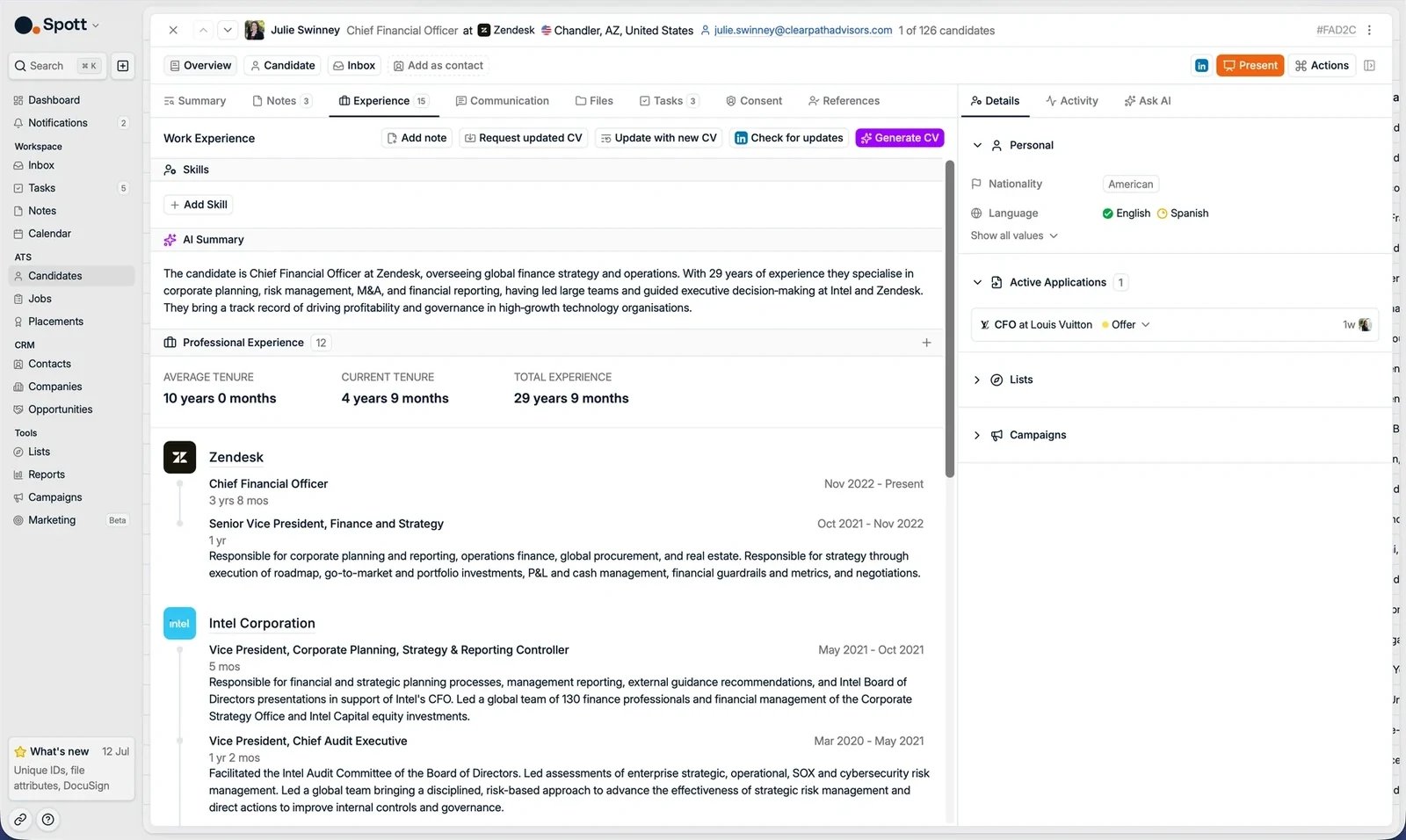 The buttons at the top keep the profile up to date:
* **Request updated CV**: send the candidate a link to upload their latest CV.
* **Update with new CV**: upload a newer CV yourself. Spott compares it with the
profile and only applies what changed.
* **Check for updates**: refresh the profile from LinkedIn.
* **Generate CV**: create a formatted CV in your agency's template.
Read more in [updating a candidate profile](/docs/candidates/update-profile-from-cv).
### Communication
Your message history with the candidate on **email**, **linked emails**, and
**WhatsApp**, and a quick way to reply without leaving the profile.
The buttons at the top keep the profile up to date:
* **Request updated CV**: send the candidate a link to upload their latest CV.
* **Update with new CV**: upload a newer CV yourself. Spott compares it with the
profile and only applies what changed.
* **Check for updates**: refresh the profile from LinkedIn.
* **Generate CV**: create a formatted CV in your agency's template.
Read more in [updating a candidate profile](/docs/candidates/update-profile-from-cv).
### Communication
Your message history with the candidate on **email**, **linked emails**, and
**WhatsApp**, and a quick way to reply without leaving the profile.
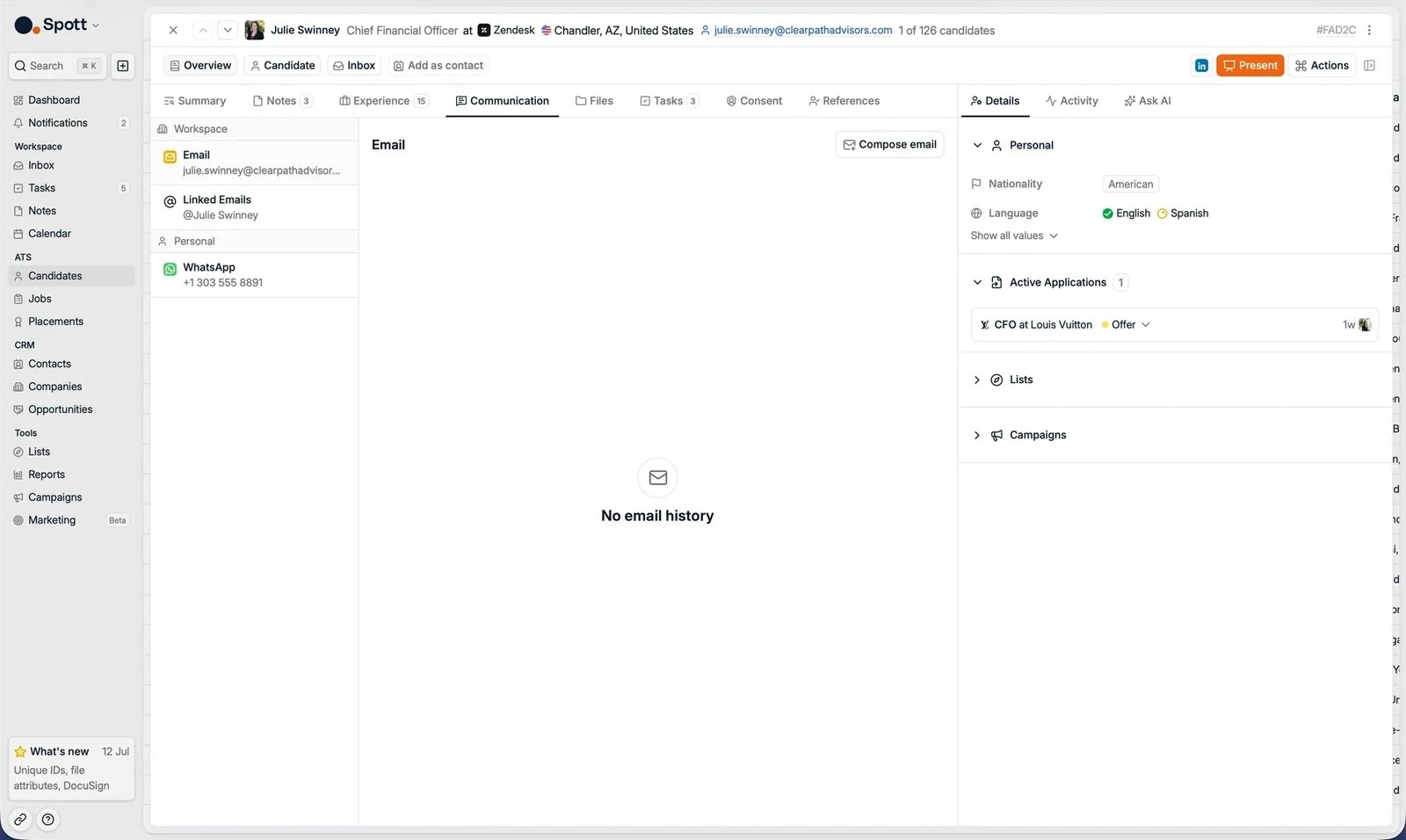 Synchronisation works in both directions. Messages sent outside Spott also show up
here, and vice versa. For the full-screen version, open the **Inbox** tab.
### Files
Files attached to the candidate, such as their CV. Click the three dots next to a CV
to **generate a formatted CV**, so every CV you share with clients follows the same
template.
### Tasks
Follow-up actions for this candidate. Assign them to yourself or a teammate, set due
dates, and track completion.
### Consent
Track the candidate's **consents** (GDPR and other compliance requirements, with type,
source, and validity period) and **marketing opt-outs** to exclude them from marketing
emails.
This subtab appears when consent tracking is enabled for your workspace. See
[GDPR consent management](/docs/settings/gdpr-consent).
### References
Log references for the candidate and add comments per reference. The referee must
already exist as a person in Spott.
## The side panel
### Details
All the candidate's fields: contact details, location, languages, availability, salary
expectation, and any custom fields your workspace uses. Click **Show all values** to
see every field.
Synchronisation works in both directions. Messages sent outside Spott also show up
here, and vice versa. For the full-screen version, open the **Inbox** tab.
### Files
Files attached to the candidate, such as their CV. Click the three dots next to a CV
to **generate a formatted CV**, so every CV you share with clients follows the same
template.
### Tasks
Follow-up actions for this candidate. Assign them to yourself or a teammate, set due
dates, and track completion.
### Consent
Track the candidate's **consents** (GDPR and other compliance requirements, with type,
source, and validity period) and **marketing opt-outs** to exclude them from marketing
emails.
This subtab appears when consent tracking is enabled for your workspace. See
[GDPR consent management](/docs/settings/gdpr-consent).
### References
Log references for the candidate and add comments per reference. The referee must
already exist as a person in Spott.
## The side panel
### Details
All the candidate's fields: contact details, location, languages, availability, salary
expectation, and any custom fields your workspace uses. Click **Show all values** to
see every field.
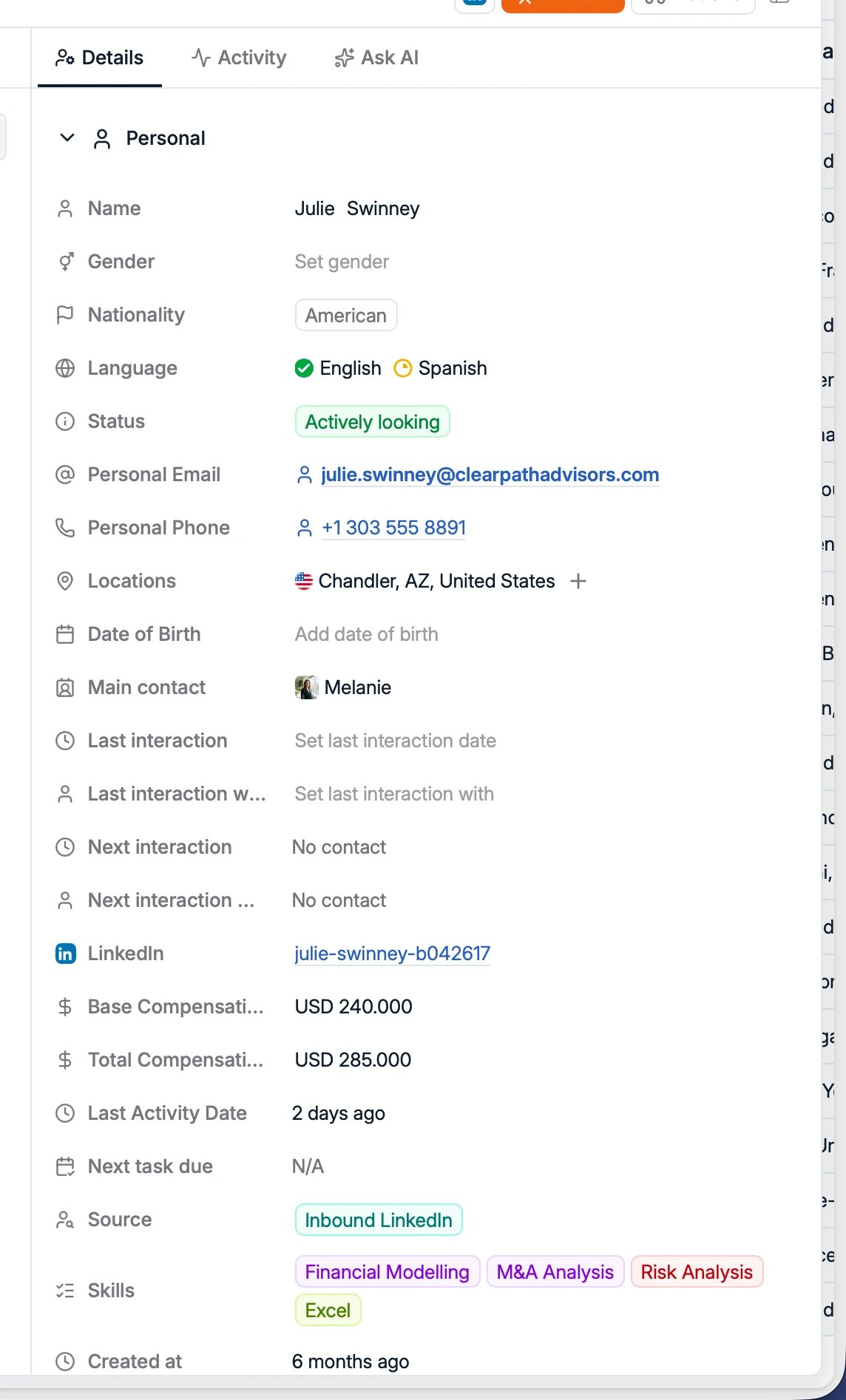 Like the Experience subtab, these values can be entered manually, parsed from a CV, or
imported from LinkedIn. In Settings you can create new fields, reorder them, and choose
which ones show by default.
### Activity
A timeline of every change to the profile and its applications, with who made each
change.
### Ask AI
A personal agent that knows the whole profile: details, experience, notes, emails, and
applications. Ask it things like:
* "Summarize the situation with this candidate."
* "Give me an application overview."
* "What should I do next with this candidate?"
## Good to know
* **No duplicates.** An email address, phone number, or LinkedIn URL can belong to only
one person in the whole database. If a CV or import matches an existing person, Spott
updates that person instead of creating a copy.
* **Phone numbers use international format** (for example `+32...`). Spott validates
this on entry. It keeps deduplication, enrichment, and calling integrations reliable.
* **Checking who owns an identifier?** Paste the email address or phone number into
global search (`⌘K` / `Ctrl+K`) to find the person it belongs to.
* **The Source field** records where a candidate came from, not their current status,
and is not editable.
* **Bulk delete** handles up to 1,000 candidates at a time.
* **You cannot reuse your own login email** on a candidate record.
* **Profile photos** can be uploaded manually on a candidate profile.
* **WhatsApp on the Communication tab stays private to each user**, so a colleague's
WhatsApp threads are not visible to the rest of the team.
Like the Experience subtab, these values can be entered manually, parsed from a CV, or
imported from LinkedIn. In Settings you can create new fields, reorder them, and choose
which ones show by default.
### Activity
A timeline of every change to the profile and its applications, with who made each
change.
### Ask AI
A personal agent that knows the whole profile: details, experience, notes, emails, and
applications. Ask it things like:
* "Summarize the situation with this candidate."
* "Give me an application overview."
* "What should I do next with this candidate?"
## Good to know
* **No duplicates.** An email address, phone number, or LinkedIn URL can belong to only
one person in the whole database. If a CV or import matches an existing person, Spott
updates that person instead of creating a copy.
* **Phone numbers use international format** (for example `+32...`). Spott validates
this on entry. It keeps deduplication, enrichment, and calling integrations reliable.
* **Checking who owns an identifier?** Paste the email address or phone number into
global search (`⌘K` / `Ctrl+K`) to find the person it belongs to.
* **The Source field** records where a candidate came from, not their current status,
and is not editable.
* **Bulk delete** handles up to 1,000 candidates at a time.
* **You cannot reuse your own login email** on a candidate record.
* **Profile photos** can be uploaded manually on a candidate profile.
* **WhatsApp on the Communication tab stays private to each user**, so a colleague's
WhatsApp threads are not visible to the rest of the team.