> ## Documentation Index
> Fetch the complete documentation index at: https://docs.spott.io/llms.txt
> Use this file to discover all available pages before exploring further.
# Import Candidate CSV
> Bulk add candidates to Spott from a CSV or Excel file with the guided import wizard.
The import wizard lets you bulk add candidates to Spott, for example when migrating
from another system or uploading a sourcing list. Each row in your file becomes one
candidate. You can import **up to 1,000 records** per import, from **CSV or Excel
(.xlsx)** files.
 ## Start an import
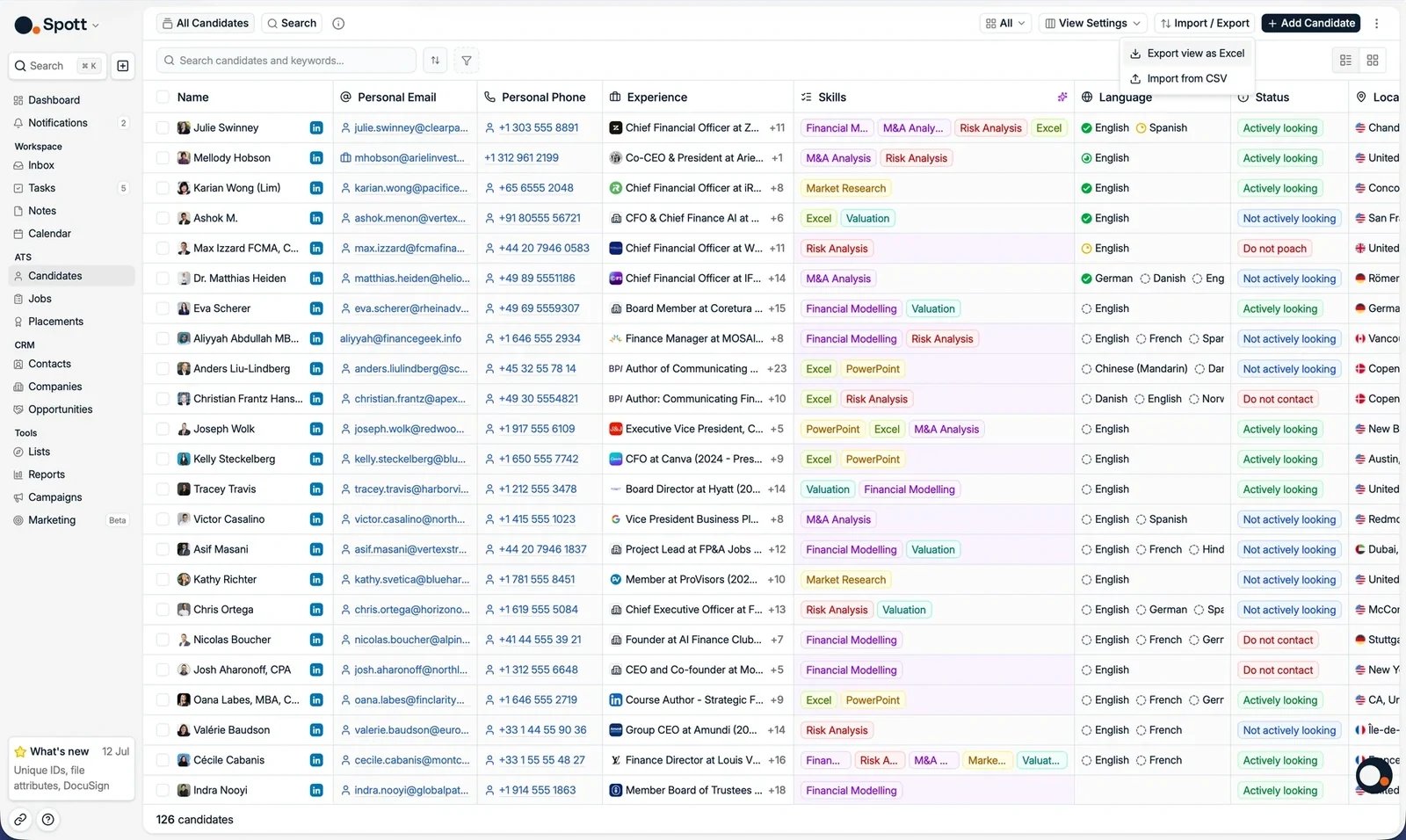
Navigate to **Candidates** from the main sidebar.
In the top right corner, click **Import / Export**, then select **Import from CSV**.
This opens the import wizard. Admins can also reach it from **Settings**.
Select the CSV or Excel file from your computer. Spott analyzes the file and
prepares it for import.
## Start an import
Navigate to **Candidates** from the main sidebar.
In the top right corner, click **Import / Export**, then select **Import from CSV**.
This opens the import wizard. Admins can also reach it from **Settings**.
Select the CSV or Excel file from your computer. Spott analyzes the file and
prepares it for import.
 ## Map columns to candidate attributes
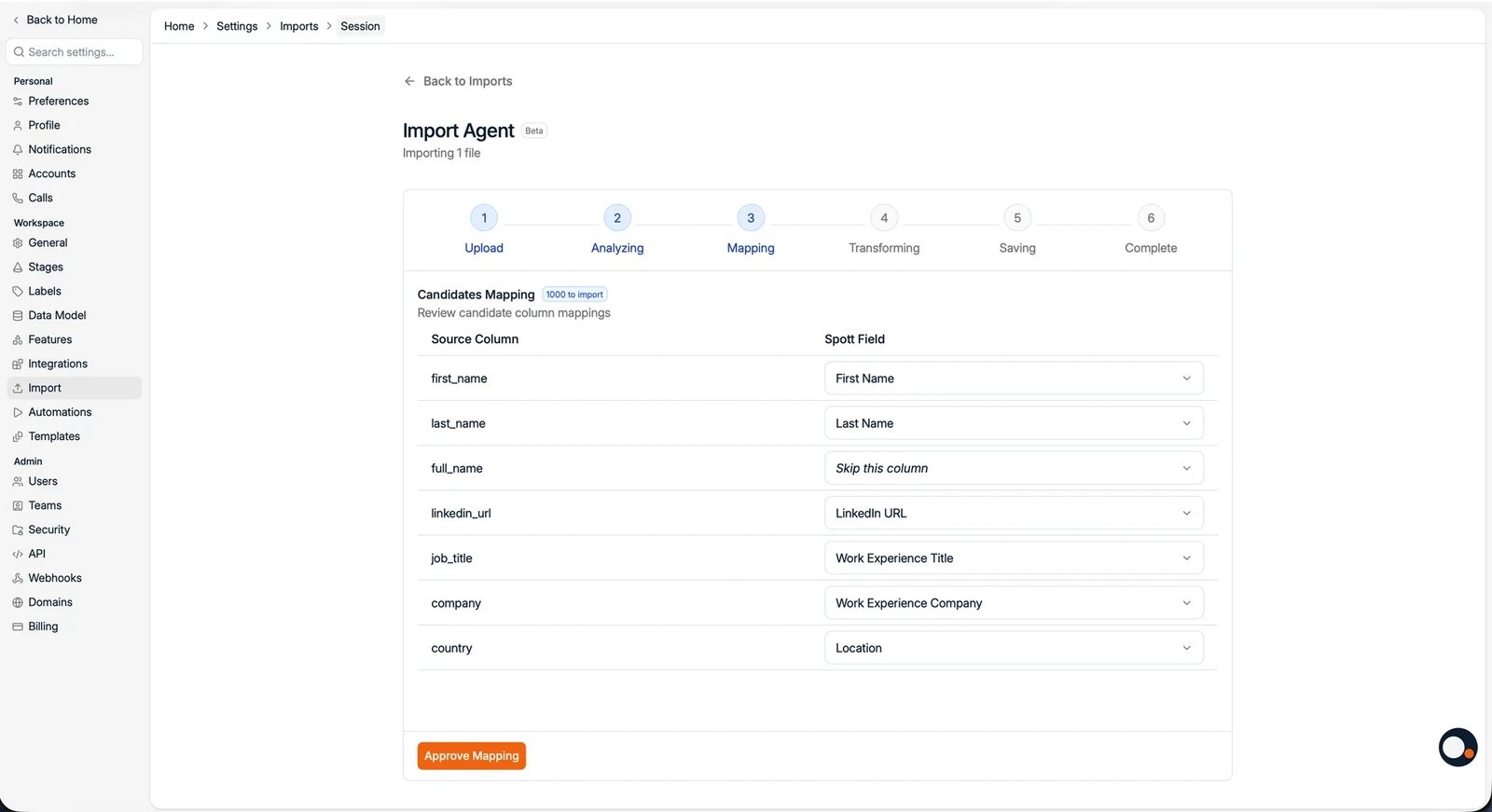
Spott reads your column names and sample data and **suggests a mapping for each
column automatically**. Review the suggestions and adjust where needed. For each
column you can:
* Accept the suggested Spott field
* Pick a different **Spott field**, including custom fields your workspace has configured
* Set a **fixed value** for all imported records
* **Skip the column** so it is not imported
Skipped and unmapped columns are ignored.
## Map columns to candidate attributes
Spott reads your column names and sample data and **suggests a mapping for each
column automatically**. Review the suggestions and adjust where needed. For each
column you can:
* Accept the suggested Spott field
* Pick a different **Spott field**, including custom fields your workspace has configured
* Set a **fixed value** for all imported records
* **Skip the column** so it is not imported
Skipped and unmapped columns are ignored.
 ## Complete the import
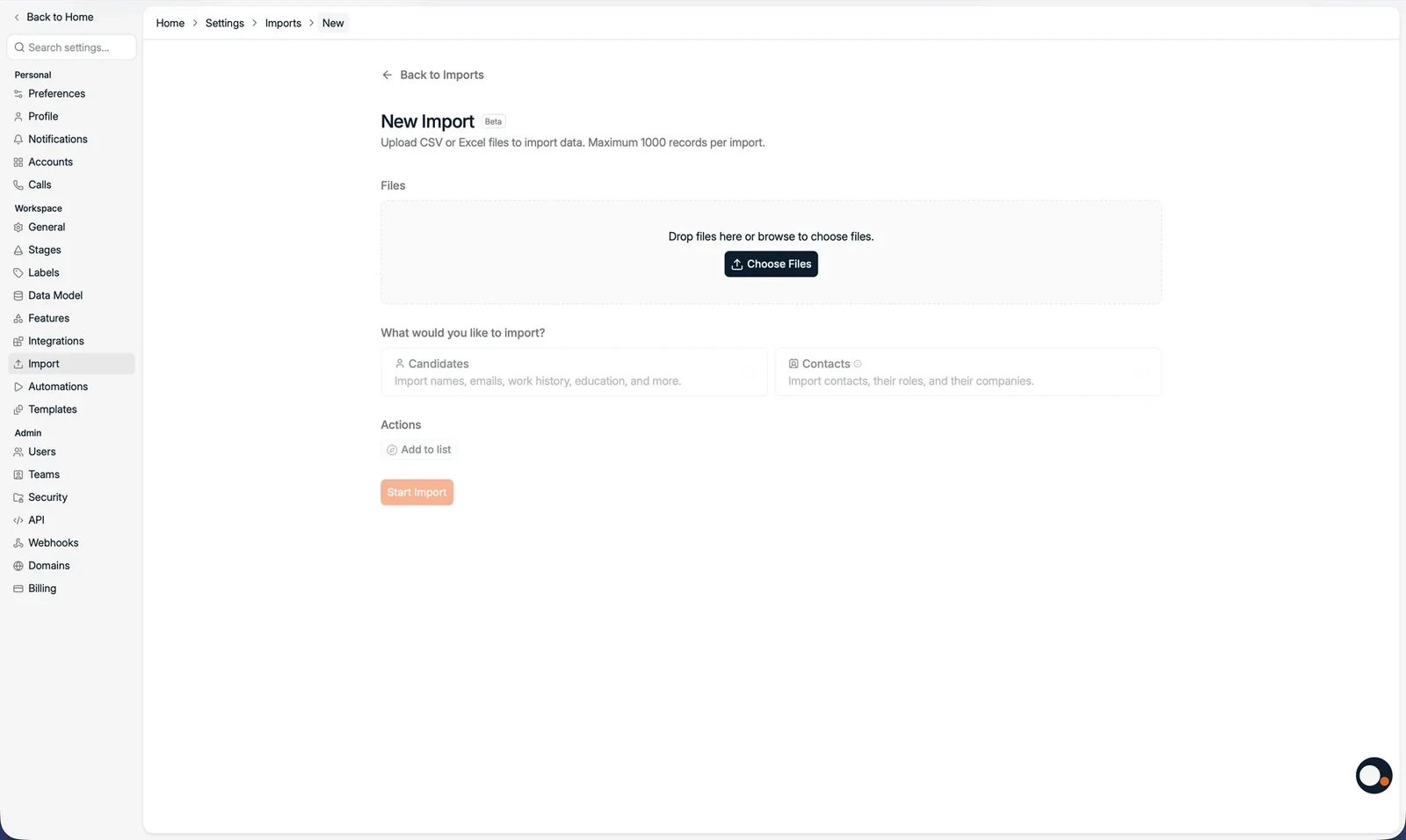
Before you start, choose whether the rows are **Candidates** or **Contacts**, and
optionally **add them all to a List or a Job** in the same step. Then confirm to start
the import. Spott creates a candidate
record for every row. After the import completes, your candidates appear on the
Candidates page and can be searched, filtered, exported, and added to Lists.
## Tips for successful imports
* Include at least one unique identifier per candidate. **Email or LinkedIn URL is
recommended**, so Spott can deduplicate against existing records.
* Map first name and last name for clean candidate records.
* Remove empty rows before uploading.
* Use UTF-8 encoding for CSV files for best compatibility.
* Double check email and phone mappings to avoid data landing in the wrong field.
* Importing a CSV into a job adds the candidates as applications, but **cannot set their
application status or add comments**. Set those in the pipeline after the import.
A LinkedIn URL column imports the link to the candidate's profile, not the profile
content itself. To pull in full LinkedIn profile data, use the
[Chrome extension](/docs/settings/chrome-extension)
or enrichment after the import.
## Complete the import
Before you start, choose whether the rows are **Candidates** or **Contacts**, and
optionally **add them all to a List or a Job** in the same step. Then confirm to start
the import. Spott creates a candidate
record for every row. After the import completes, your candidates appear on the
Candidates page and can be searched, filtered, exported, and added to Lists.
## Tips for successful imports
* Include at least one unique identifier per candidate. **Email or LinkedIn URL is
recommended**, so Spott can deduplicate against existing records.
* Map first name and last name for clean candidate records.
* Remove empty rows before uploading.
* Use UTF-8 encoding for CSV files for best compatibility.
* Double check email and phone mappings to avoid data landing in the wrong field.
* Importing a CSV into a job adds the candidates as applications, but **cannot set their
application status or add comments**. Set those in the pipeline after the import.
A LinkedIn URL column imports the link to the candidate's profile, not the profile
content itself. To pull in full LinkedIn profile data, use the
[Chrome extension](/docs/settings/chrome-extension)
or enrichment after the import.