> ## Documentation Index
> Fetch the complete documentation index at: https://docs.spott.io/llms.txt
> Use this file to discover all available pages before exploring further.
# Contact and Candidate Enrichment
> Automatically enrich Candidate and Contact profiles with email addresses and phone numbers using Spott's enrichment engine.
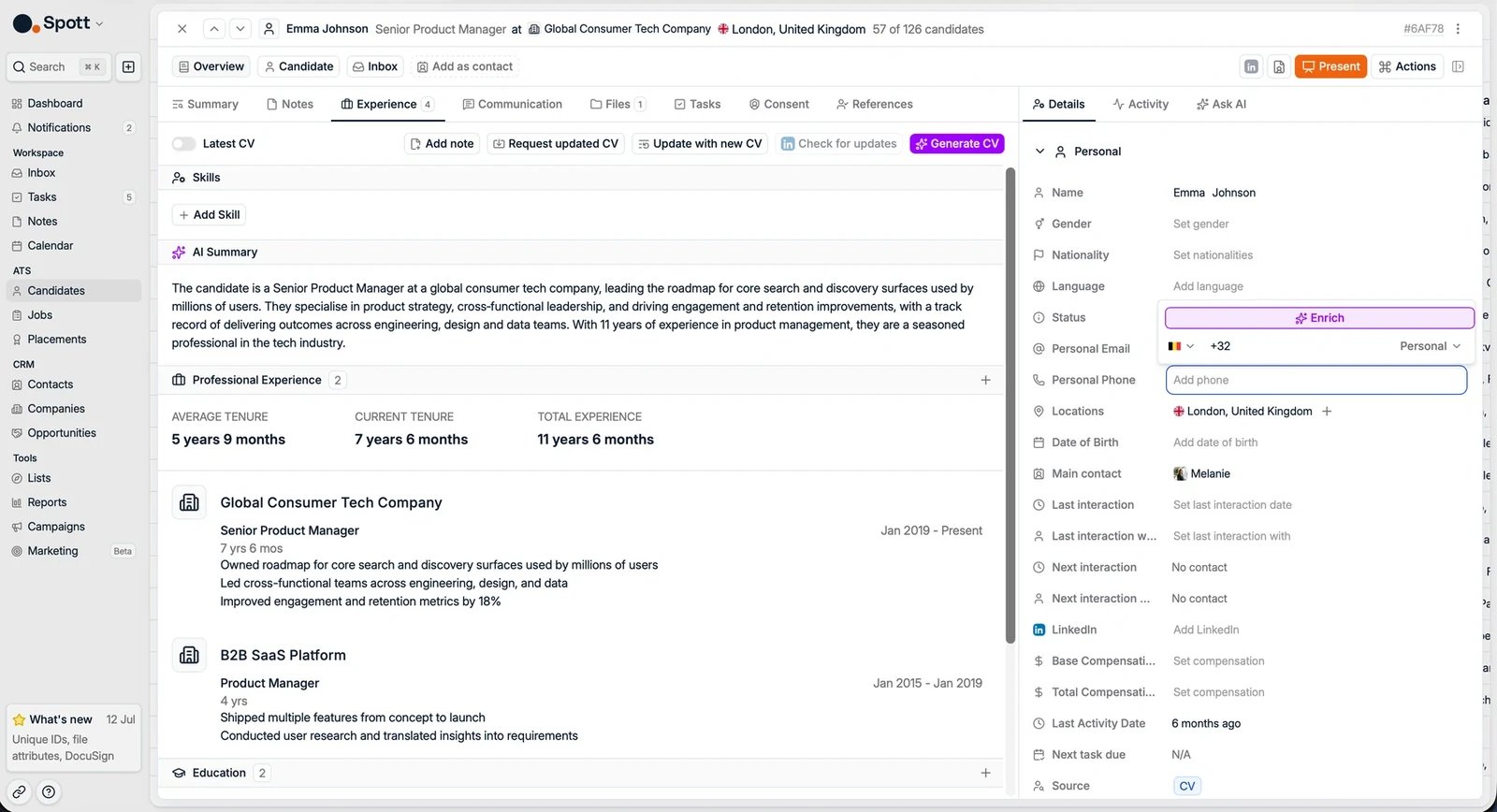 Enrichment in Spott completes Candidate and Contact profiles by automatically finding
missing email addresses, phone numbers, and LinkedIn URLs, or by updating a profile
from LinkedIn.
Spott uses a **waterfall enrichment system**: multiple data providers are tried until
data is found or all sources are exhausted, maximizing accuracy and coverage.
Enrichment uses credits, and credits are only deducted when enrichment is
successful. You can find credit pricing on the **Billing** page in Settings.
## Enable Profile Enrichment
1. Navigate to **Settings → Features**.
2. In the Enrichment section, toggle **Enable Profile Enrichment** on to allow
enrichment for Candidates and Contacts.
Enrichment in Spott completes Candidate and Contact profiles by automatically finding
missing email addresses, phone numbers, and LinkedIn URLs, or by updating a profile
from LinkedIn.
Spott uses a **waterfall enrichment system**: multiple data providers are tried until
data is found or all sources are exhausted, maximizing accuracy and coverage.
Enrichment uses credits, and credits are only deducted when enrichment is
successful. You can find credit pricing on the **Billing** page in Settings.
## Enable Profile Enrichment
1. Navigate to **Settings → Features**.
2. In the Enrichment section, toggle **Enable Profile Enrichment** on to allow
enrichment for Candidates and Contacts.
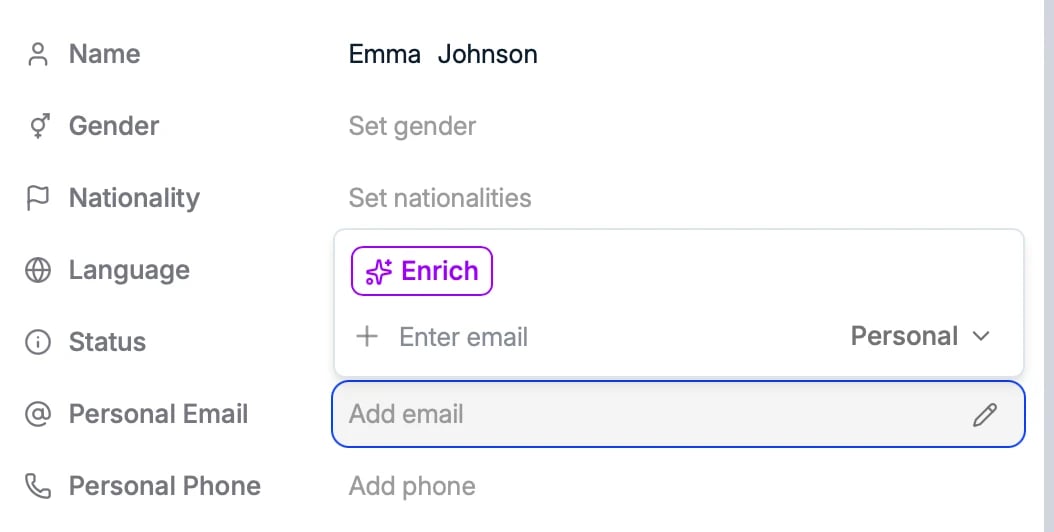
 ## Enrich an email, phone number, or LinkedIn URL
You can enrich profiles directly from both Candidates and Contacts:
1. Open a Candidate or Contact profile.
2. Click into an empty **email** or **phone number** field.
3. Click the purple **Enrich** button that appears.
4. Spott attempts to enrich the selected field.
## Enrich an email, phone number, or LinkedIn URL
You can enrich profiles directly from both Candidates and Contacts:
1. Open a Candidate or Contact profile.
2. Click into an empty **email** or **phone number** field.
3. Click the purple **Enrich** button that appears.
4. Spott attempts to enrich the selected field.
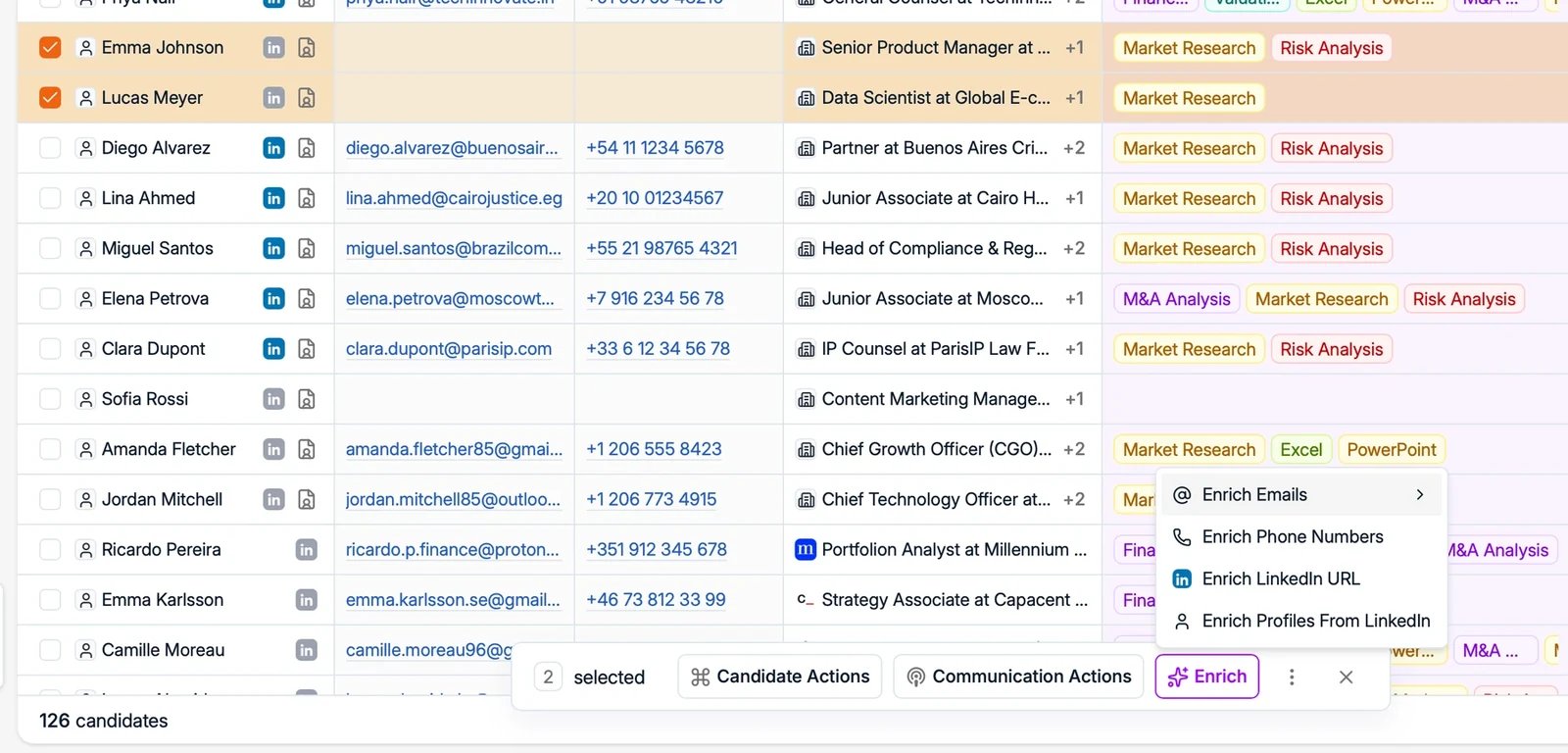 You can also enrich in **bulk** from the Candidates or Contacts table: select people
with the checkboxes and use the **Enrich** menu to enrich emails (personal, work, or
both), phone numbers, LinkedIn URLs, or full profiles from LinkedIn. Bulk enrichment
handles up to **1,000 candidates** at a time.
## Update a profile from LinkedIn
On the profile's **Experience** subtab, click **Check for updates** to refresh the
whole profile from LinkedIn. This can take a couple of minutes.
You can also let Spott do this automatically on a schedule. See
[auto-updating profiles](/docs/settings/auto-updating-profiles).
## Enrichment history
Review enrichment usage from **Settings → Features** by opening **Contact Enrichment
History**. You can see historical credit usage, which profiles were enriched, whether
enrichment succeeded, and how many credits were deducted. Use the **Export** button
to download the history for review.
## Credit costs
Credits are only deducted when enrichment succeeds. How many credits an enrichment
costs depends on what is found:
* **Work email**: 1 credit
* **Personal email**: 3 credits (personal emails come from a more expensive data source)
Phone number, LinkedIn URL, and full-profile enrichment have their own rates. You can
see the current pricing on the **Billing** page in Settings.
## Managing credits
If you need more enrichment credits, purchase them from **Settings → Billing**.
Credits are shared across features, such as enrichment and auto-update, and tracked
centrally in your workspace.
You can also enrich in **bulk** from the Candidates or Contacts table: select people
with the checkboxes and use the **Enrich** menu to enrich emails (personal, work, or
both), phone numbers, LinkedIn URLs, or full profiles from LinkedIn. Bulk enrichment
handles up to **1,000 candidates** at a time.
## Update a profile from LinkedIn
On the profile's **Experience** subtab, click **Check for updates** to refresh the
whole profile from LinkedIn. This can take a couple of minutes.
You can also let Spott do this automatically on a schedule. See
[auto-updating profiles](/docs/settings/auto-updating-profiles).
## Enrichment history
Review enrichment usage from **Settings → Features** by opening **Contact Enrichment
History**. You can see historical credit usage, which profiles were enriched, whether
enrichment succeeded, and how many credits were deducted. Use the **Export** button
to download the history for review.
## Credit costs
Credits are only deducted when enrichment succeeds. How many credits an enrichment
costs depends on what is found:
* **Work email**: 1 credit
* **Personal email**: 3 credits (personal emails come from a more expensive data source)
Phone number, LinkedIn URL, and full-profile enrichment have their own rates. You can
see the current pricing on the **Billing** page in Settings.
## Managing credits
If you need more enrichment credits, purchase them from **Settings → Billing**.
Credits are shared across features, such as enrichment and auto-update, and tracked
centrally in your workspace.