> ## Documentation Index
> Fetch the complete documentation index at: https://docs.spott.io/llms.txt
> Use this file to discover all available pages before exploring further.
# Adding candidates
> The ways to get candidates into Spott — CV upload, email forwarding, manual entry, LinkedIn, CSV, integrations, and the API — and when to use each.
Spott gives you several ways to add candidates. The right one depends on what you have
in hand: a CV, a list to bulk‑import, or a LinkedIn profile you're sourcing from.
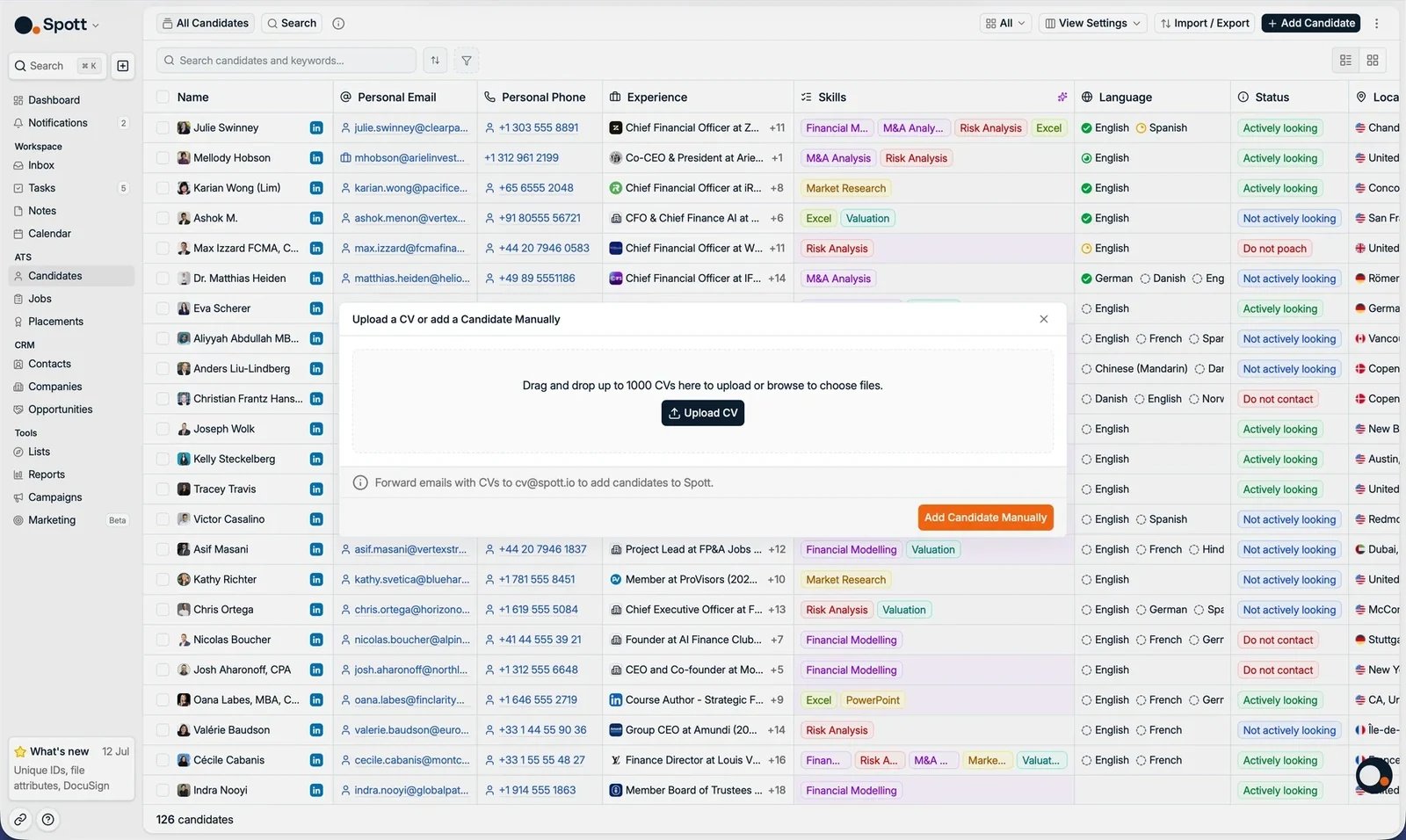
Open the **Candidates** page (shortcut: `G` then `A`) and click **Add Candidate** in the
top‑right. You'll see the upload dialog:
 ## Choose a method
Drag & drop one or many CVs — Spott parses them and pre‑fills the form for you to review.
Send CVs to `cv@spott.io` from your work email and Spott creates the candidates automatically.
Enter the details by hand — best when you only have a name or partial info.
Import a profile directly with the [Spott Chrome extension](/docs/settings/chrome-extension).
The first three are the day‑to‑day workflows. CSV import, sourcing integrations
(e.g. [Juicebox](/docs/integrations/juicebox), [Pin](/docs/integrations/pin)), and the
API cover bulk and programmatic cases.
## Upload a CV (drag‑and‑drop)
The fastest way when you have CVs in hand. Spott parses each CV and drops you into the
candidate form with the fields already filled in.
On the Candidates page, click **Add Candidate**.
Drag files onto the drop zone, or click **Upload CV** to browse. You can add
**up to 1,000 CVs at once**.
Spott extracts what it can — name, email, phone, LinkedIn URL, work experience,
education, and certifications — and pre‑fills the form across the **Basic
attributes**, **Experience**, **Education**, and **Certificates** tabs. Correct
anything that needs it.
## Choose a method
Drag & drop one or many CVs — Spott parses them and pre‑fills the form for you to review.
Send CVs to `cv@spott.io` from your work email and Spott creates the candidates automatically.
Enter the details by hand — best when you only have a name or partial info.
Import a profile directly with the [Spott Chrome extension](/docs/settings/chrome-extension).
The first three are the day‑to‑day workflows. CSV import, sourcing integrations
(e.g. [Juicebox](/docs/integrations/juicebox), [Pin](/docs/integrations/pin)), and the
API cover bulk and programmatic cases.
## Upload a CV (drag‑and‑drop)
The fastest way when you have CVs in hand. Spott parses each CV and drops you into the
candidate form with the fields already filled in.
On the Candidates page, click **Add Candidate**.
Drag files onto the drop zone, or click **Upload CV** to browse. You can add
**up to 1,000 CVs at once**.
Spott extracts what it can — name, email, phone, LinkedIn URL, work experience,
education, and certifications — and pre‑fills the form across the **Basic
attributes**, **Experience**, **Education**, and **Certificates** tabs. Correct
anything that needs it.
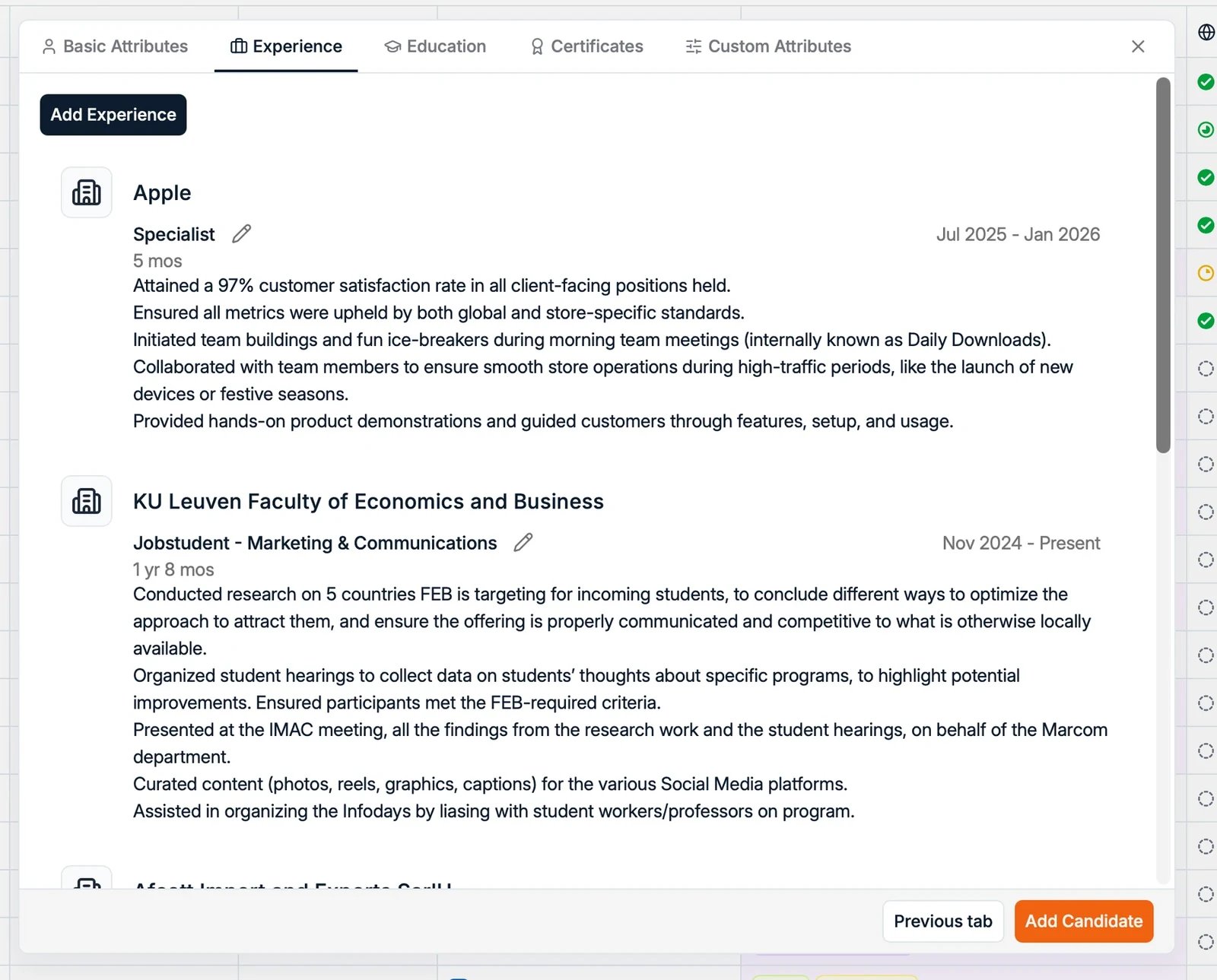 Click **Add All Candidates**. They now appear in your database.
CV upload is a **supervised** flow: you always review the parsed values before saving.
If you'd rather skip the review step, forward the CV by email instead (below).
## Forward CVs by email
Forward CVs as email attachments to `cv@spott.io` and Spott parses them and creates the
candidate records — no need to log in.
**Forward from your work email** — the address you use to sign in to Spott. That address
is how Spott knows which workspace the candidate belongs to. Forwarding from a personal
address won't work.
This is an **unsupervised** flow — there's no review step, so an occasional field may be
missed. You'll always get an email back if something goes wrong:
The email arrived without a CV attachment. Reply‑forward with the file attached.
The file was corrupted or image‑only without recognizable text. Re‑export a clean PDF and resend.
The CV's email, phone, or LinkedIn URL points to two different existing records, so
Spott can't safely deduplicate. It surfaces the conflict instead of guessing — resolve
it in the app. See [deduplication](/docs/candidates/managing-candidates).
## Add a candidate manually
Best when you have only a name, an email, or partial information — no CV.
Click **Add Candidate**, then **Add Candidate Manually**.
Enter name, email, phone, and location, then add **experience**, **education**, and any
custom fields your workspace has configured.
The candidate is created and added to your database.
## Other ways to add candidates
Import candidates and companies straight from a LinkedIn profile or search.
Bulk‑upload a list of candidates from a spreadsheet.
Push candidates from connected tools like Juicebox or Pin directly into Spott.
Insert candidates programmatically via the Spott API.
## Good to know
* **Duplicates are handled for you.** Spott deduplicates on email, phone, and LinkedIn URL,
so re‑adding someone enriches the existing profile rather than creating a copy. See
[managing candidates](/docs/candidates/managing-candidates).
* **Keep profiles complete.** Fuller profiles improve search accuracy and matching results.
Click **Add All Candidates**. They now appear in your database.
CV upload is a **supervised** flow: you always review the parsed values before saving.
If you'd rather skip the review step, forward the CV by email instead (below).
## Forward CVs by email
Forward CVs as email attachments to `cv@spott.io` and Spott parses them and creates the
candidate records — no need to log in.
**Forward from your work email** — the address you use to sign in to Spott. That address
is how Spott knows which workspace the candidate belongs to. Forwarding from a personal
address won't work.
This is an **unsupervised** flow — there's no review step, so an occasional field may be
missed. You'll always get an email back if something goes wrong:
The email arrived without a CV attachment. Reply‑forward with the file attached.
The file was corrupted or image‑only without recognizable text. Re‑export a clean PDF and resend.
The CV's email, phone, or LinkedIn URL points to two different existing records, so
Spott can't safely deduplicate. It surfaces the conflict instead of guessing — resolve
it in the app. See [deduplication](/docs/candidates/managing-candidates).
## Add a candidate manually
Best when you have only a name, an email, or partial information — no CV.
Click **Add Candidate**, then **Add Candidate Manually**.
Enter name, email, phone, and location, then add **experience**, **education**, and any
custom fields your workspace has configured.
The candidate is created and added to your database.
## Other ways to add candidates
Import candidates and companies straight from a LinkedIn profile or search.
Bulk‑upload a list of candidates from a spreadsheet.
Push candidates from connected tools like Juicebox or Pin directly into Spott.
Insert candidates programmatically via the Spott API.
## Good to know
* **Duplicates are handled for you.** Spott deduplicates on email, phone, and LinkedIn URL,
so re‑adding someone enriches the existing profile rather than creating a copy. See
[managing candidates](/docs/candidates/managing-candidates).
* **Keep profiles complete.** Fuller profiles improve search accuracy and matching results.