> ## Documentation Index
> Fetch the complete documentation index at: https://docs.spott.io/llms.txt
> Use this file to discover all available pages before exploring further.
# Set Up your Scheduler
> Share booking links so candidates and contacts can book meetings directly into your calendar, each with its own availability and rules.
The scheduler lets others book time with you without back-and-forth coordination.
Your availability is continuously updated based on your connected calendar and your
booking rules.
## Make sure Outlook or Google are synced with Spott
In Spott, go to **Settings → Accounts**, find the **Microsoft Outlook** or **Google**
integration, and make sure one of them is connected. Spott generates your available
time slots from this calendar.
## Enable the calendar scheduler
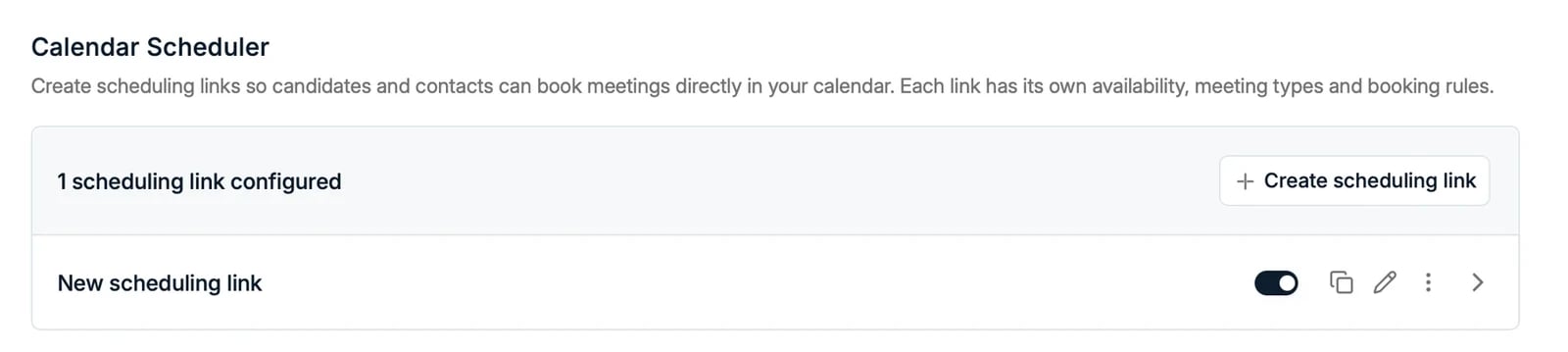 Go to **Settings → Calls** and open the **Scheduler** section:
* Toggle **Enable Spott Calendar Scheduler** on.
* Copy your booking link and share it with anyone who should be able to schedule
time with you.
You can add your link automatically when composing an email in Spott with **Insert
calendar scheduler link**.
## Create scheduling links for different meeting types
You can create multiple **scheduling links**, each with its own availability, meeting
types, and booking rules. For example, a 15-minute intro call and a 1-hour interview,
each bookable on different days.
Click **Create scheduling link** and configure per link:
* **Meeting duration** and slot interval
* **Maximum days in future**: how far ahead someone can book
* **Minimum booking notice**: how much advance notice is required
* **Minimum booking buffer**: the gap required before and after other meetings
* **Weekly availability**: one or multiple time slots per day; leave a day empty to
not appear available
Go to **Settings → Calls** and open the **Scheduler** section:
* Toggle **Enable Spott Calendar Scheduler** on.
* Copy your booking link and share it with anyone who should be able to schedule
time with you.
You can add your link automatically when composing an email in Spott with **Insert
calendar scheduler link**.
## Create scheduling links for different meeting types
You can create multiple **scheduling links**, each with its own availability, meeting
types, and booking rules. For example, a 15-minute intro call and a 1-hour interview,
each bookable on different days.
Click **Create scheduling link** and configure per link:
* **Meeting duration** and slot interval
* **Maximum days in future**: how far ahead someone can book
* **Minimum booking notice**: how much advance notice is required
* **Minimum booking buffer**: the gap required before and after other meetings
* **Weekly availability**: one or multiple time slots per day; leave a day empty to
not appear available
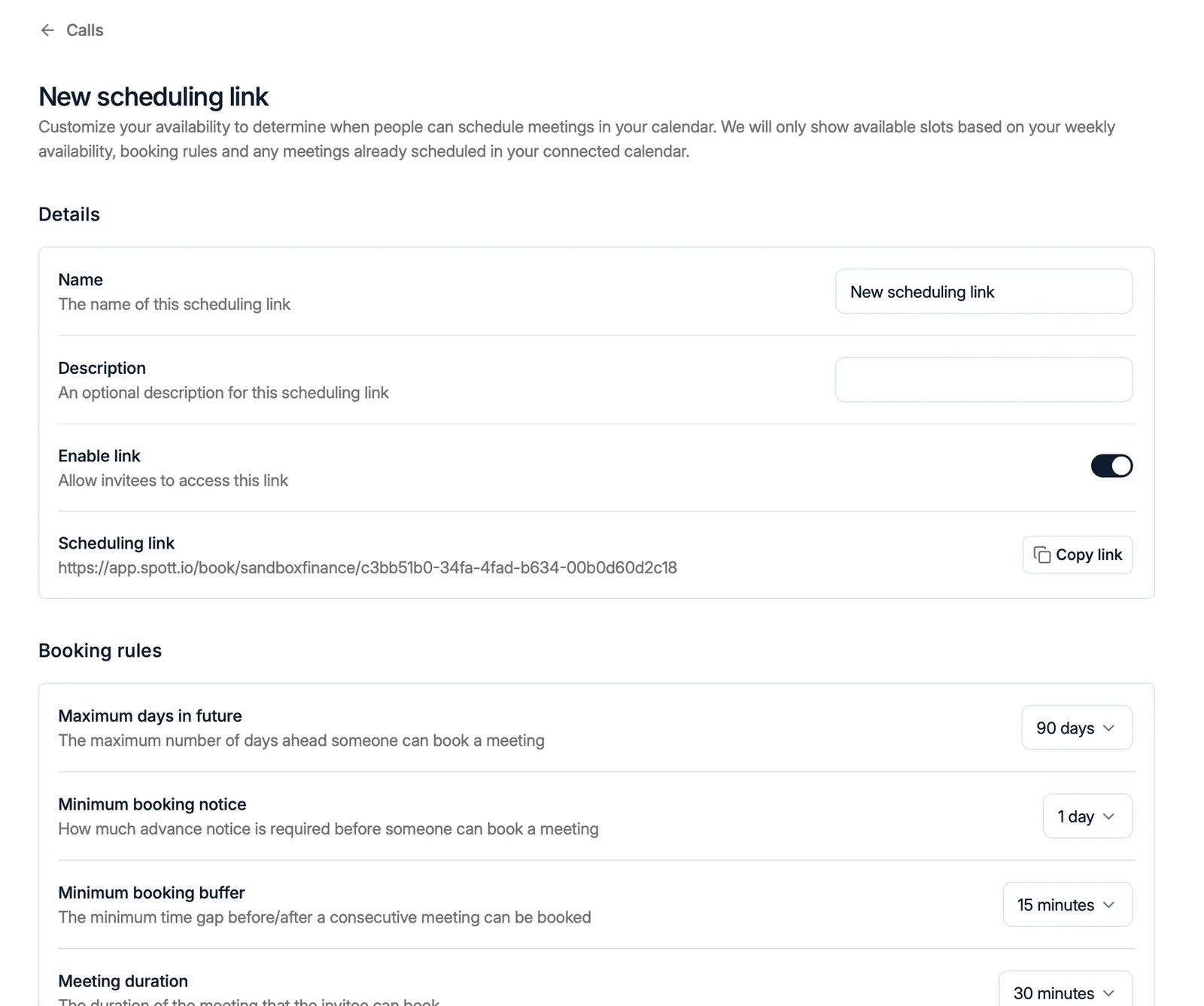 Each link can be enabled or disabled individually.
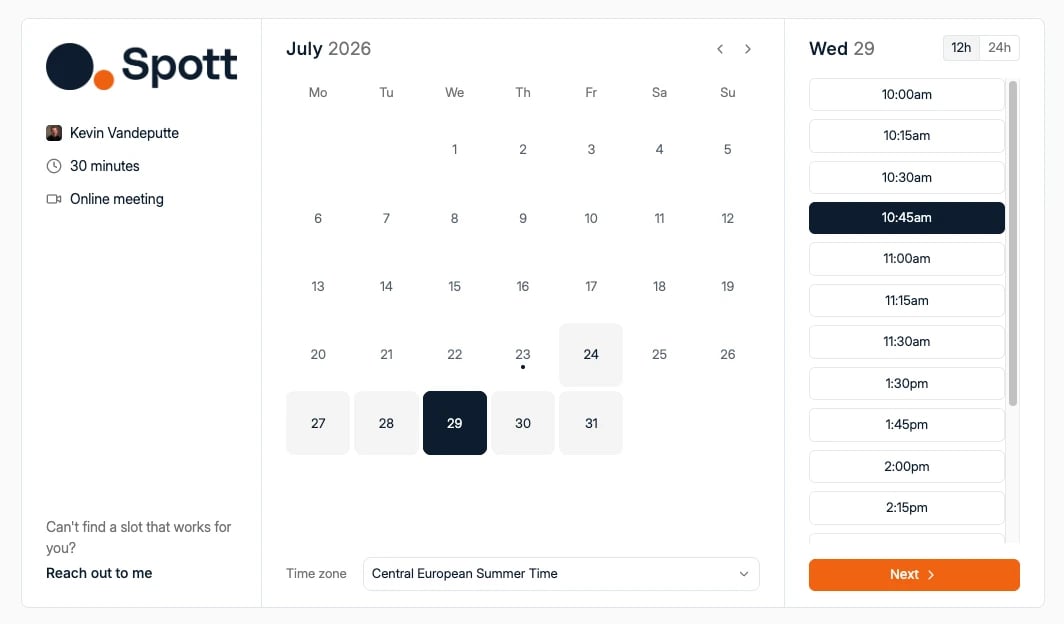 The meeting link matches your **primary connected account**: Outlook generates a
Teams link, Google generates a Meet link. A Zoom link is never generated, though the
[Note Taker](/docs/notes/note-taker) can still join a Zoom meeting it is invited to.
Availability comes from your calendar. Events marked **Busy** or **Out of office**
block a slot; **Free** and **Tentative** do not. If your link shows little
availability, check for an all-day event marked Busy and set it to Free instead.
## Share your booking link
Anyone using your link only sees time slots that are free according to your connected
calendar and the link's booking rules. Bookings land directly in your calendar and
are linked to the right records in Spott.
The meeting link matches your **primary connected account**: Outlook generates a
Teams link, Google generates a Meet link. A Zoom link is never generated, though the
[Note Taker](/docs/notes/note-taker) can still join a Zoom meeting it is invited to.
Availability comes from your calendar. Events marked **Busy** or **Out of office**
block a slot; **Free** and **Tentative** do not. If your link shows little
availability, check for an all-day event marked Busy and set it to Free instead.
## Share your booking link
Anyone using your link only sees time slots that are free according to your connected
calendar and the link's booking rules. Bookings land directly in your calendar and
are linked to the right records in Spott.