> ## Documentation Index
> Fetch the complete documentation index at: https://docs.spott.io/llms.txt
> Use this file to discover all available pages before exploring further.
# Calendar
> View your calendar, schedule meetings, and reschedule, cancel, or review events, all synced with Outlook or Google.
You can quickly navigate to the Calendar with `G` then `C`. See all
[keyboard shortcuts](/docs/settings/keyboard-shortcuts).
## Make sure Outlook or Google are synced with Spott
Before scheduling a meeting, ensure your Outlook or Google account is synced.
In Spott, go to **Settings → Accounts**, find the **Microsoft Outlook** or **Google**
integration, and make sure one of them is connected.
**First-time sync takes time.** Spott syncs years of calendar and email history, which
typically takes **8 to 12 hours**. Your calendar can look empty during this window, so
give it time and check again the next day. After the initial sync, changes appear in
near real time.
**Connection problems?** Spott requests read and write access to your calendar and
email. In enterprise Microsoft or Google tenants, that usually needs **IT admin
approval**, which is the most common cause of connection failures. If you hit an error
on the consent screen, ask your admin to approve Spott for the organization.
## The Calendar page
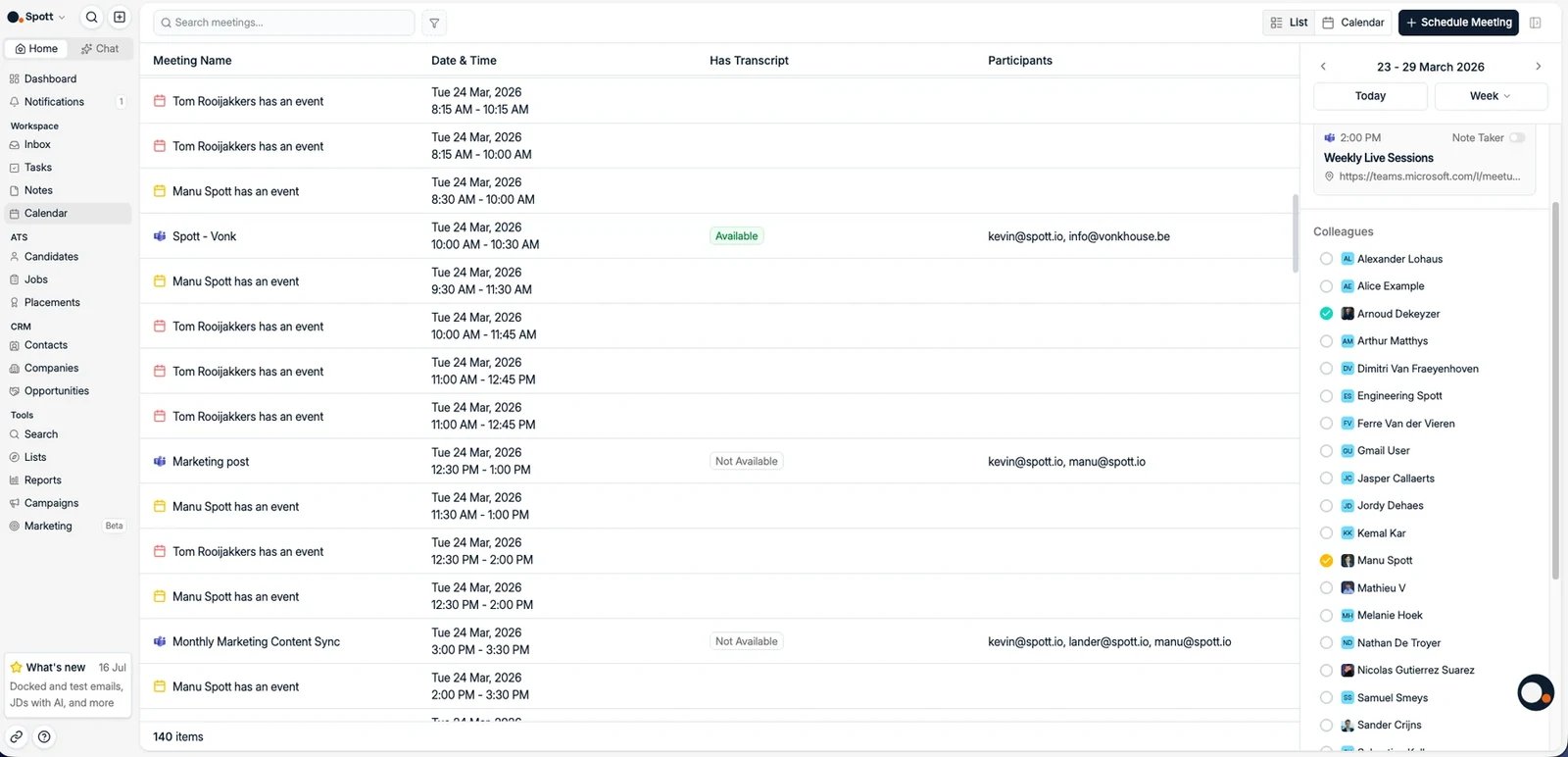
The Calendar shows your meetings in a list or calendar view. The sidebar shows your
**upcoming meetings**, and you can display **teammates' calendars** next to yours to
simplify scheduling. From the calendar you can also **reschedule or cancel** invites
directly.
## Schedule a new meeting
Click **Schedule Meeting** in the top right corner, or double-click (or click and
drag) a time slot in the calendar, like in your native calendar client.
 In the meeting dialog, make sure **Send calendar invite** is toggled on, as well as
**Online meeting** if you plan to meet via Microsoft Teams or Google Meet. The
meeting URL is created on the platform of your primary email account.
In the meeting dialog, make sure **Send calendar invite** is toggled on, as well as
**Online meeting** if you plan to meet via Microsoft Teams or Google Meet. The
meeting URL is created on the platform of your primary email account.
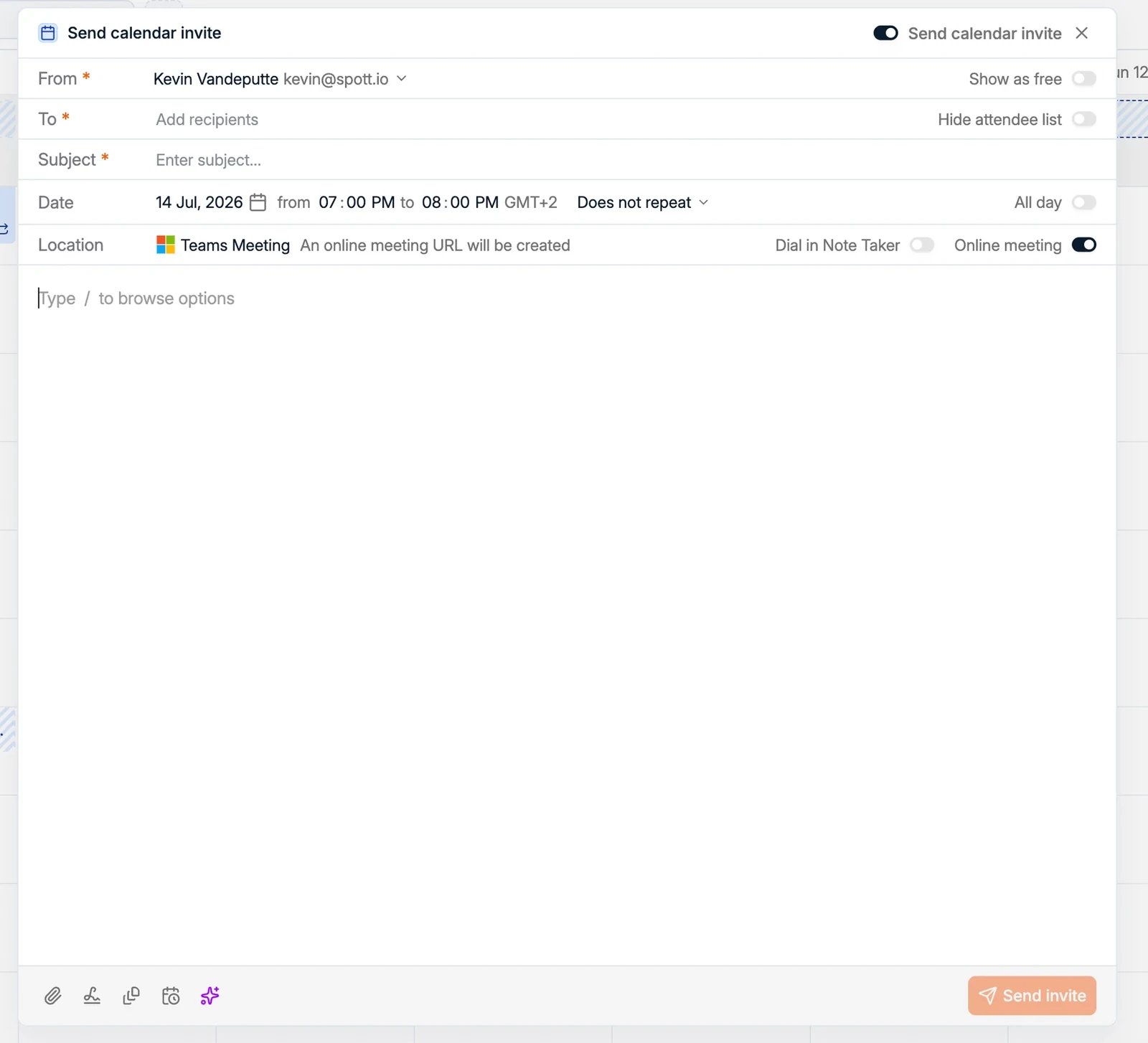 Set the parameters before sending the meeting request:
* **Recipients**: the people to meet with.
* **Subject** and **email body**.
* **Date and time**, with options to **repeat** the meeting or mark it as **All day**.
* **Location**: a physical location, or an **online meeting**. With online meeting on,
Spott creates the Microsoft Teams or Google Meet URL for you on your primary email
account's platform.
* **Show as free**: keep the slot open on your calendar instead of marking it busy.
* **Hide attendee list**: send the invite without showing recipients each other.
* **Dial in Note Taker**: have the [Note Taker](/docs/notes/note-taker) join the
online meeting to record and summarize it.
You can also use the toolbar to insert your signature, start from an email template,
add your scheduler link, or use AI to pitch a candidate or job.
## Manage an event
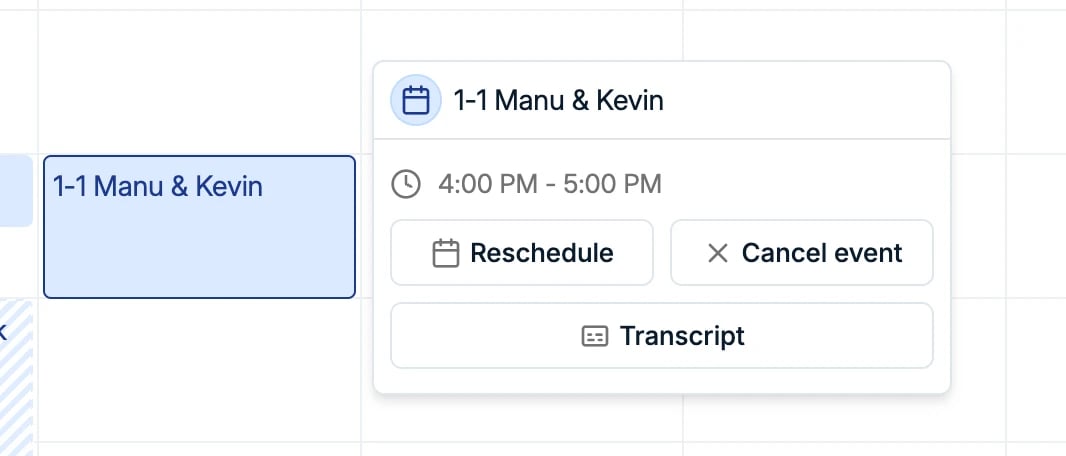
Click an event in the calendar to open its details, where you can:
* **Reschedule**: change the date or time and send the update to attendees.
* **Cancel event**: cancel the meeting and notify attendees.
* **Transcript**: open the [Note Taker](/docs/notes/note-taker) transcript and
summary for a meeting that was recorded.
Set the parameters before sending the meeting request:
* **Recipients**: the people to meet with.
* **Subject** and **email body**.
* **Date and time**, with options to **repeat** the meeting or mark it as **All day**.
* **Location**: a physical location, or an **online meeting**. With online meeting on,
Spott creates the Microsoft Teams or Google Meet URL for you on your primary email
account's platform.
* **Show as free**: keep the slot open on your calendar instead of marking it busy.
* **Hide attendee list**: send the invite without showing recipients each other.
* **Dial in Note Taker**: have the [Note Taker](/docs/notes/note-taker) join the
online meeting to record and summarize it.
You can also use the toolbar to insert your signature, start from an email template,
add your scheduler link, or use AI to pitch a candidate or job.
## Manage an event
Click an event in the calendar to open its details, where you can:
* **Reschedule**: change the date or time and send the update to attendees.
* **Cancel event**: cancel the meeting and notify attendees.
* **Transcript**: open the [Note Taker](/docs/notes/note-taker) transcript and
summary for a meeting that was recorded.
 ## Share your booking link
You can also let others book time with you directly, based on your availability. Set
up your booking links under **Settings → Calls → Scheduler**, and insert them into
emails with **Insert calendar scheduler link**. See
[setting up your scheduler](/docs/calendar/scheduler).
## Share your booking link
You can also let others book time with you directly, based on your availability. Set
up your booking links under **Settings → Calls → Scheduler**, and insert them into
emails with **Insert calendar scheduler link**. See
[setting up your scheduler](/docs/calendar/scheduler).